In the mobile app: the My Profile tab (bottom right).

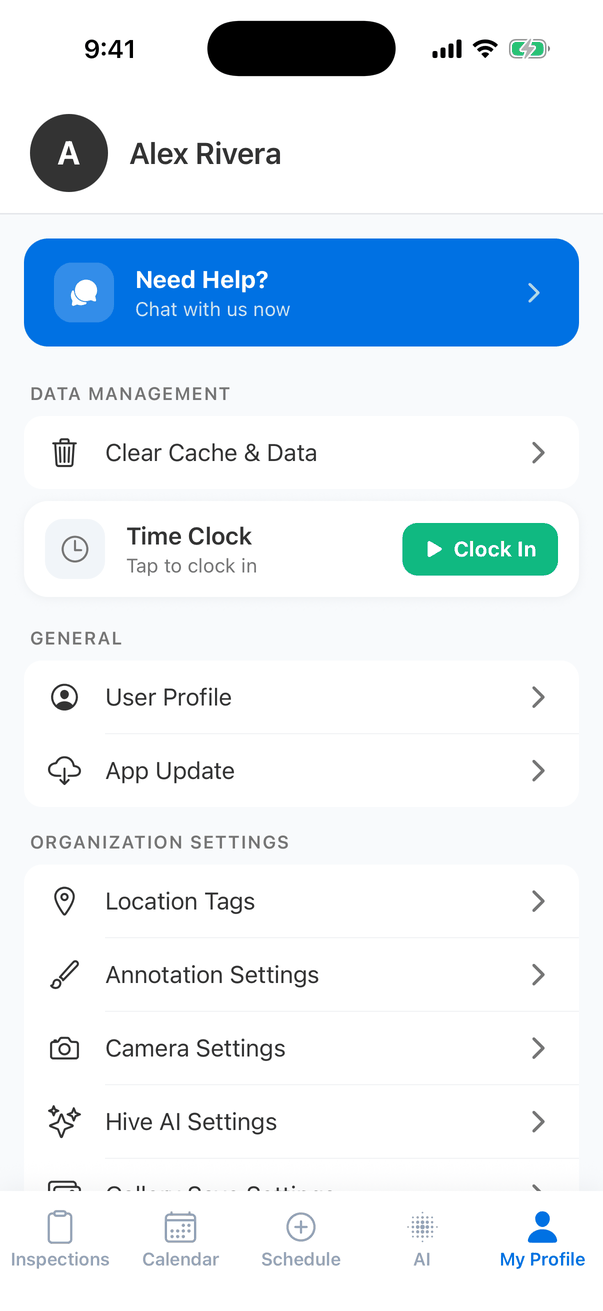
My Profile holds your app settings, support, the Time Clock and sign out. Most settings change how the app works on this phone only. Two of them, Location Tags and Annotation Settings, apply to everyone in your company. The My Profile tab: the avatar A and the name Alex Rivera, a blue Need Help? Chat with us now button, Data Management with Clear Cache & Data, a Time Clock card reading Tap to clock in with a green Clock In button, General with User Profile and App Update, and the start of Organization Settings with Location Tags, Annotation Settings, Camera Settings and Hive AI Settings
Everything on My Profile

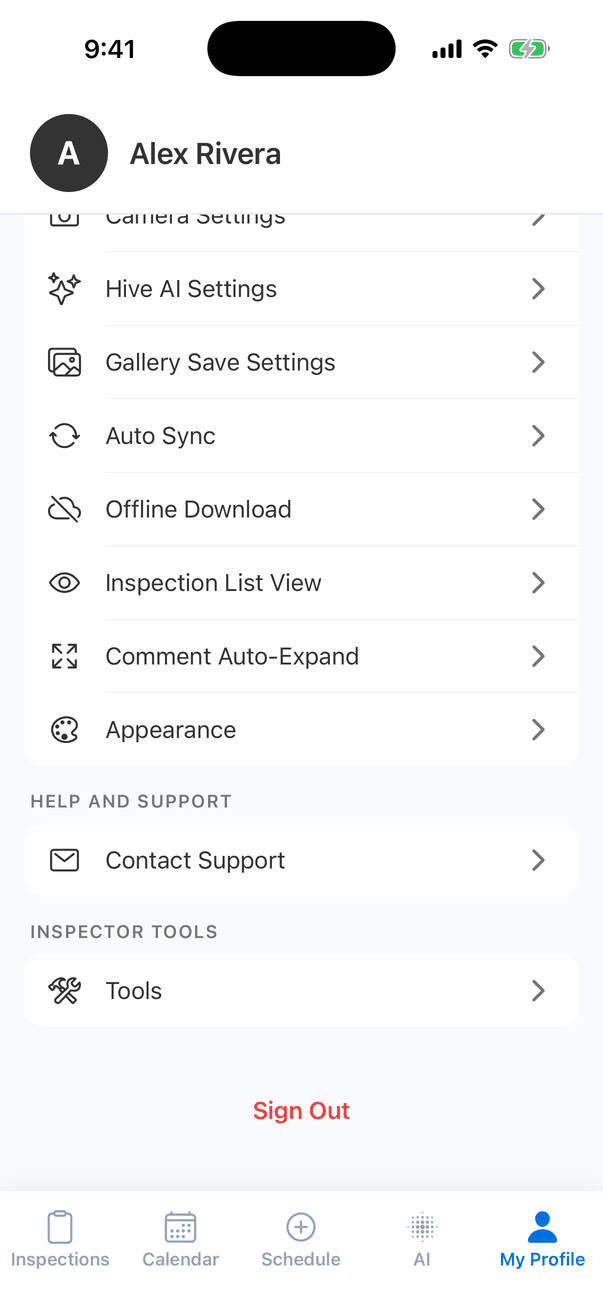
“This phone” settings stay on the phone, even after you sign out, and apply to whoever signs in on it next. Set them again on a new phone. The lower part of My Profile: Camera Settings, Hive AI Settings, Gallery Save Settings, Auto Sync, Offline Download, Inspection List View, Comment Auto-Expand and Appearance, then Help and Support with Contact Support, Inspector Tools with Tools, and a red Sign Out link
Company-wide settings

Location Tags

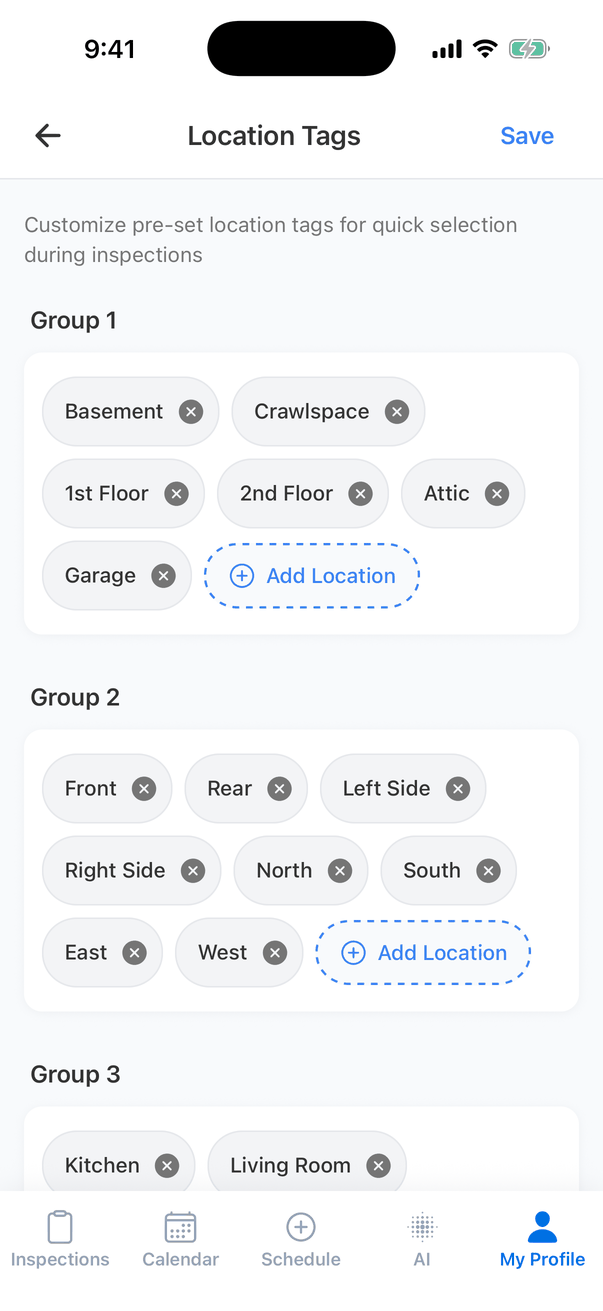
The Location Tags screen: Customize pre-set location tags for quick selection during inspections, a Save button, and three groups of tags, each tag with an x: Group 1 Basement, Crawlspace, 1st Floor, 2nd Floor, Attic, Garage with + Add Location; Group 2 Front, Rear, Left Side, Right Side, North, South, East, West with + Add Location; and Group 3 starting with Kitchen and Living Room The tags in the Select Location Tags screen come from here, in three groups, for example floors, sides of the house and rooms.
  • Tap + Add Location, type the tag and tap the tick to add one.
  • Tap the x on a tag to remove it.
  • Tap Save at the top. The new list applies to everyone in your company.
You can also manage location tags on the dashboard in Organization Settings.

Annotation Settings

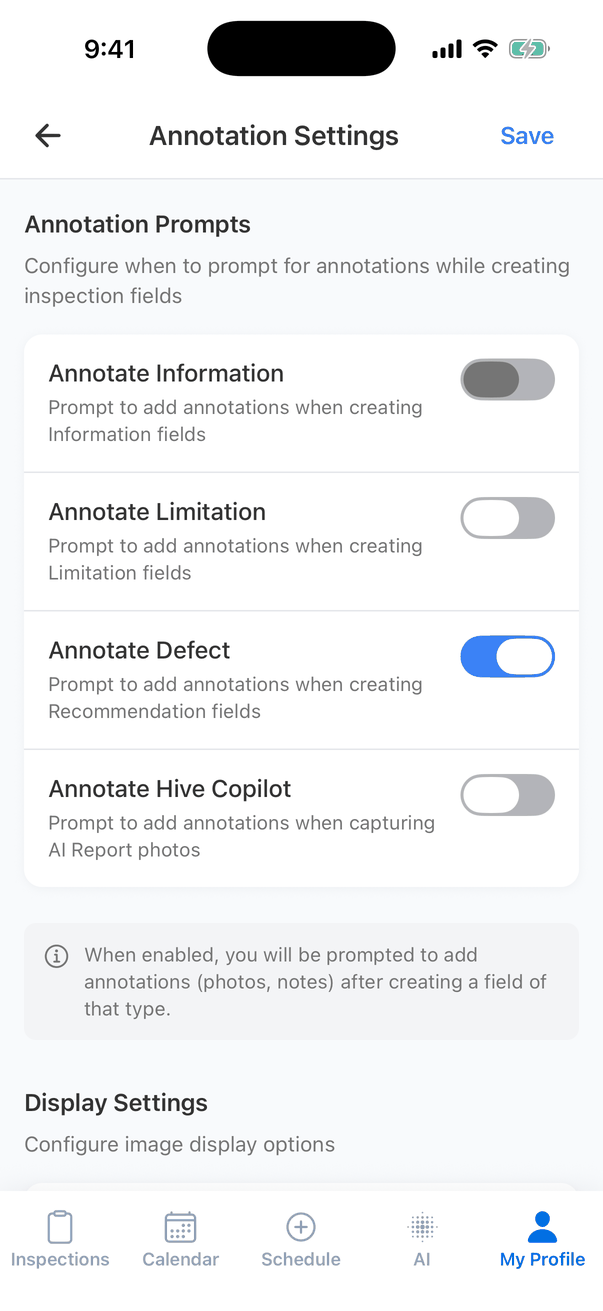
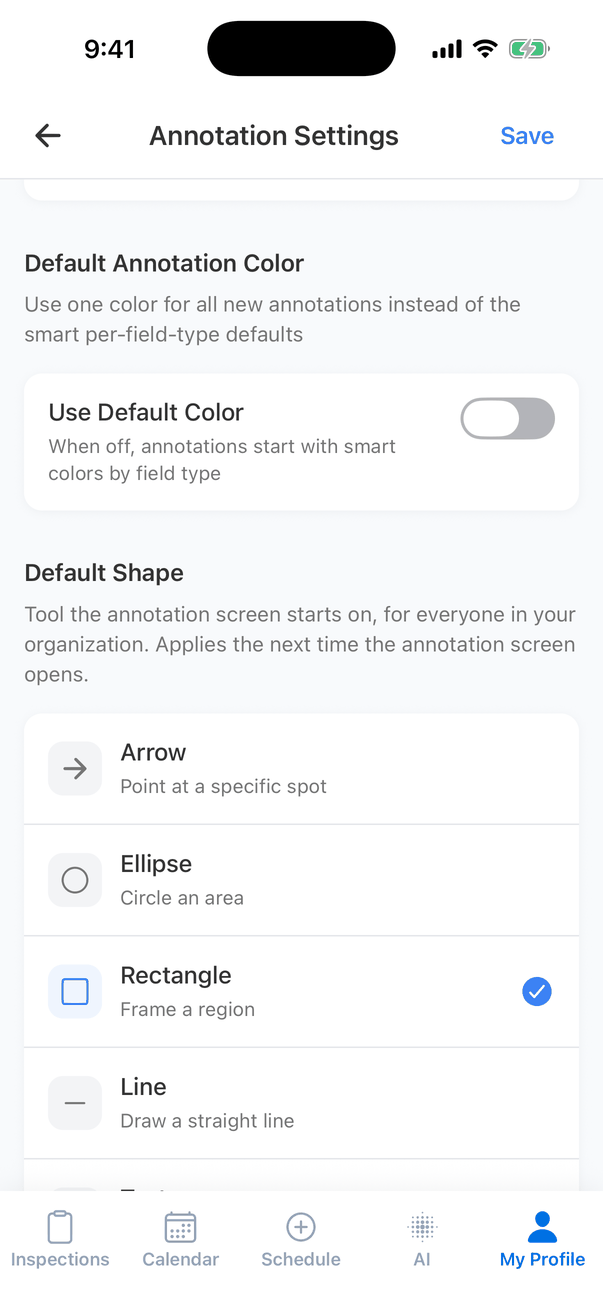
Annotation Settings: Annotation Prompts, Configure when to prompt for annotations while creating inspection fields, with switches Annotate Information (off), Annotate Limitation (off), Annotate Defect (on) and Annotate Hive Copilot (off), and a Save button at the top Tap Save at the top. These apply to everyone in your company, in the app and on the dashboard. The lower part of Annotation Settings: Default Annotation Color with Use Default Color turned off (When off, annotations start with smart colors by field type), and Default Shape: Tool the annotation screen starts on, for everyone in your organization, with Arrow (Point at a specific spot), Ellipse (Circle an area), Rectangle (Frame a region, ticked) and Line (Draw a straight line)
Phone-only settings

These save as soon as you change them. Most have Restore Defaults at the bottom.

Camera Settings

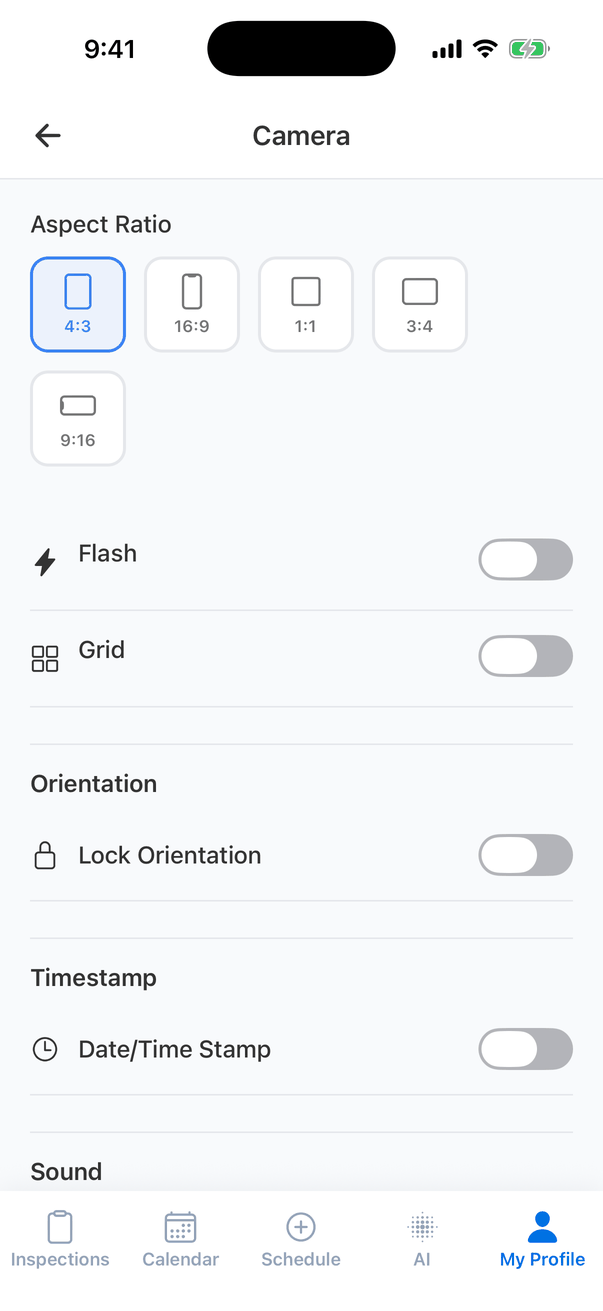
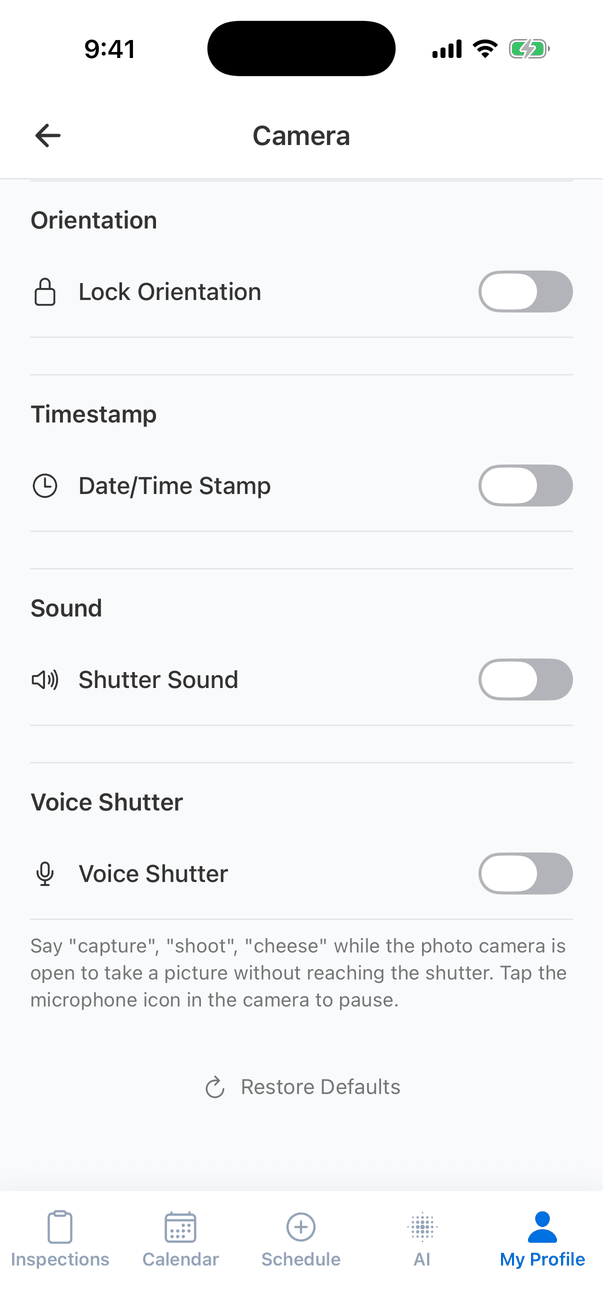
Camera settings: Aspect Ratio with 4:3 (selected), 16:9, 1:1, 3:4 and 9:16, Flash off, Grid off, Orientation with Lock Orientation off, Timestamp with Date/Time Stamp off, and the start of Sound The lower part of Camera settings: Lock Orientation, Date/Time Stamp and Shutter Sound turned off, and Voice Shutter turned off, with the note Say capture, shoot, cheese while the photo camera is open to take a picture without reaching the shutter. Tap the microphone icon in the camera to pause. A Restore Defaults button

Hive AI Settings

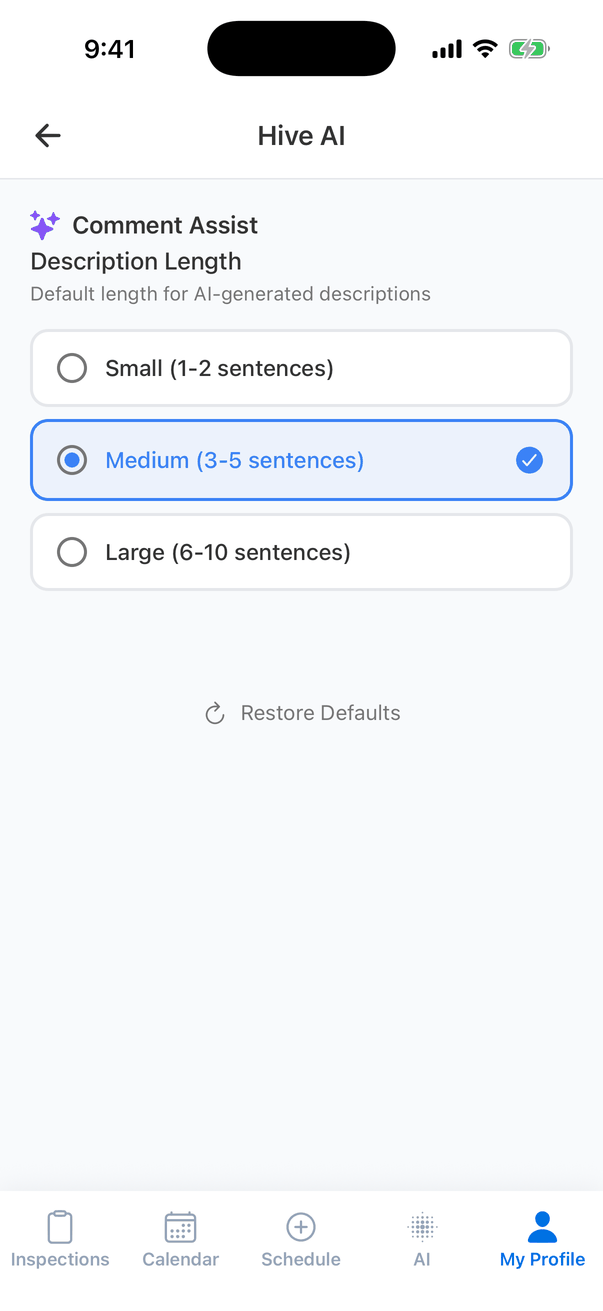
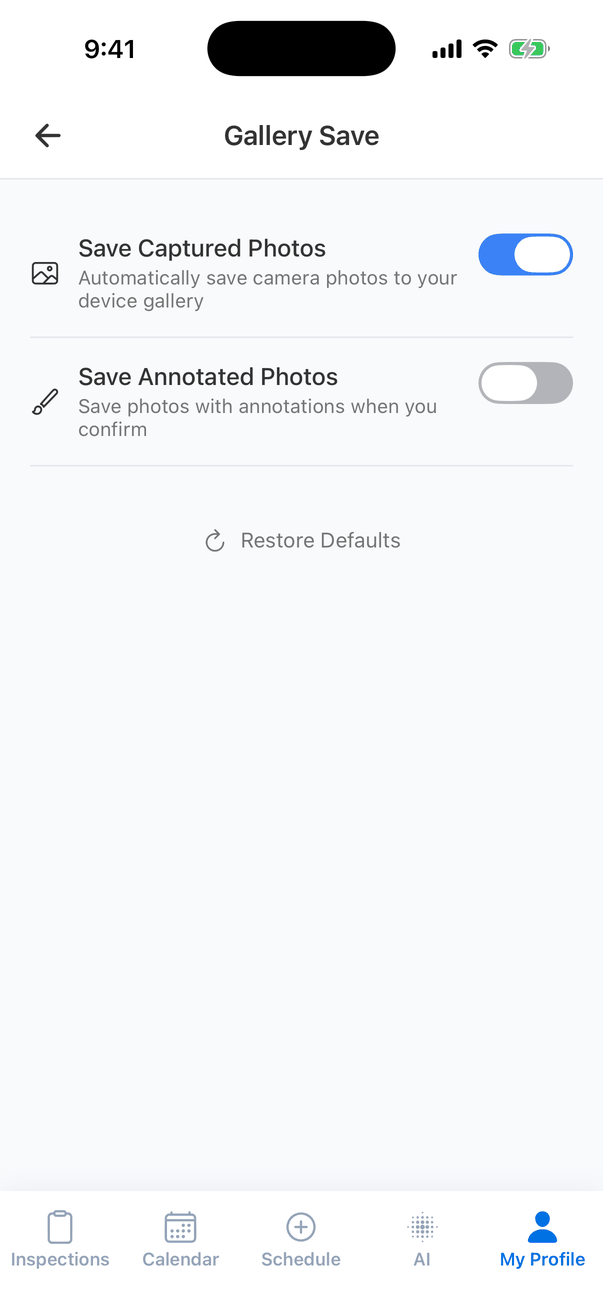
Hive AI settings: Comment Assist, Description Length, Default length for AI-generated descriptions, with Small (1-2 sentences), Medium (3-5 sentences, selected) and Large (6-10 sentences), and Restore Defaults Description Length sets how long Hive Comment Assist writes descriptions by default: Small (1-2 sentences), Medium (3-5) or Large (6-10). You can still change it each time you generate. Gallery Save settings: Save Captured Photos (Automatically save camera photos to your device gallery) turned on, Save Annotated Photos (Save photos with annotations when you confirm) turned off, and Restore Defaults
  • Save Captured Photos (on by default): every photo you take with the Hive camera is also saved to your phone’s photo library, as a backup until the report syncs. Turning it off makes the app warn you: if your phone dies or runs out of memory before syncing, you could lose photos.
  • Save Annotated Photos: also saves a copy with your annotations drawn on.

Auto Sync
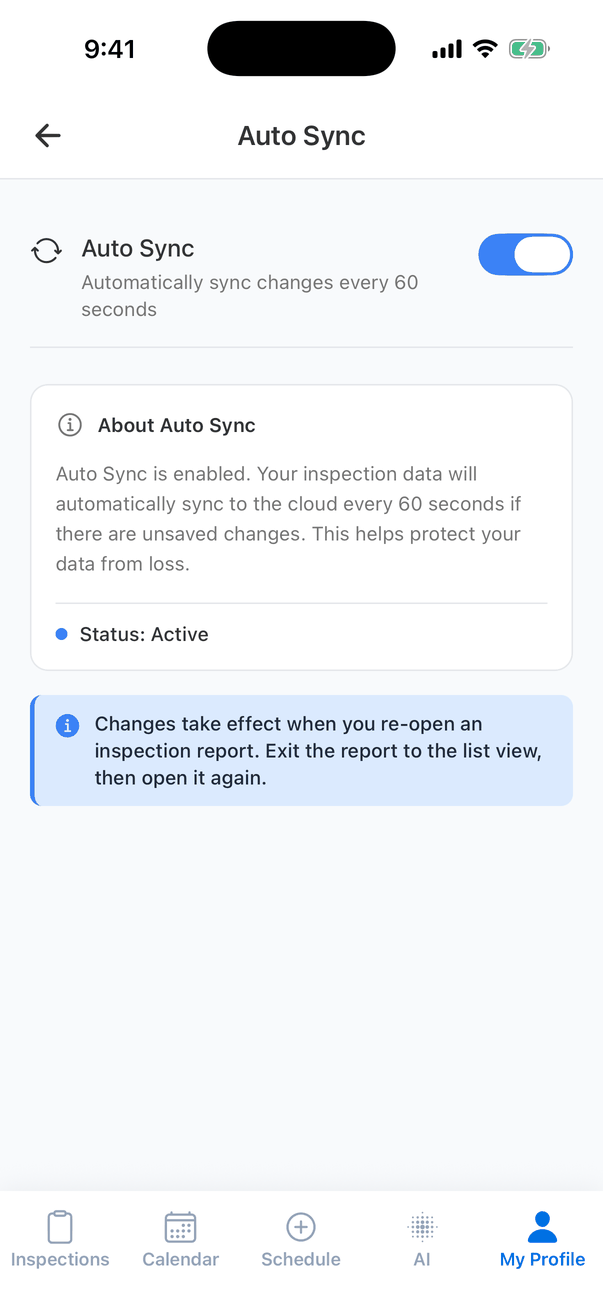
Auto Sync settings: Auto Sync, Automatically sync changes every 60 seconds, turned on; About Auto Sync: Auto Sync is enabled. Your inspection data will automatically sync to the cloud every 60 seconds if there are unsaved changes. This helps protect your data from loss. Status: Active. A note: Changes take effect when you re-open an inspection report With Auto Sync on (the default), an open report syncs every 60 seconds when it has changes. Turn it off only if you want to sync by hand with the Sync button. A change takes effect the next time you open a report. See Syncing and offline use.

Offline Download

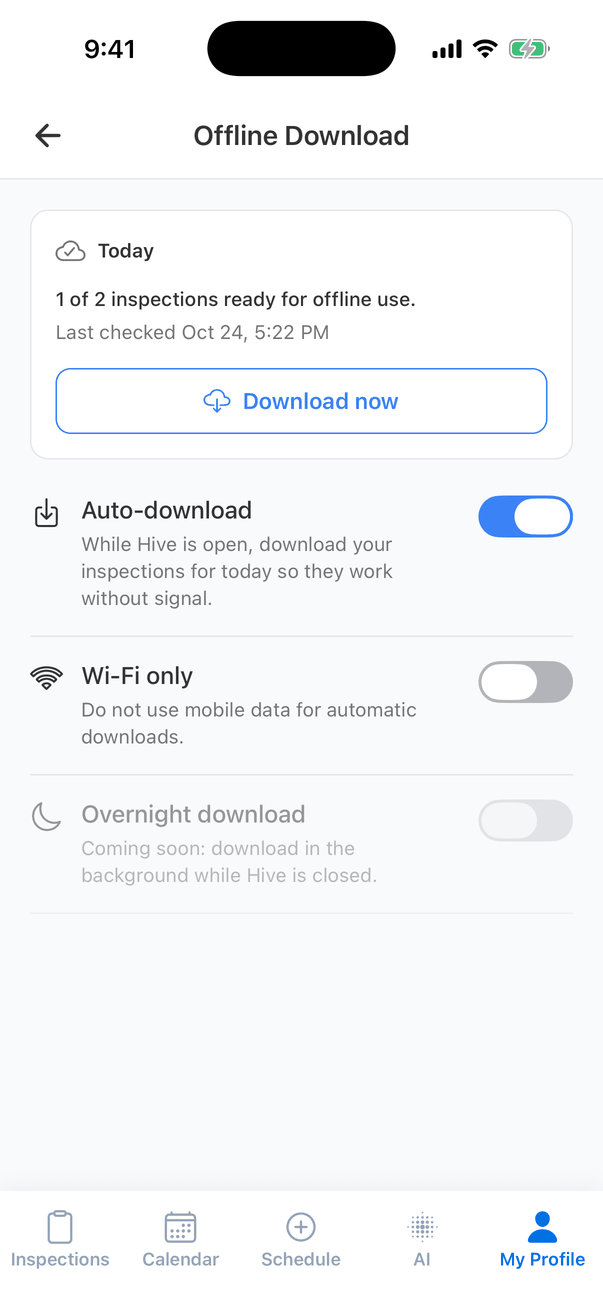
Offline Download settings: a Today card reading 1 of 2 inspections ready for offline use, Last checked Oct 24, 5:22 PM, with a Download now button; Auto-download (While Hive is open, download your inspections for today so they work without signal) turned on; Wi-Fi only (Do not use mobile data for automatic downloads) turned off; and Overnight download, Coming soon, greyed out
  • Today shows how many of today’s inspections are ready to use offline. Download now downloads the rest.
  • Auto-download (on by default): while Hive is open, it downloads today’s inspections on its own.
  • Wi-Fi only: don’t use mobile data for automatic downloads.
See Download inspections for offline use.

Inspection List View

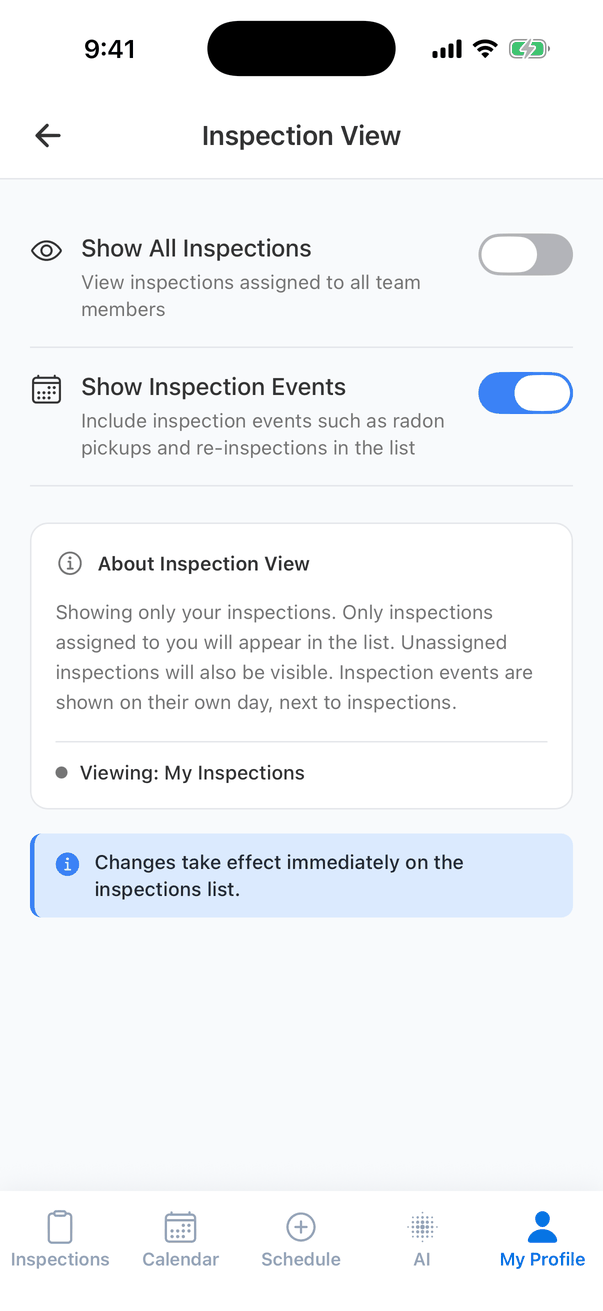
Inspection View settings: Show All Inspections (View inspections assigned to all team members) turned off, Show Inspection Events (Include inspection events such as radon pickups and re-inspections in the list) turned on, About Inspection View, Viewing: My Inspections, and the note Changes take effect immediately on the inspections list
  • Show All Inspections: show the whole team’s inspections, not just yours. You still only see what your account is allowed to see.
  • Show Inspection Events: show event cards, such as radon pickups and re-inspections, in the list. On by default.

Comment Auto-Expand
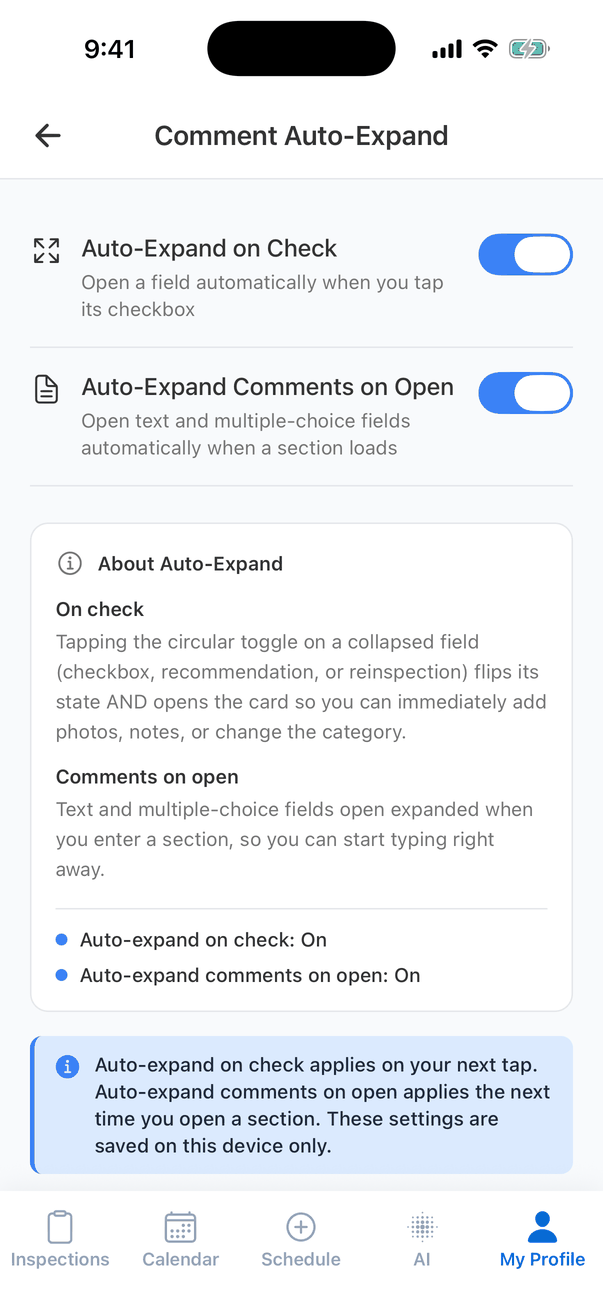
Comment Auto-Expand settings: Auto-Expand on Check (Open a field automatically when you tap its checkbox) and Auto-Expand Comments on Open (Open text and multiple-choice fields automatically when a section loads), both turned on, with an About Auto-Expand explanation
  • Auto-Expand on Check: a comment opens when you tick it, so you can add photos straight away.
  • Auto-Expand Comments on Open: multiple-choice and text questions open when you open a subsection, so you can answer them right away.

Appearance
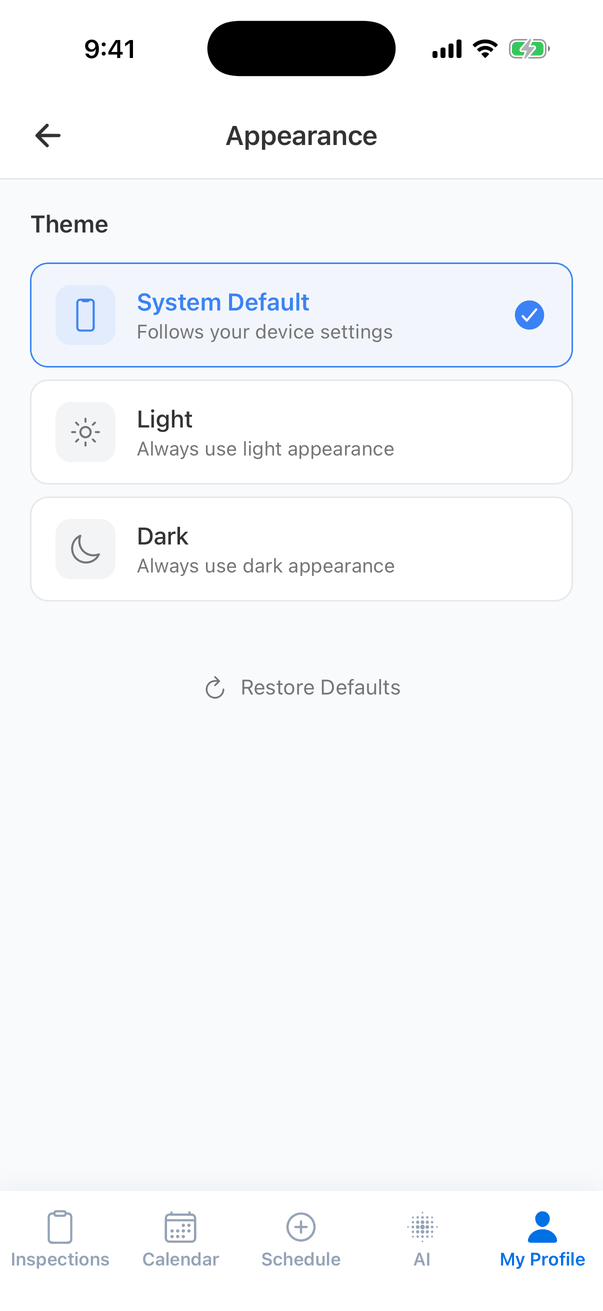
Appearance settings: Theme with System Default (Follows your device settings, selected), Light (Always use light appearance) and Dark (Always use dark appearance), and Restore Defaults System Default follows your phone’s light or dark mode. Pick Light or Dark to keep one.

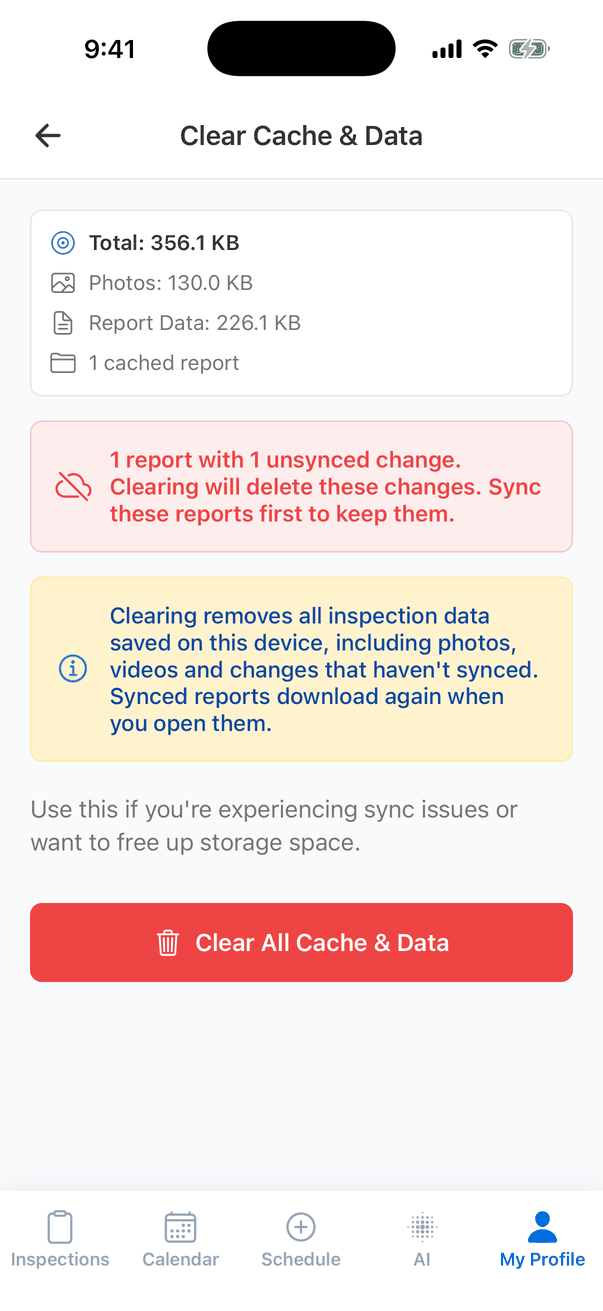
Clear Cache & Data

The Clear Cache & Data screen: Total 356.1 KB, Photos 130.0 KB, Report Data 226.1 KB, 1 cached report; a red box: 1 report with 1 unsynced change. Clearing will delete these changes. Sync these reports first to keep them; a yellow box: Clearing removes all inspection data saved on this device, including photos, videos and changes that haven't synced. Synced reports download again when you open them; and a red Clear All Cache & Data button Clear Cache & Data deletes everything the app has saved on this phone: downloaded reports, photos, videos, thumbnails, changes that haven’t synced, uploads that haven’t finished, and search history. Your camera settings and location tags are kept. Nothing on Hive is changed; synced reports download again when you open them.
Anything that hasn’t synced is deleted for good. The screen shows how many reports have unsynced changes. Open each one and sync it first, and wait for Synced.
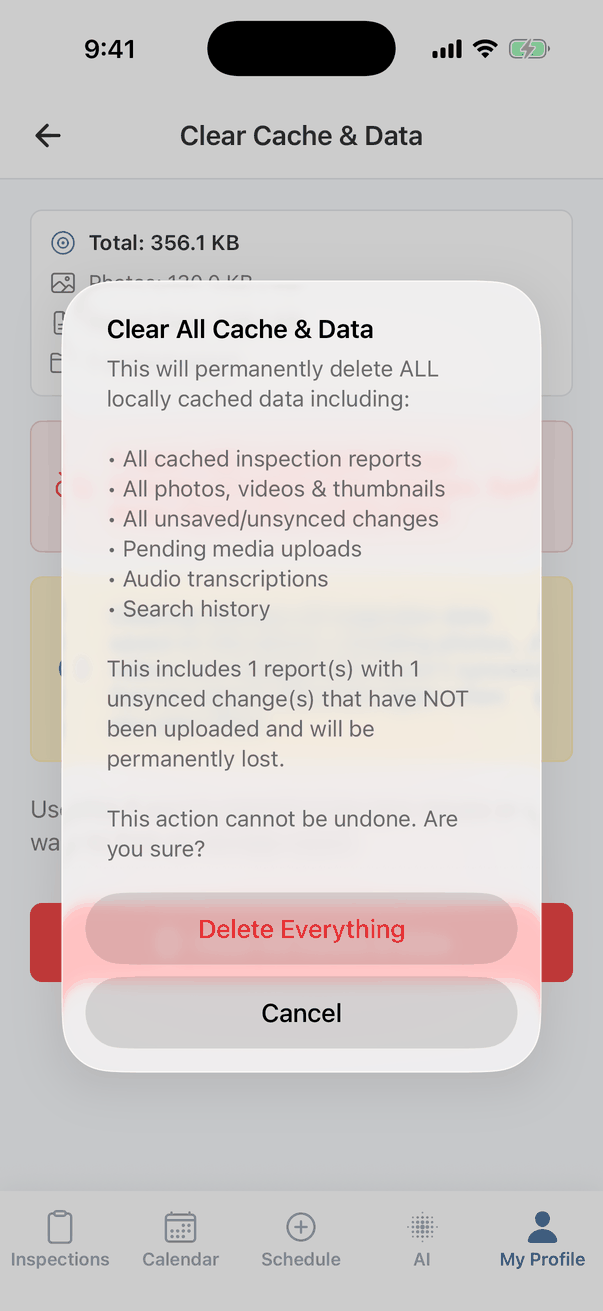
Tap Clear All Cache & Data, read the list of what will be deleted, then tap Delete Everything. Use it when support asks you to, or to free up storage. The Clear All Cache & Data confirmation: This will permanently delete ALL locally cached data including all cached inspection reports, all photos, videos & thumbnails, all unsaved/unsynced changes, pending media uploads, audio transcriptions and search history. This includes 1 report(s) with 1 unsynced change(s) that have NOT been uploaded and will be permanently lost. This action cannot be undone. Are you sure? Buttons Delete Everything and Cancel

Help, profile and tools

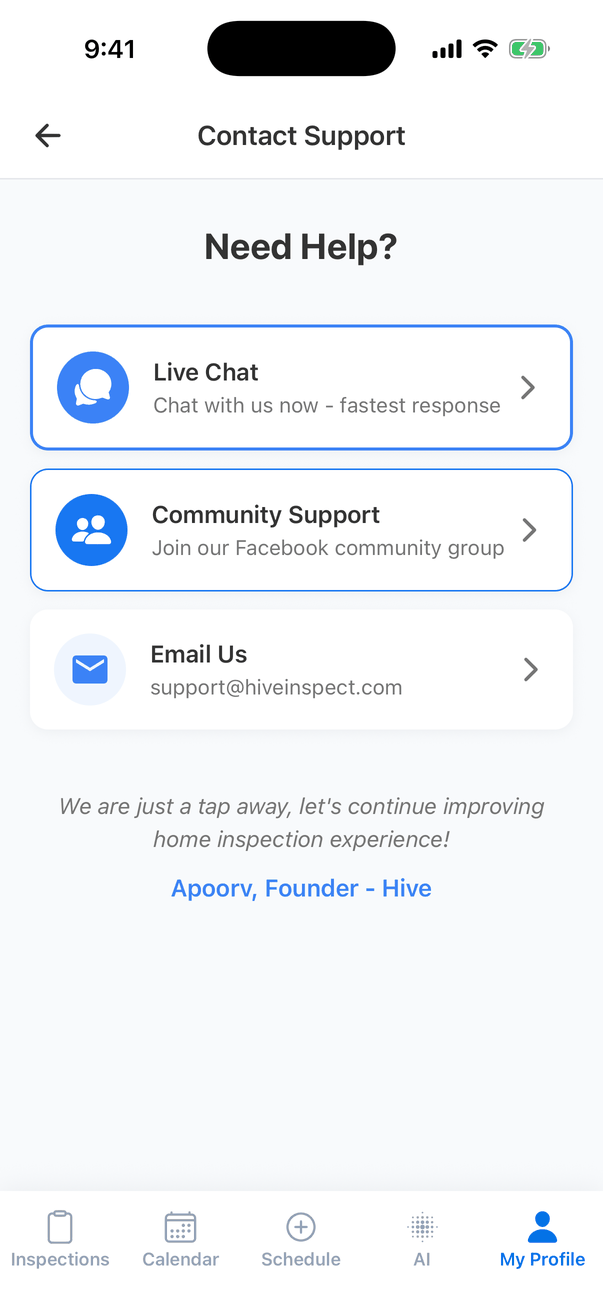
Contact Support: Need Help? with Live Chat (Chat with us now - fastest response), Community Support (Join our Facebook community group) and Email Us (support@hiveinspect.com)
  • Need Help? and Contact Support → Live Chat open a chat with the Hive team. Community Support opens the Hive Facebook group, and Email Us writes to support@hiveinspect.com.
  • User Profile opens Dashboard Settings in your browser, where you change your name, photo, signature, license and more. Your profile can’t be edited in the app.
  • App Update links to the App Store and Google Play.
  • Tools → Get Signature opens a signing pad in landscape. Sign and tap the tick to save the signature as an image in a Signatures album in your photo library.
  • Time Clock clocks you in and out. Tapping Clock In on My Profile starts your shift straight away. Tap the card to open the Time Clock. See Hourly time tracker.
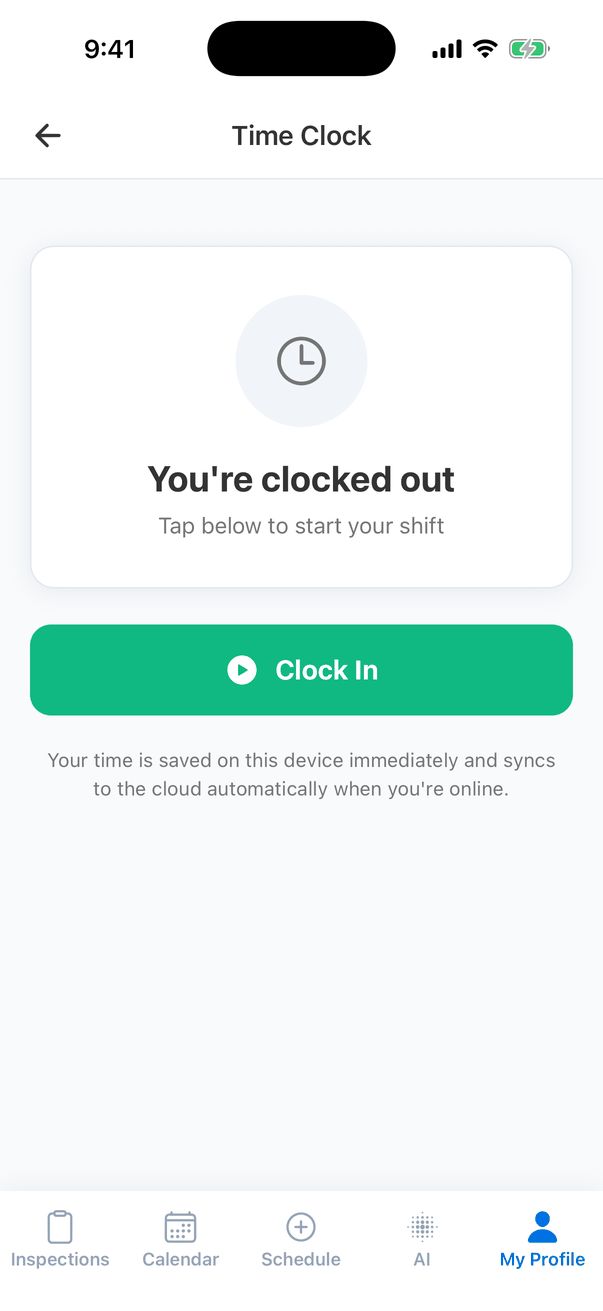
The Time Clock screen: You're clocked out, Tap below to start your shift, a green Clock In button, and the note Your time is saved on this device immediately and syncs to the cloud automatically when you're online

Sign out

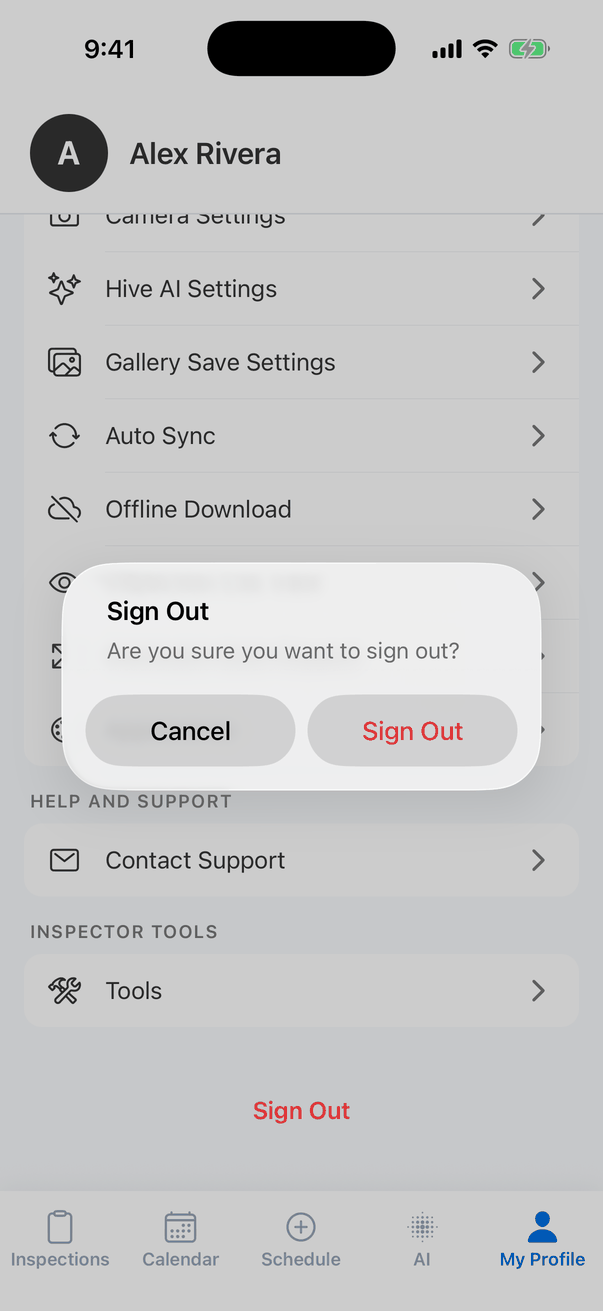
Tap Sign Out at the bottom, then Sign Out again to confirm. The Sign Out message: Are you sure you want to sign out? Buttons Cancel and Sign Out Signing out keeps your downloaded reports and unsynced changes on the phone. They sync the next time you sign in and open the report. Sync before you sign out on a shared phone.
Common questions

Most settings are saved on your phone only. Only Location Tags and Annotation Settings apply to your whole company.
Tap User Profile → Dashboard Settings to open your profile on the web dashboard, change it there, then sign out and back in on the phone.
It deletes what’s on the phone, including anything not yet synced. Reports that are synced are safe on Hive and download again. Sync every report first.
Turn off Save Captured Photos in Gallery Save Settings. Keep in mind it’s your backup until reports sync.

Where to go next

Last modified on October 25, 2026