

In the mobile app: the Inspections tab → tap an event card.
Inspection events are extra visits that belong to an inspection, such as a radon monitor pickup, a sewer scope or a re-inspection. You add them to an inspection on the dashboard, often from a preset. In the mobile app they show in your list as their own cards, on the day of the visit, so you can see the address, the time and who’s going.Event cards in the list
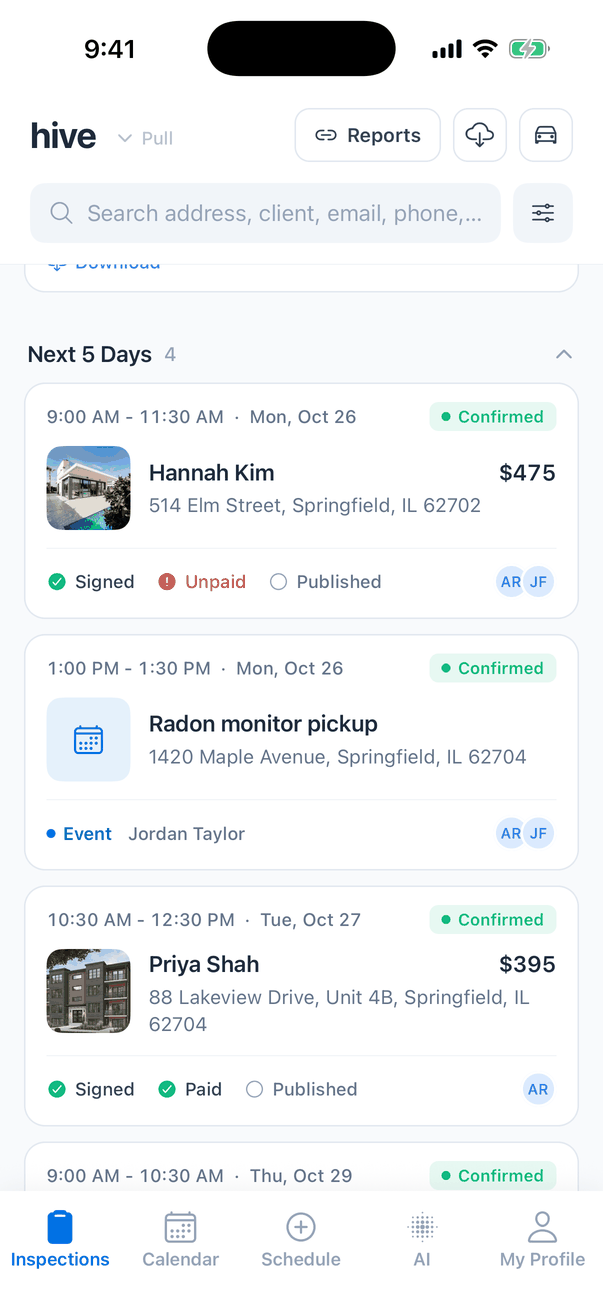
Event cards have no Signed, Paid or Published checks and no price. Those belong to the inspection.
Which events you see
- By default, you see the events you’re assigned to. An event with no one picked goes to the inspection’s main inspector.
- You see your events even when the inspection itself is assigned to someone else.
- Events follow the inspection’s status. With the list on Confirmed only, events of a waiting or canceled inspection are hidden.
- To see the whole team’s events, turn on Show All Inspections in My Profile → Inspection List View.
- To hide events from the list, turn off Show Inspection Events on the same screen. It’s on by default.
- Search finds events by their name or description, or by the inspection’s address and contacts.
Event Details
Tap an event card to open Event Details.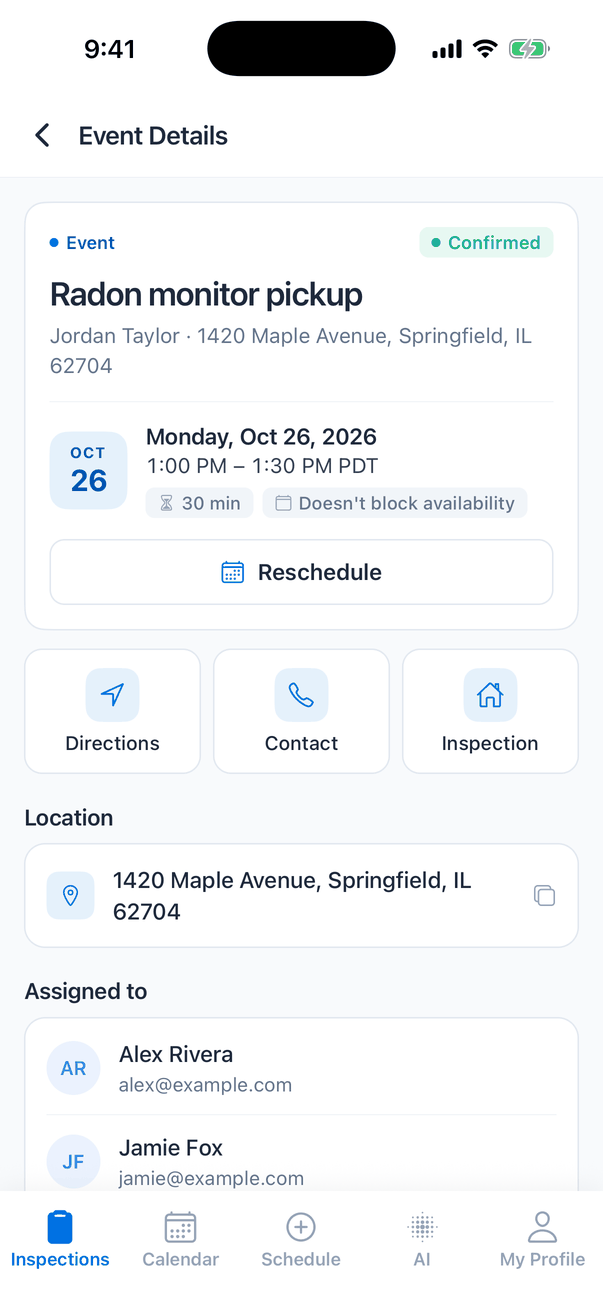
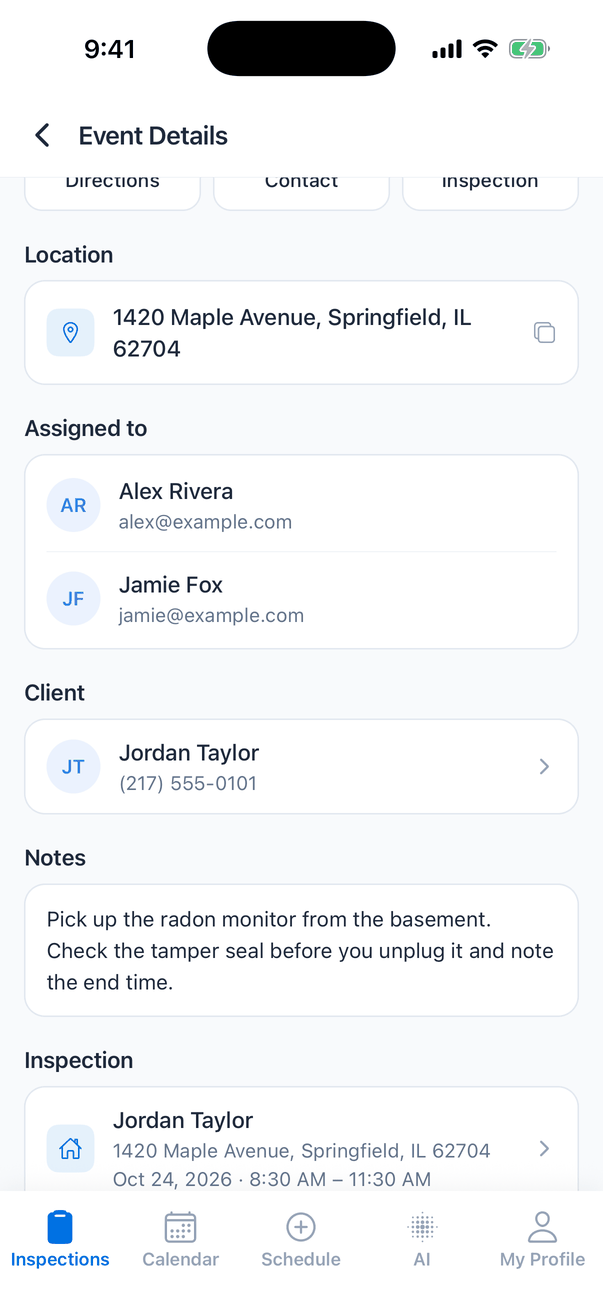
Doesn’t block availability
Doesn’t block availability means the event is on the calendar but doesn’t stop clients from booking that time online. Events without it block the time, like an inspection does. You set this when you add the event on the dashboard.Default assignee
When no one was picked for an event, it goes to the inspection’s main inspector. Assigned to then says “Default assignee — the inspection’s primary inspector”.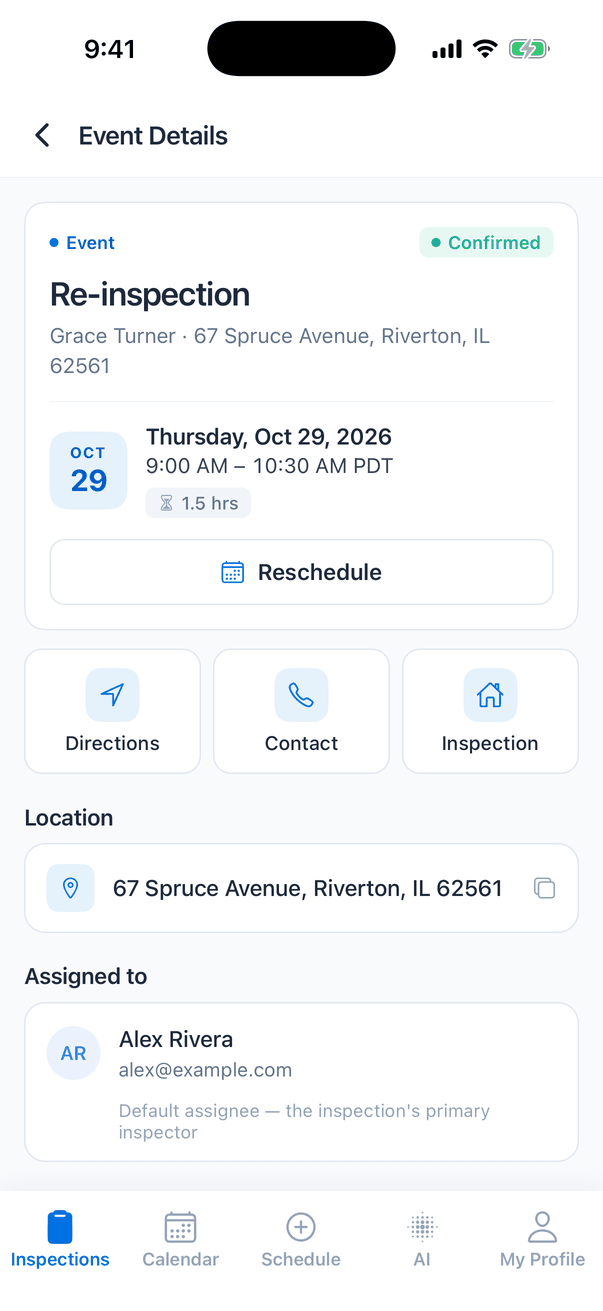
Reschedule an event
Tap Reschedule
The Reschedule Event sheet shows the event’s name and current time, and a row of dates. A dot marks the day it’s on now.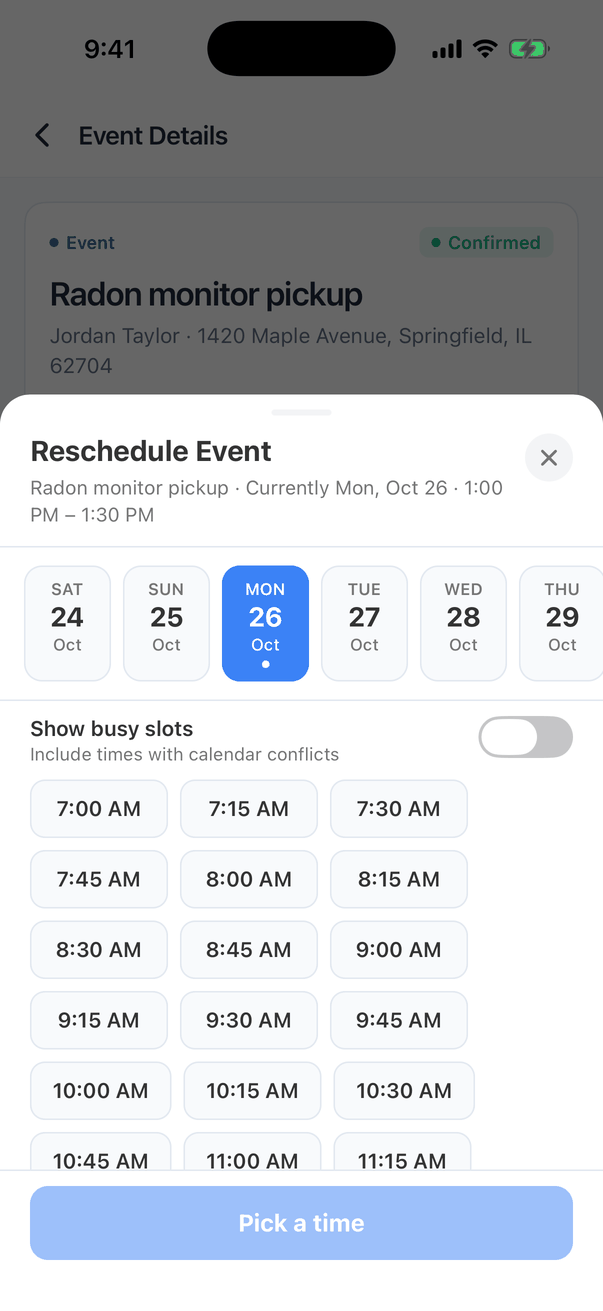
Pick a day and a time
The app shows the times the assigned inspectors are free, for the event’s length. Turn on Show busy slots to also see times that clash with their calendars.
- The event keeps its length. The sheet says “Duration stays” and the length.
- Moving an event doesn’t move the inspection. Rescheduling the inspection in the app doesn’t move its events either: reschedule each one.
- Rescheduling needs an internet connection. Offline, the app says: “Reconnect to the internet to reschedule this event. Rescheduling updates the assigned inspectors’ calendars, so it cannot be done offline.”
What you can’t do in the app
Adding, renaming, reassigning or deleting events is done on the dashboard, on the inspection order page. See Inspection event presets.Offline
Events you’ve seen are saved on your phone, so their details open without signal, with an Offline Mode banner. An event you’ve never opened shows “You’re offline: This event isn’t cached on this device yet. Connect to the internet to view it.” If the app couldn’t refresh an event, it shows “Couldn’t refresh: Showing the last saved version of this event. Pull down to try again.”Common questions
Why don't I see an event in the app?
Why don't I see an event in the app?
Check these in order:
- Assigned to someone else. You only see events you’re assigned to. Turn on Show All Inspections in My Profile → Inspection List View to see everyone’s.
- Show Inspection Events is off in the same place.
- Status. Events follow the inspection’s status. Add the inspection’s status in the status filter.
- Not refreshed. Pull the list down.
The event says it was removed
The event says it was removed
“This event no longer exists: It may have been removed from the inspection.” The event, or its inspection, was deleted on the dashboard. Tap Back to Inspections.
Can I move the inspection and its events together?
Can I move the inspection and its events together?
No. Reschedule the inspection from its summary, then reschedule each event from its own Event Details.
Can I change who's assigned to an event?
Can I change who's assigned to an event?
Not in the app. Change it on the dashboard, on the inspection order page.
Where to go next
- Inspection event presets: add events while you book.
- Inspection Summary: everything about the inspection itself.
- Inspections list: how the list is grouped.