

In the mobile app: the Schedule tab (the plus in the middle of the tab bar).
The Schedule tab opens the dashboard’s New Inspection form inside the app, so you can book a job or send a quote from your phone, for example while you’re on the phone with a client. It’s the same form, with the same services, prices, contacts and automations as on the dashboard. See Schedule an inspection or send a quote for every field.Book an inspection
- Tap Schedule. The app signs you in to the form (“Signing you in…”, then “Loading scheduler…”). You don’t type your password.
- Fill in the form: address, client, services, date and time, and so on.
- Save it the way you would on the dashboard: schedule it, send it to the client as a quote, or save a draft.
Each says “It will appear in your Inspections list.” Tap View Inspections to go there, or OK to book another.
The header buttons
Links in the form that go elsewhere on the dashboard, and phone and email links, open in your browser or your phone’s apps.
When it doesn’t load
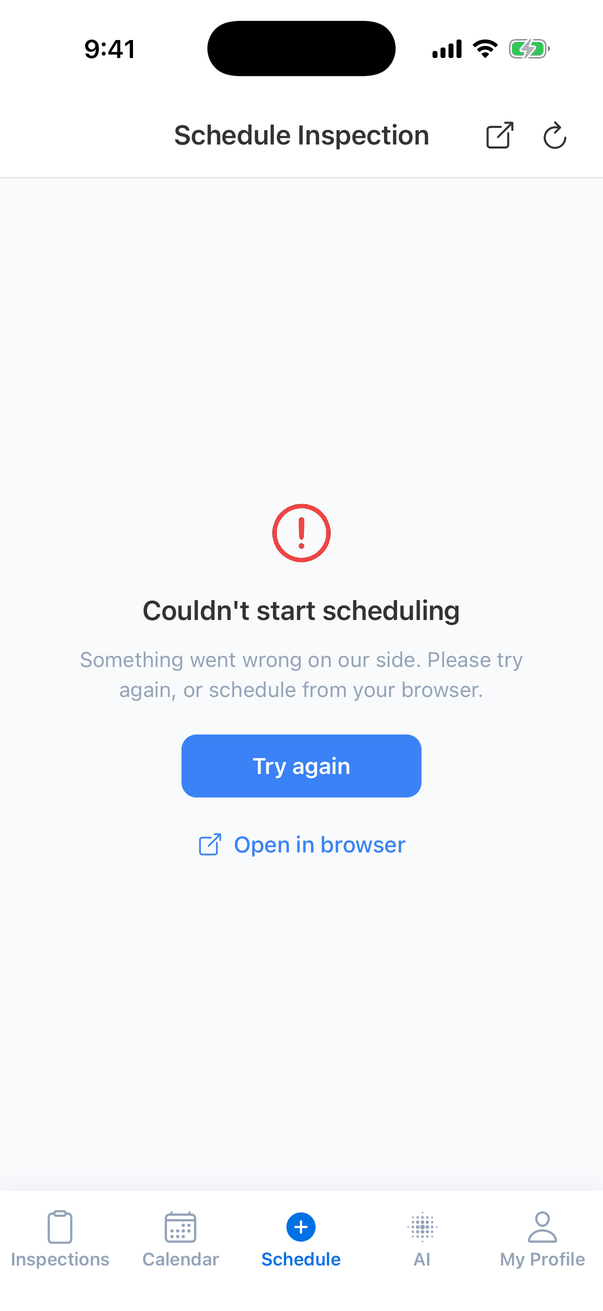
Other messages
- No reports remaining: “Your plan has no reports remaining, so a new inspection cannot be created. Manage your subscription from the web dashboard on your computer.”
- Unsaved inspection: when you start a new booking while one is half filled in, the app asks whether to Keep editing or Discard it.
Common questions
Is this different from booking on the dashboard?
Is this different from booking on the dashboard?
No. It’s the same form and does exactly the same things, including your automations and calendar events.
Can I schedule offline?
Can I schedule offline?
No. Scheduling needs an internet connection.
Where do I find the inspection after booking?
Where do I find the inspection after booking?
In the Inspections tab. Tap View Inspections on the message after you save. Drafts and quotes waiting for the client only show if you add their status in the status filter.
Where to go next
- Schedule an inspection or send a quote: every field on the form.
- Inspections list: find the new inspection.