

In the mobile app: the sign-in screen, and the messages the app shows on start.
Sign in
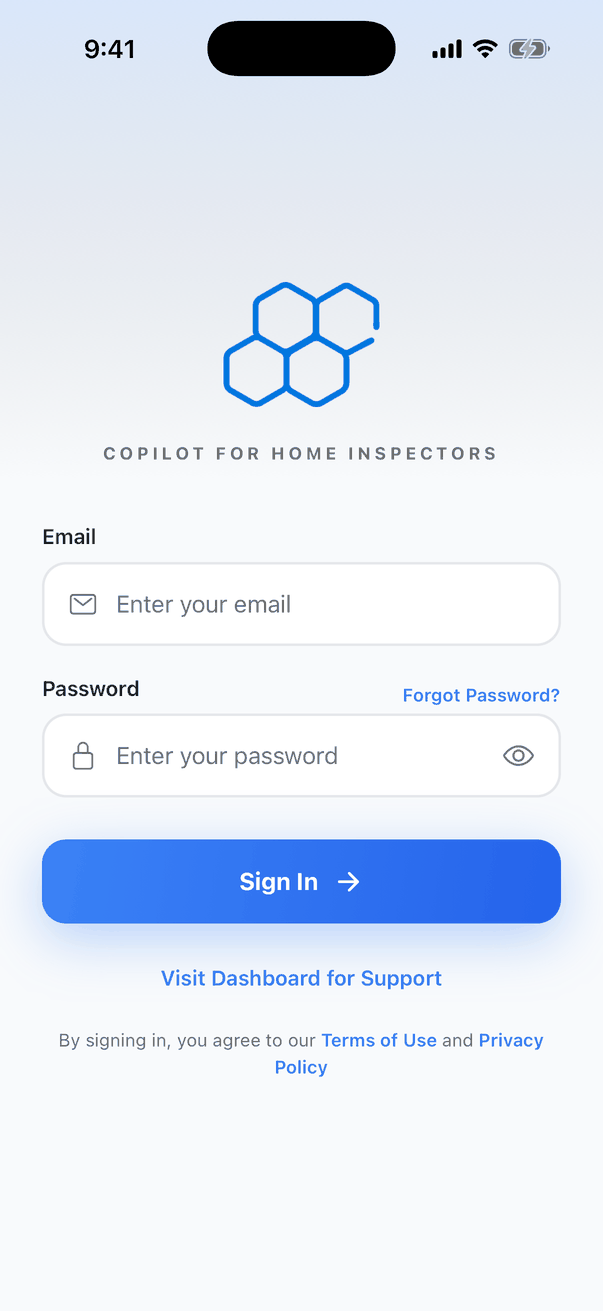
- Type the Email and Password you use for the Hive dashboard. Tap the eye to show the password.
- Tap Sign In.
Forgot your password
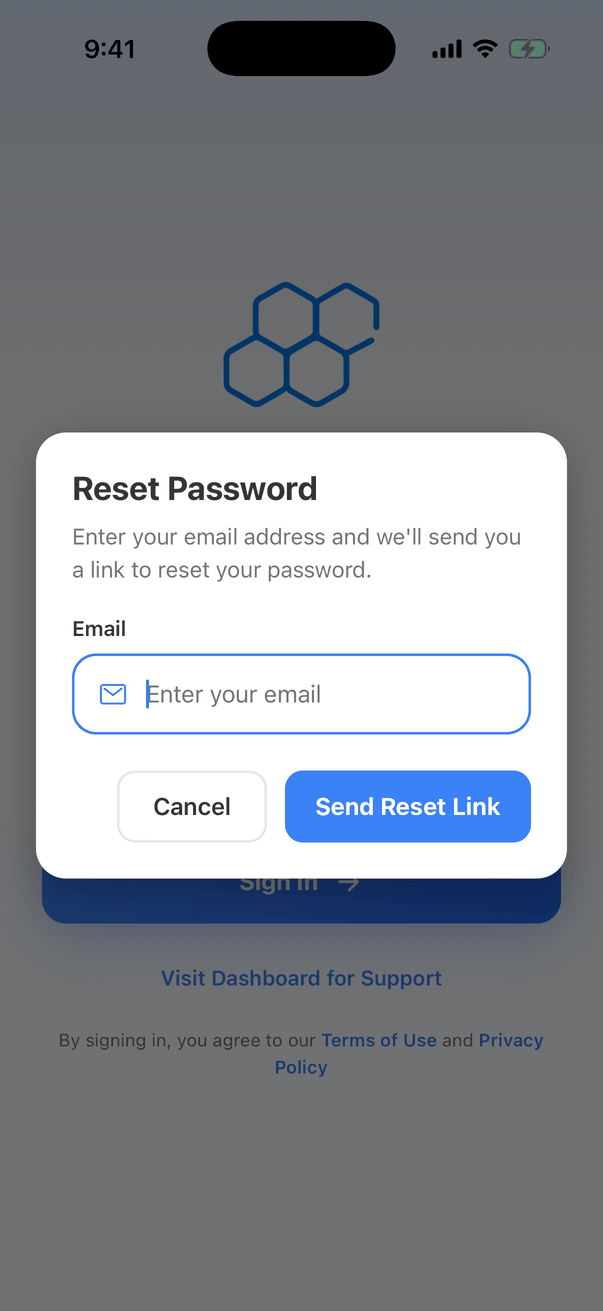
- Tap Forgot Password?.
- Check the Email (it’s copied from the sign-in screen) and tap Send Reset Link.
- Open the email on your phone and follow the link to set a new password. The link expires in 1 hour.
- Sign in with the new password.
Face ID and fingerprint
After you sign in with your password on a phone with Face ID, Touch ID or a fingerprint reader, the app asks “Enable Face ID? Would you like to use Face ID for faster sign-in next time?” Tap Enable. Next time, the sign-in screen has a Sign in with Face ID button (or Touch ID, Face Unlock or Fingerprint). If you change your password on the dashboard, sign in with the new password once to use Face ID again.App updates
When there’s a new version in the App Store or Google Play, the app tells you when you open it.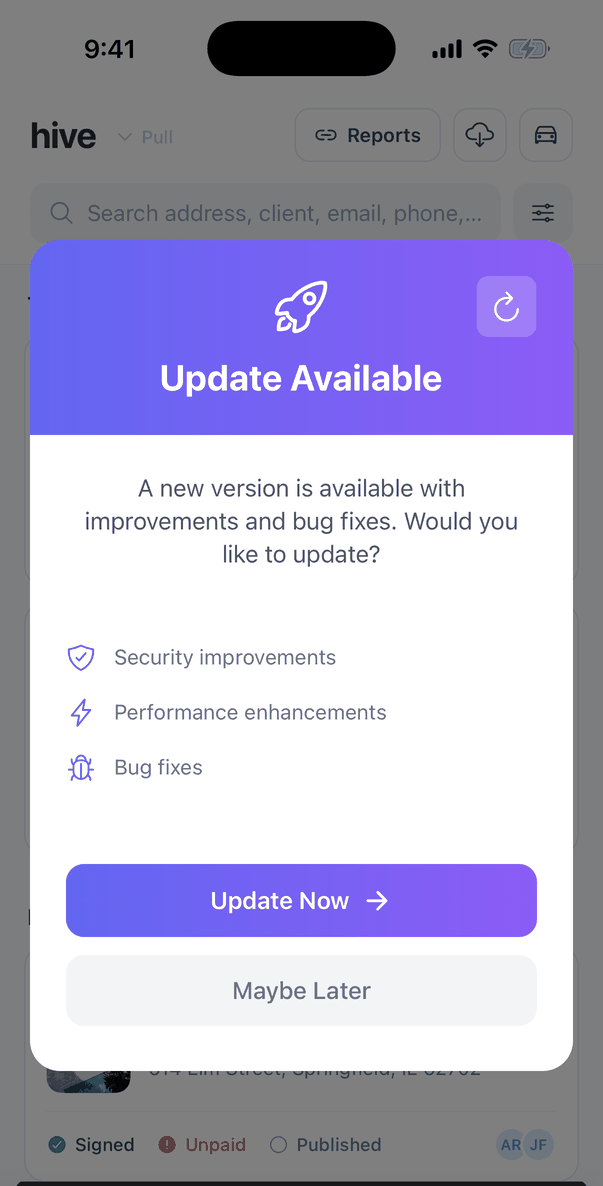
- Update Available: tap Update Now to open the store, or Maybe Later.
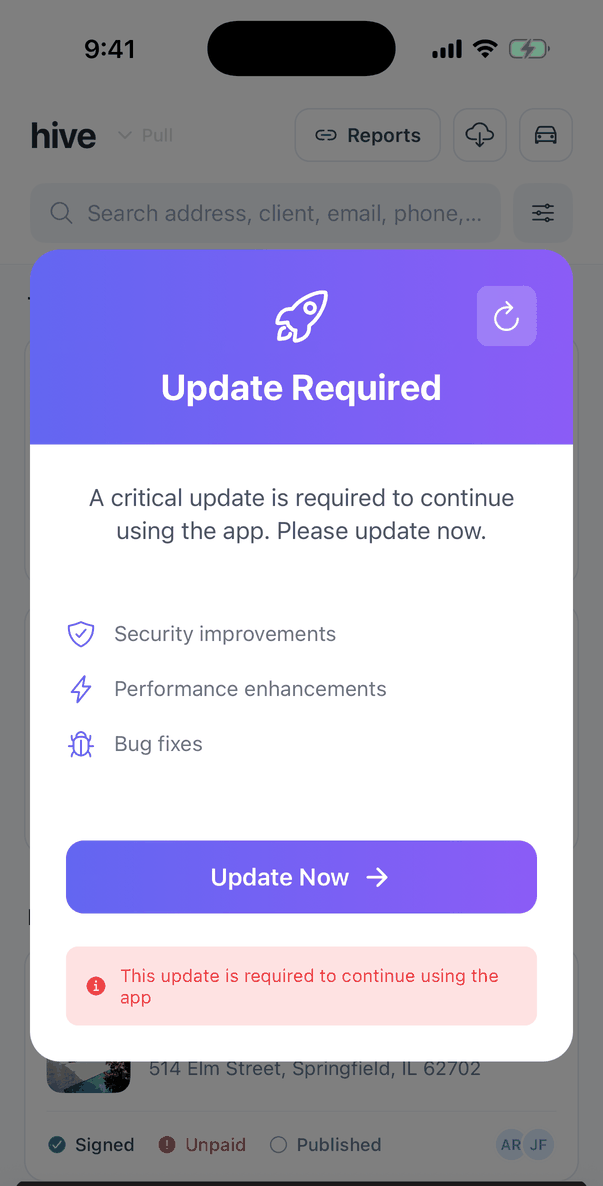
- Update Required: this version is too old to keep using. Tap Update Now; the message can’t be closed until you update.
Restart to update
Smaller updates download in the background while you work. When one is ready, the app asks you to restart it, on the Inspections list, Calendar or My Profile, never in the middle of a report:
If the app can’t restart yet, for example while a sync is running, it says Update Pending and why. Tap Try Again when it’s done, or Continue for Now.
Unsynced Changes Detected
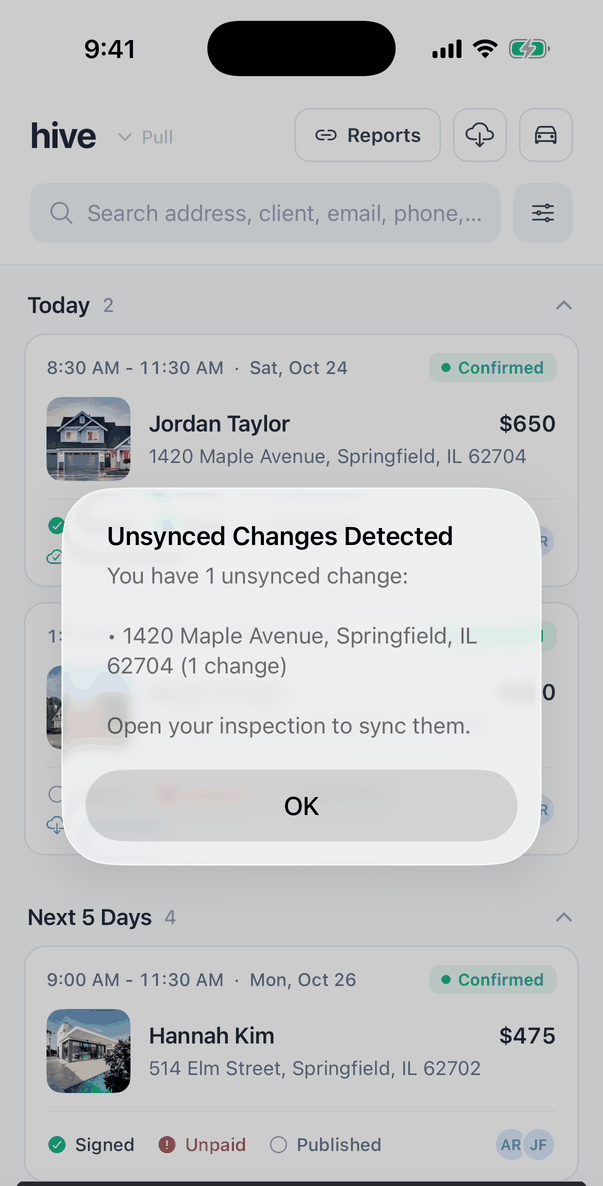
Sign out
My Profile → Sign Out, then Sign Out again. See My Profile and settings.Common questions
I can't sign in
I can't sign in
Use the same email and password as the dashboard. If you’ve forgotten the password, tap Forgot Password?. If you’ve never signed in to the dashboard, create your account there first or accept your invitation email.
The reset email didn't arrive
The reset email didn't arrive
Check your spam folder, and that the email address is the one on your Hive account. The link expires after 1 hour; ask for a new one if it has.
Face ID stopped working
Face ID stopped working
If you changed your password, sign in once with the new password. The app then uses Face ID again.
Will restarting for an update lose my work?
Will restarting for an update lose my work?
No. Everything is saved on the phone first, and unsynced changes sync when you next open the inspection.
Where to go next
- Inspections list: the first screen after you sign in.
- Syncing and offline use.