

In the mobile app: the report editor → the three dots at the top of the Sections screen.
Report Settings holds the parts of a report that aren’t in a section: its name, the introduction, the summary text and the cover photo. Changes here only affect this report. To change the defaults for new reports, edit the template on the dashboard.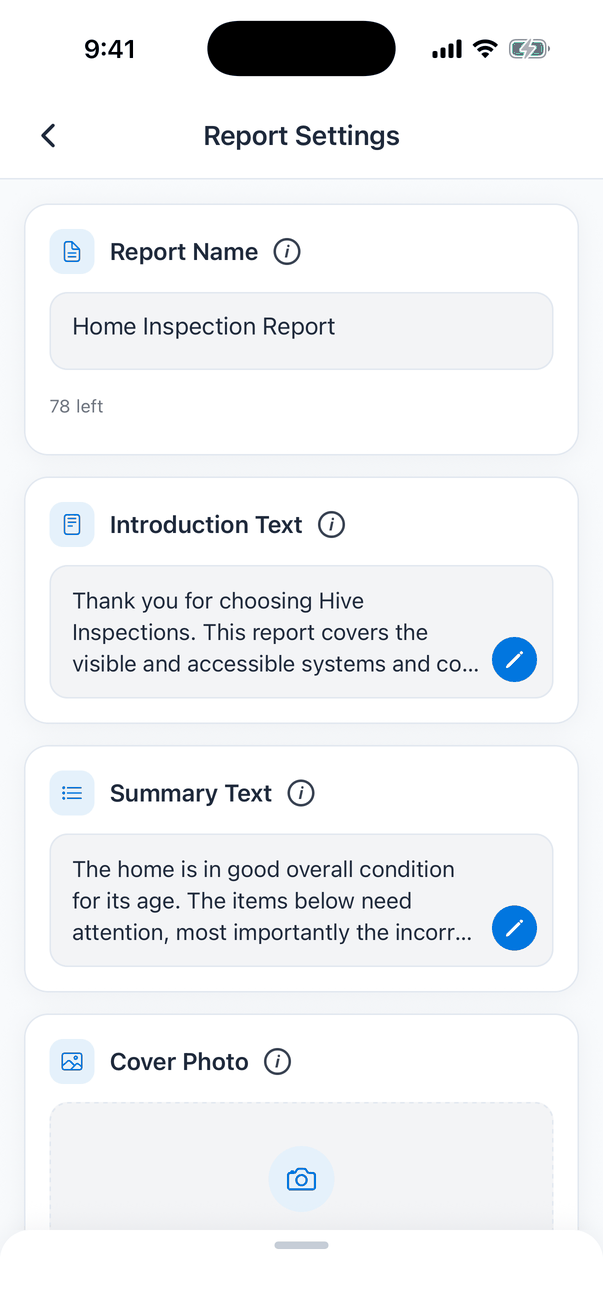
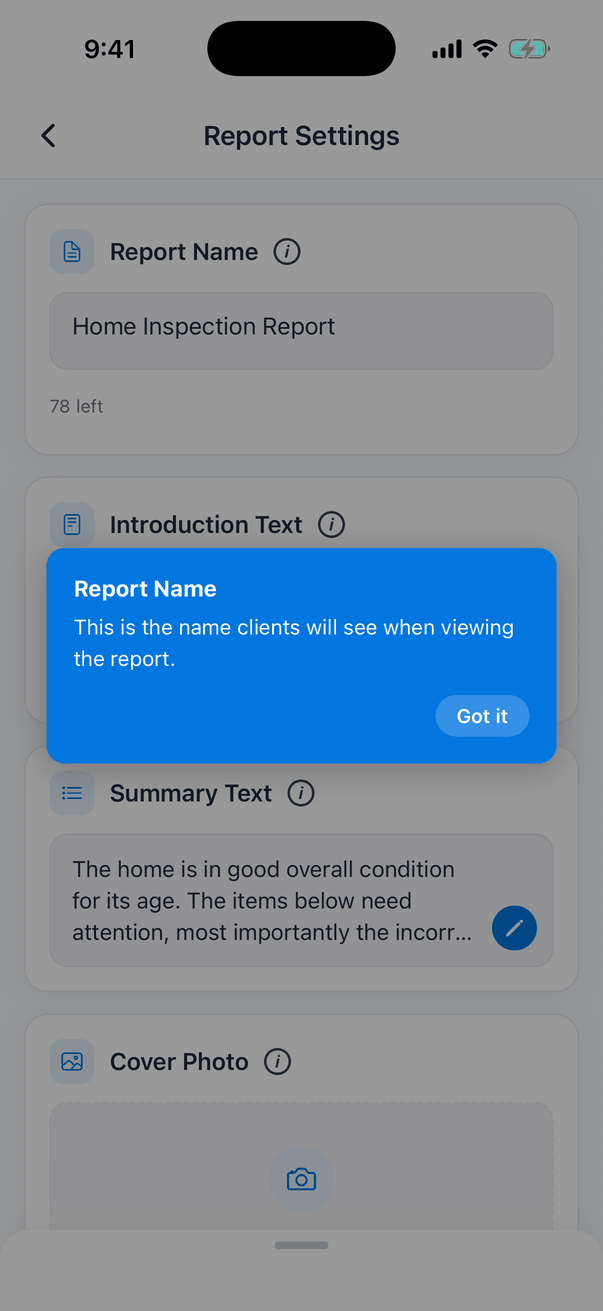
Tap the i next to any of them for a short explanation.
Introduction and summary text
Tap the pencil to open the text editor, write and format the text, then tap Save. Placeholders such as{{{client_full_name}}} are filled in automatically in the client’s report. See Placeholders.
Cover photo
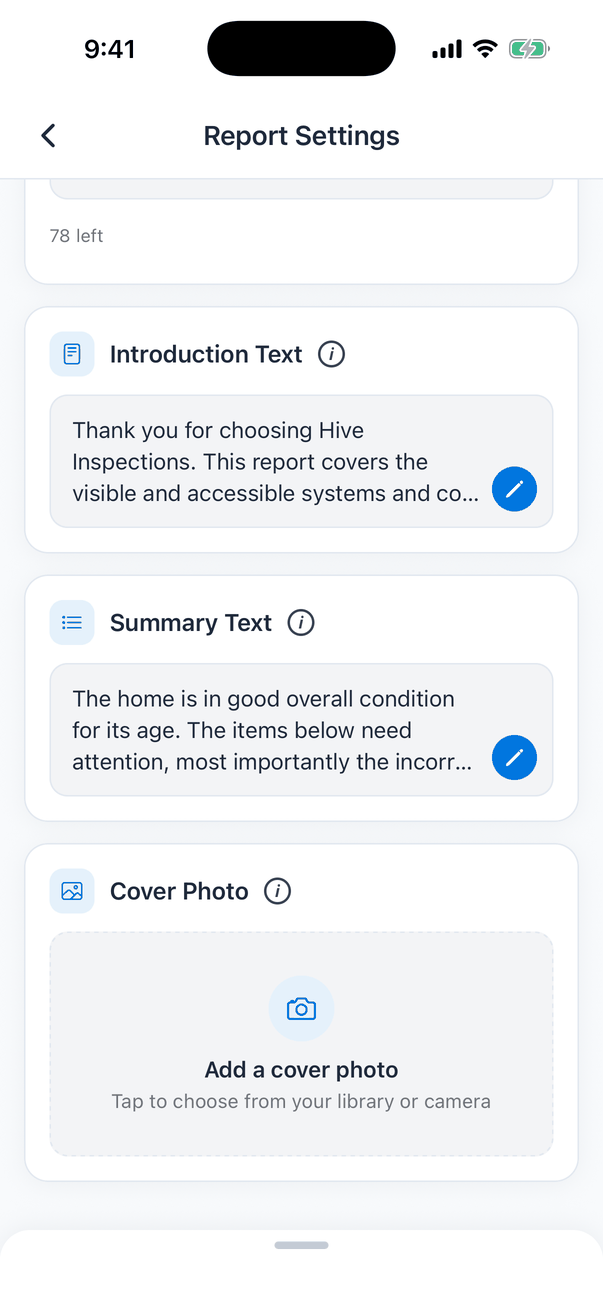
- Tap Add a cover photo.
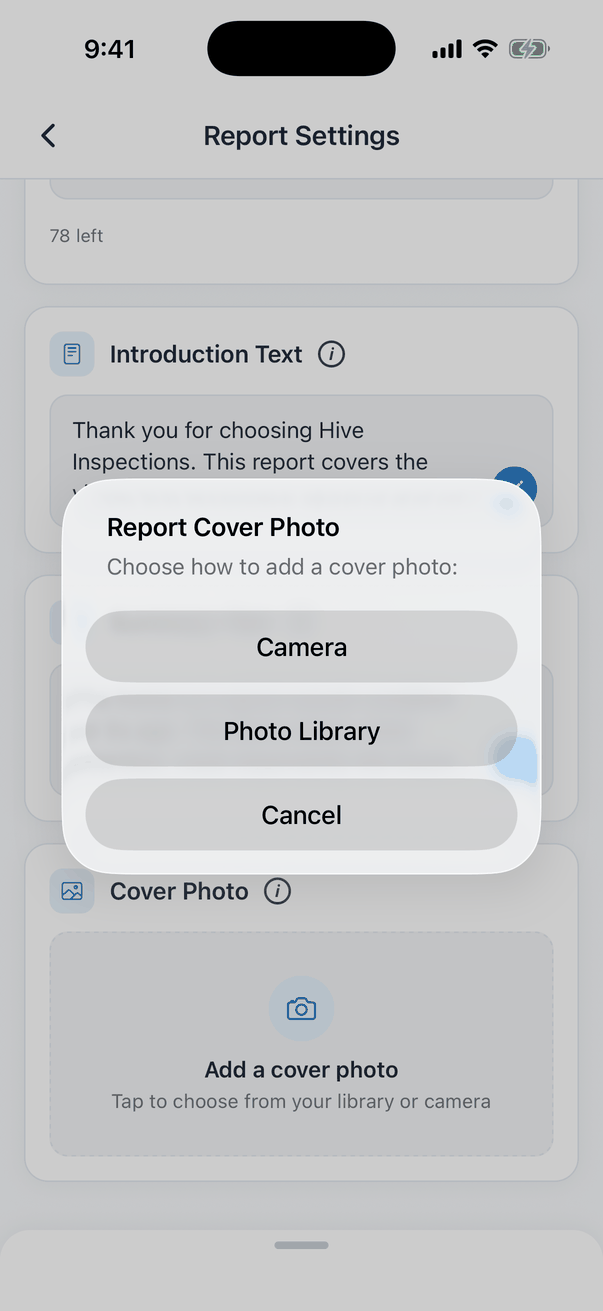
- Choose Camera or Photo Library.
- Pick or take the photo. It uploads straight away and the app says “Report cover photo updated!”
The report’s cover photo is separate from the inspection’s banner photo (the house photo on the Inspection Summary and in the client portal). Change that one from the Inspection Summary.
Private notes
Private notes for a section or subsection come from the template. When a section or subsection has them, a document icon shows at the top of its screen. Tap it to read them. They can’t be changed in the app; edit them in the template on the dashboard.Where to go next
- Report editor basics: sections, subsections and syncing.
- Customize your reports: branding, layout and PDF settings for all reports.