

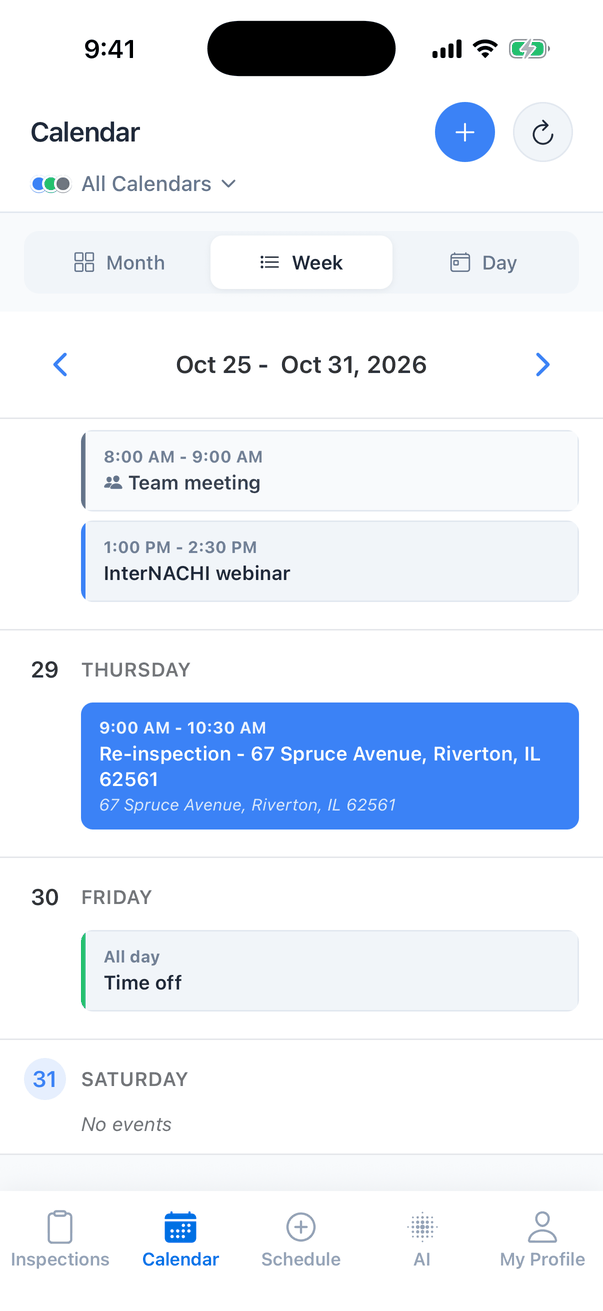
In the mobile app: the Calendar tab.
The Calendar tab shows your inspections, inspection events, time off and other events. How it works depends on your company’s Calendar Engine, set on the dashboard in Organization Settings:- Hive Calendar: inspections, events and time off live in Hive. This is what most of this page covers.
- Google Calendar: the calendar shows each person’s connected Google Calendar. See Google Calendar mode.
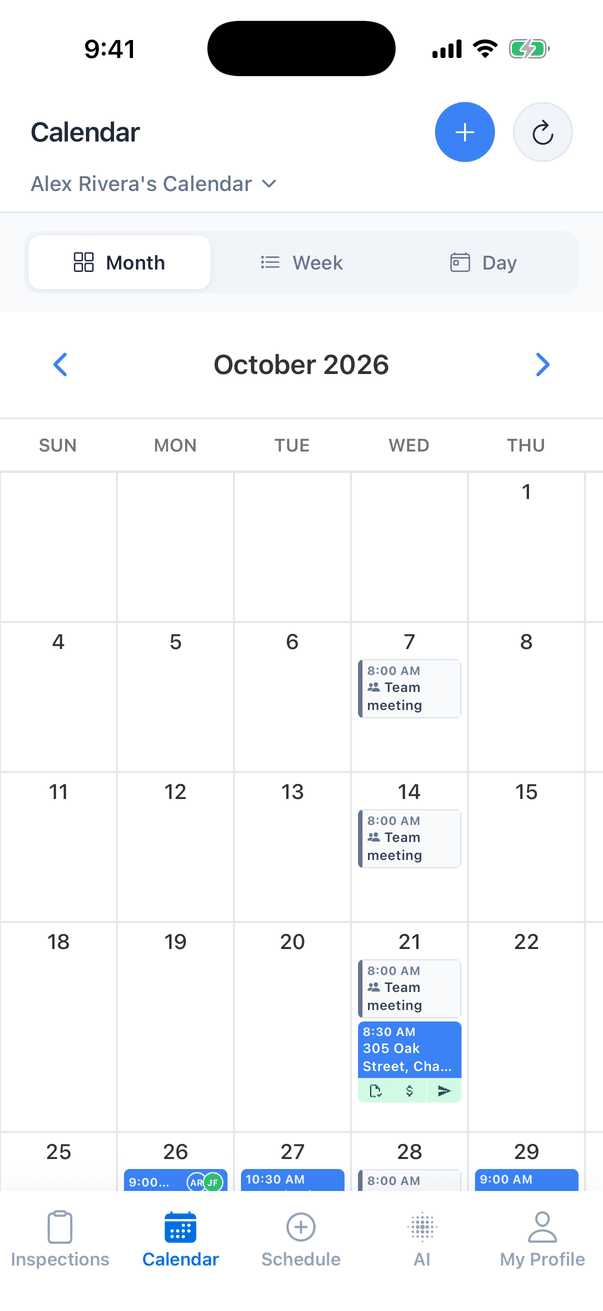
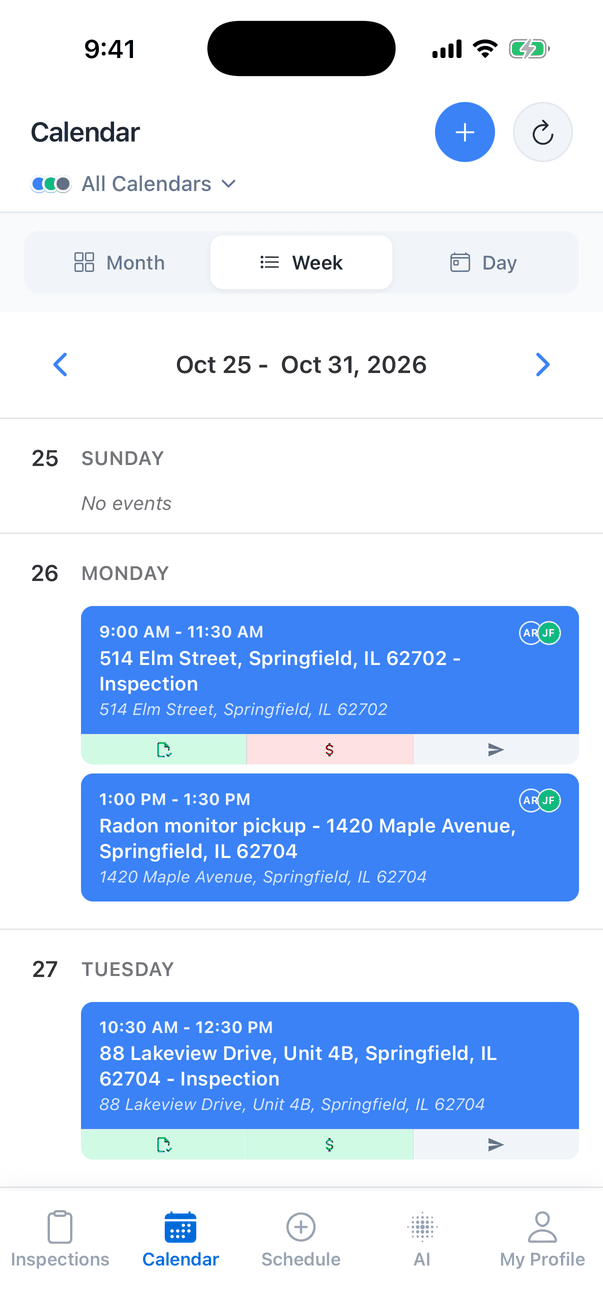
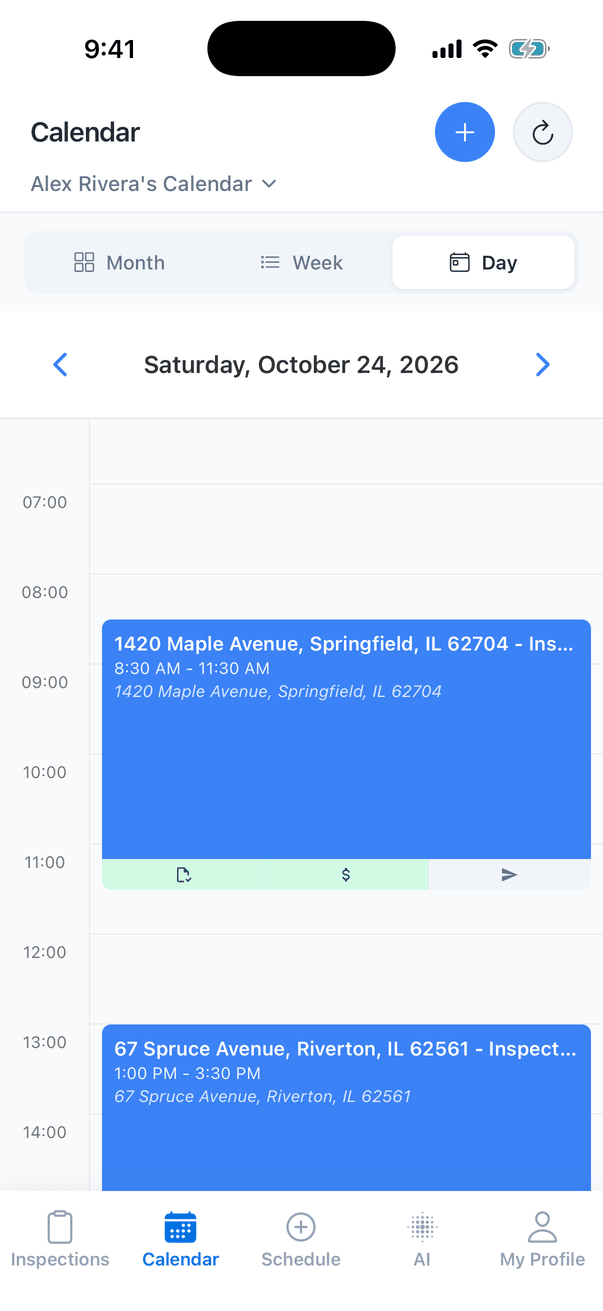
Month, Week and Day
See your team’s calendars
Tap the calendar name under the title to open Select Calendars.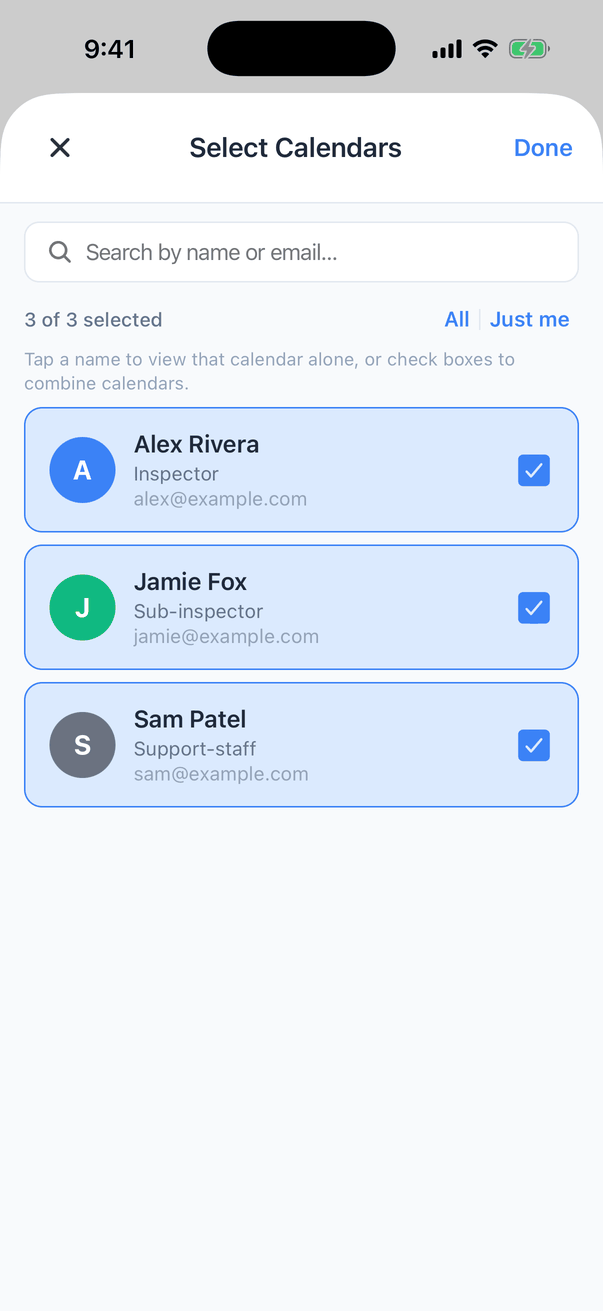
- Tap a name to see only that person’s calendar.
- Tick several to combine them. Events are coloured by person.
- All ticks everyone, Just me goes back to yours. Tap Done.
Add time off or another event
Pick whose calendar it goes on
Tap Calendar to pick a team member, yourself, or Everyone (“Shows on the whole team’s calendar. Not assigned to anyone”), for example for a team meeting or an office closure. You only see this choice if you can manage the team’s schedule.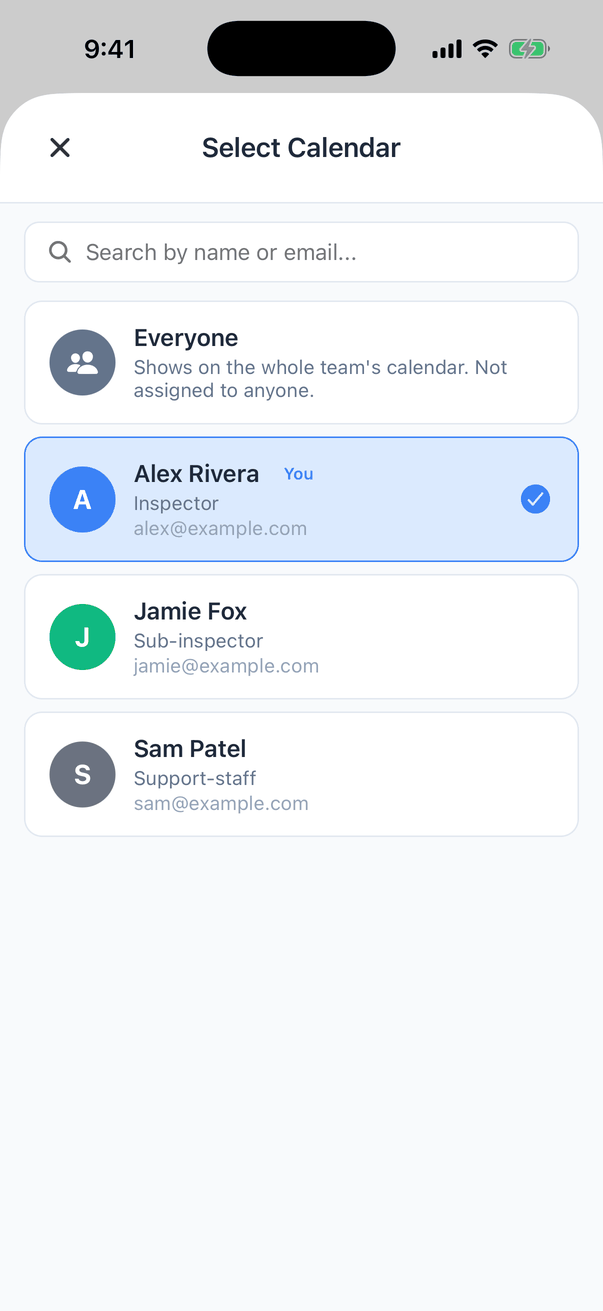
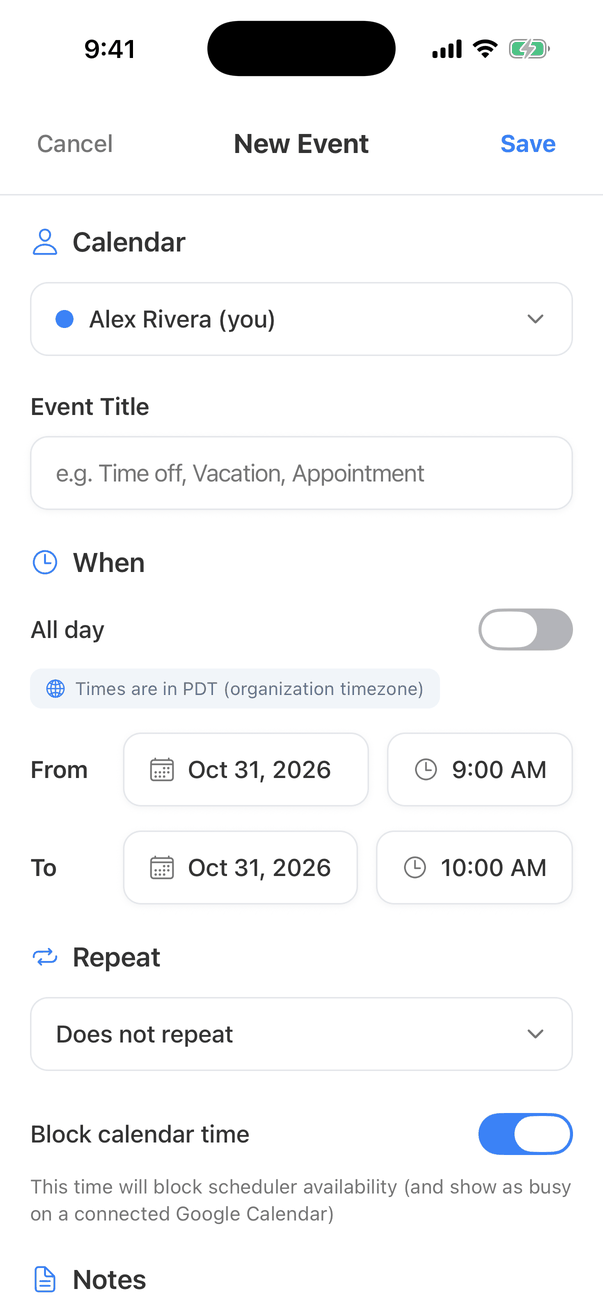
Fill in the details
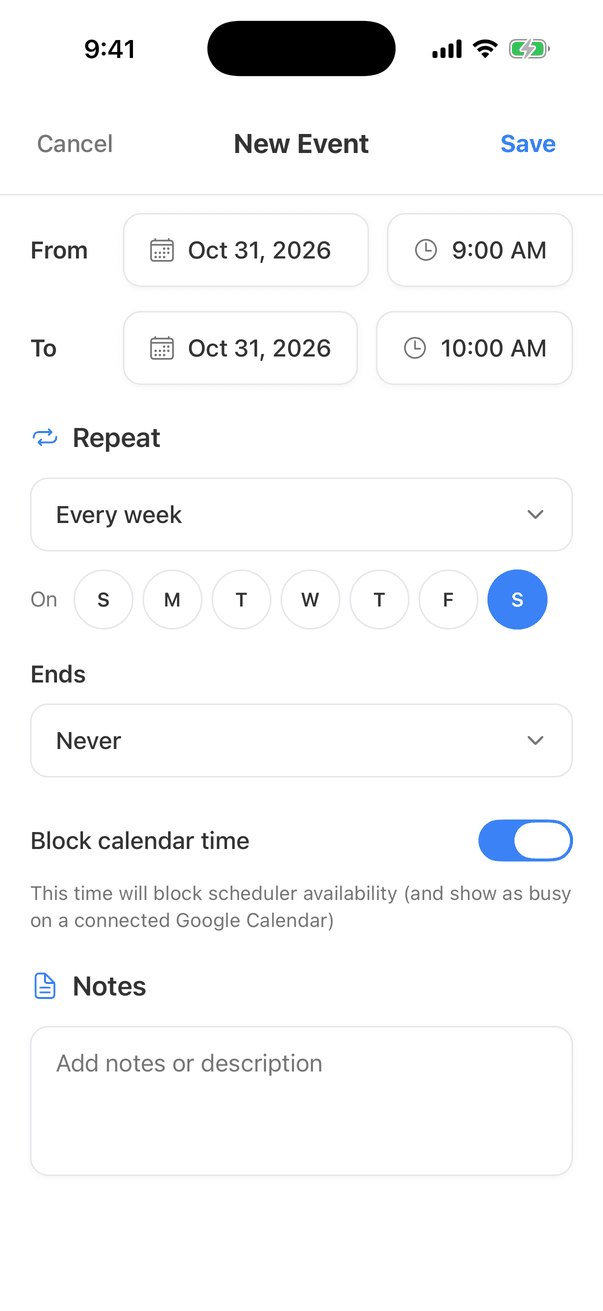
- Event Title, for example “Time off” or “Dentist”.
- All day, or a From and To date and time. Times are in your company’s time zone.
- Repeat: see below.
- Block calendar time: see below.
- Notes.
Block calendar time
Repeat
Repeat offers Does not repeat, Every day, Every week, Every 2 weeks and Every month on the start date’s day.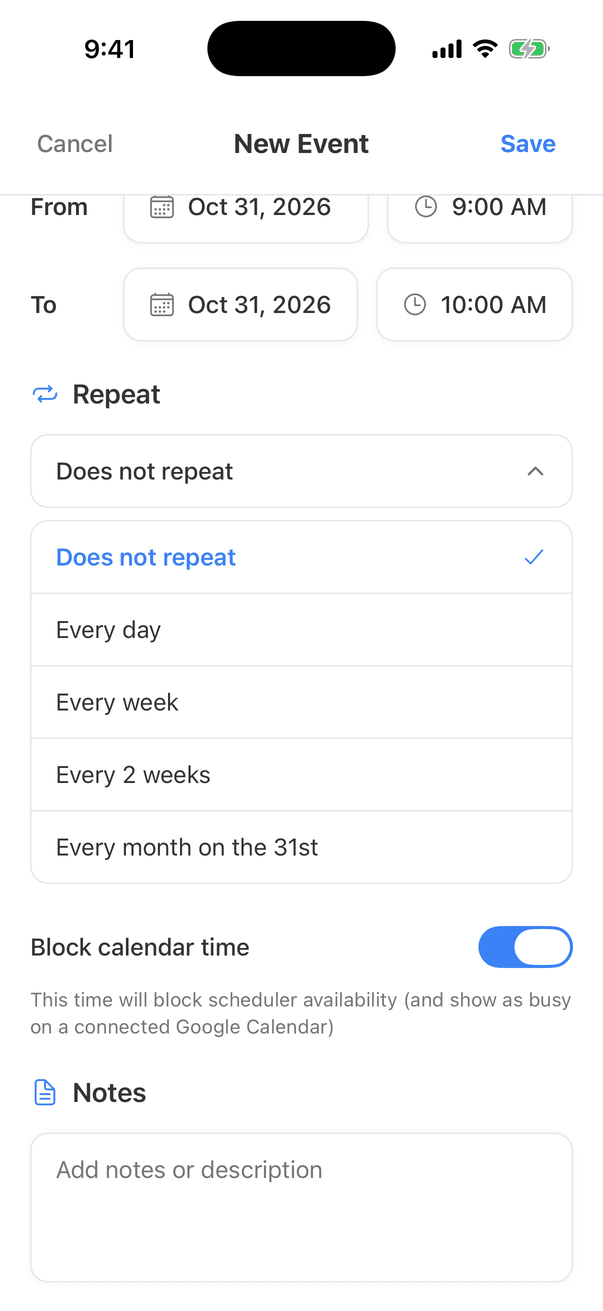
Event details, edit and delete
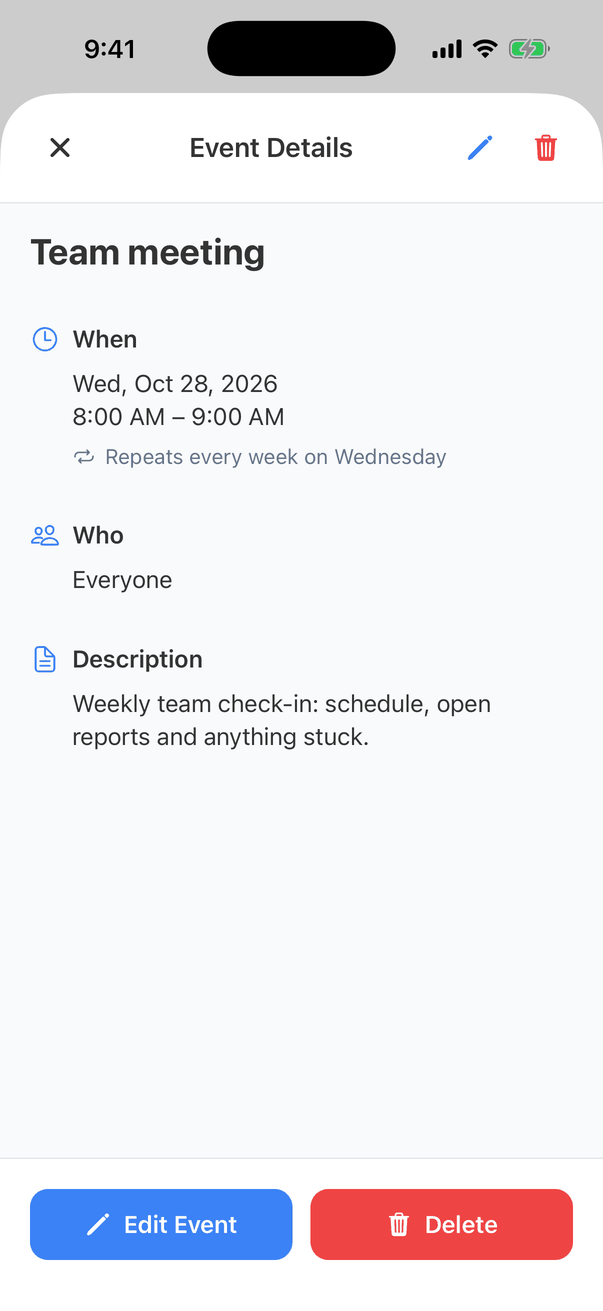
Tap an event or time off on the calendar: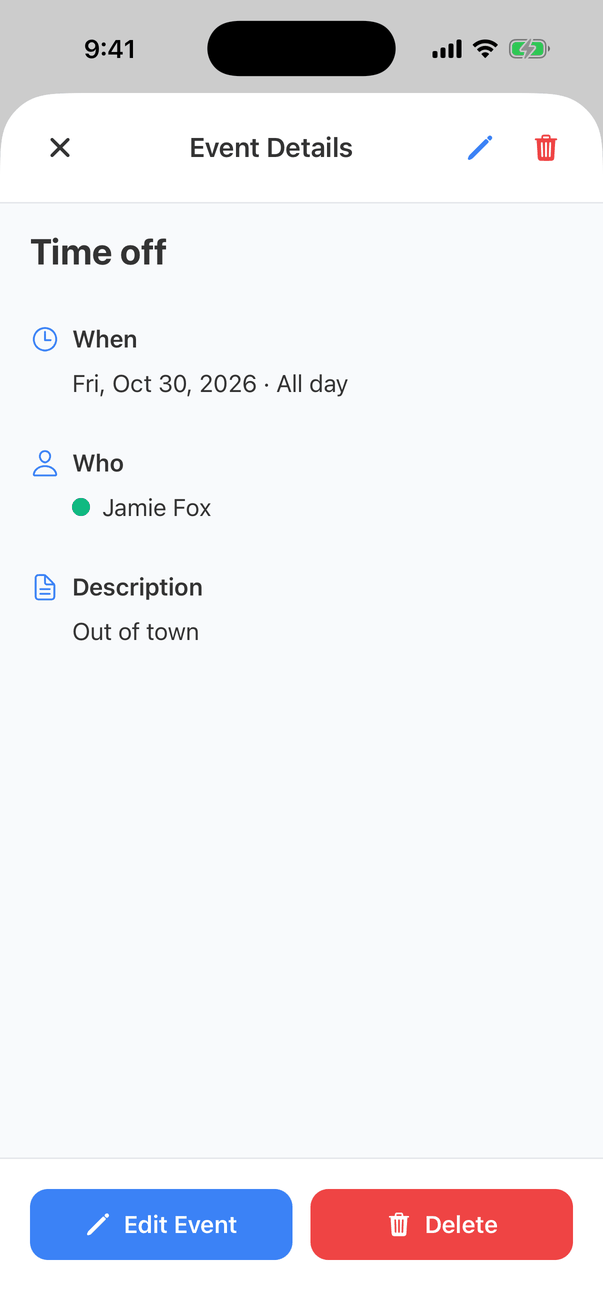
Google Calendar mode
When your company’s Calendar Engine is Google Calendar, the tab shows Google Calendar events instead:- Each person needs to connect their Google Calendar on the dashboard first, in Org Settings → Scheduling → Google Calendar Connection. See Connect Google Calendar. Until you do, the tab shows Connect Your Google Calendar. Pull down to check again after connecting.
- + and tapping a day open a simpler New Event form with Event Title, All day, From and To, Where and Notes. It’s saved to your Google Calendar.
- You can only add, edit and delete events on your own calendar. Teammates’ calendars are view only (“View Only: You can only create events on your own calendar”).
- A teammate who hasn’t connected shows “Calendar Not Connected: [name] has not connected their Google Calendar yet.”
- Tap a Google event to see its When, Where and Description, with Edit Event and Delete for your own.
Common questions
Why don't I see my teammates' calendars?
Why don't I see my teammates' calendars?
Sub-inspectors and support staff need the Schedule Management permission. Without it the Calendar tab only shows their own. Ask your company owner to turn it on in Team settings.
Will my time off stop clients booking me?
Will my time off stop clients booking me?
Yes, if Block calendar time is on (it is by default for a person’s event). Clients can’t book you online during that time.
Why are the times different from my phone's time zone?
Why are the times different from my phone's time zone?
The calendar uses your company’s time zone, shown in the form (“Times are in PDT (organization timezone)”). Change it on the dashboard in Organization Settings.
Can I move an inspection from the calendar?
Can I move an inspection from the calendar?
Not by dragging. Tap the inspection to open it, then use Reschedule. See Inspection Summary.
Where to go next
- Organization Settings: choose Hive or Google Calendar.
- Connect Google Calendar.
- Inspection events: radon pickups and re-inspections.