

In the dashboard: Business Tools → Report Customization
What Report Customization does
Report Customization is where you decide how every report from your company looks to clients: the digital report they open in a browser and the PDF they download. One change here applies to all of your inspectors and all of your templates.
Some settings can also be changed for a single template or a single report. Those are in Template Tools and Report Tools. See Template Tools and Report Tools.
Open the page and save your changes
Open Report Customization
- Click Business Tools in the sidebar.
- Click Report Customization. You can also type “report” in the Search tools box.
Change the settings you want
- Pick a tab: Both Formats, Digital Report or PDF Report.
- Change as many settings as you like, on any tab. Some settings appear only after you turn on the setting above them.

When your changes show up
- Digital report
- PDF
The next time anyone opens a report, it uses your new settings. This includes reports you already published, so a client who refreshes sees the change.Two exceptions:
- Category names are copied onto each report when it is created, so a change shows on new reports only. See Category names.
- Default annotation color only sets the starting color of new photo annotations.
Both Formats tab
These settings change the digital report and the PDF.Report Theme Color

#0176DF. Reset to default brings back Hive blue.
Today the color is used in the PDF only:
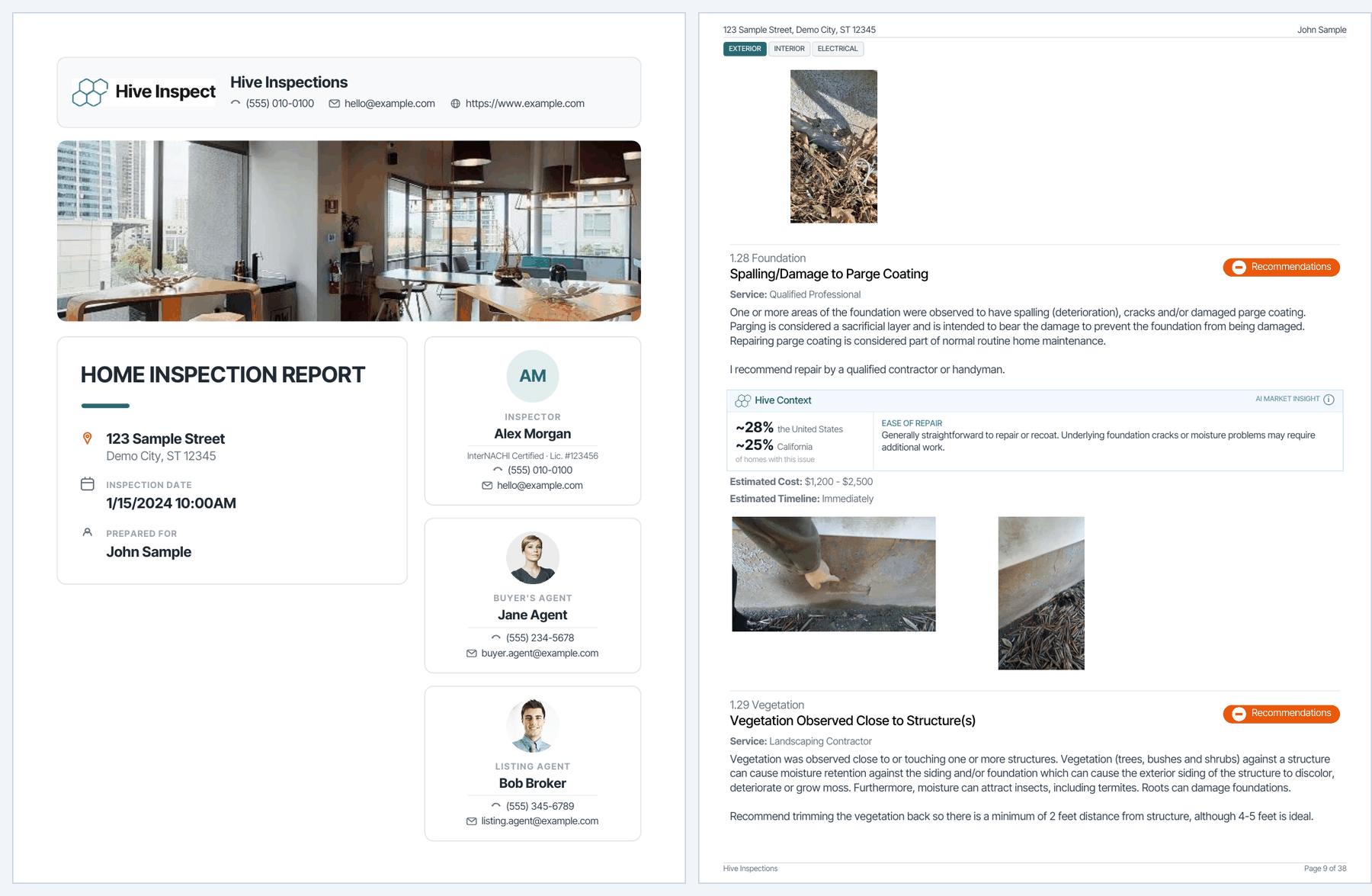
- the accents on the cover page, such as the contact details on the Classic cover, the initials circles and the Modern cover’s title underline
- the current section’s tab when Clickable Section Tabs is on
- the Cost to Cure table and the extra contacts page
Category names
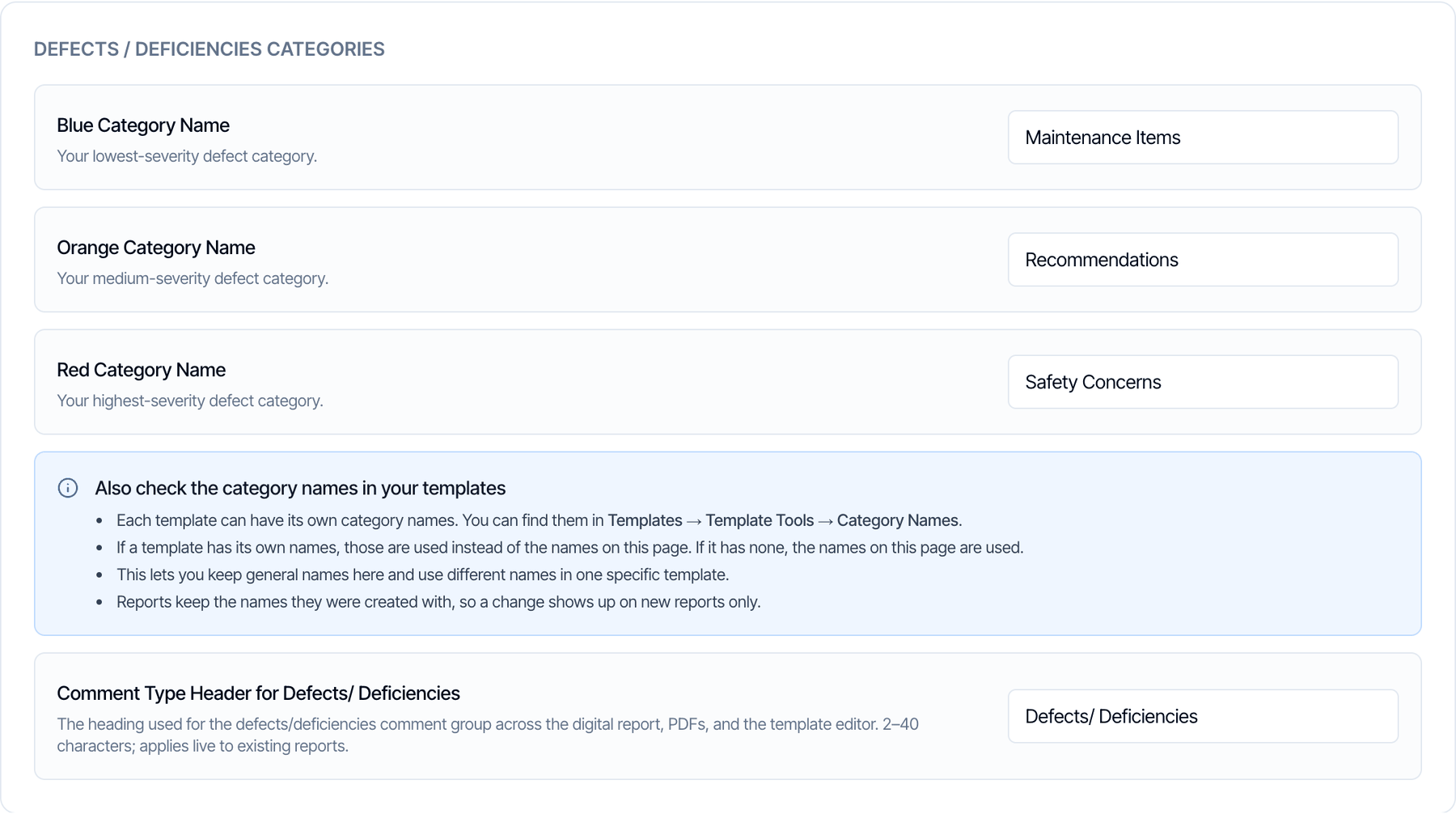
Names can be up to 60 characters and can’t be empty. They show everywhere a client sees a category: on each defect, in the legends, in the summary and in the PDF.
How these names reach your reports:
- Each template has its own names. A new template starts with the names on this page. After that, it keeps its own copy.
- Each report has its own names. A report copies its template’s names when it is created and keeps them.
- So a change on this page shows up in templates you create from now on, and in reports made from them.
The mobile app always shows the standard category names while you write. Your custom names are what your clients see.
Defects heading
Comment Type Header for Defects/ Deficiencies is the heading for the defects group in every section. The default is Defects/ Deficiencies. Some inspectors use Observations or Deficiencies instead.- 2 to 40 characters.
- It also renames the heading in the defects summary, the status table column, the chart titles and the Summary view.
- It changes existing reports too: the digital report the next time it’s opened, and the PDF the next time it’s built.
- It also shows in the template editor. The Web Editor and the mobile app keep showing Defects/ Deficiencies while you write.
Defects summary
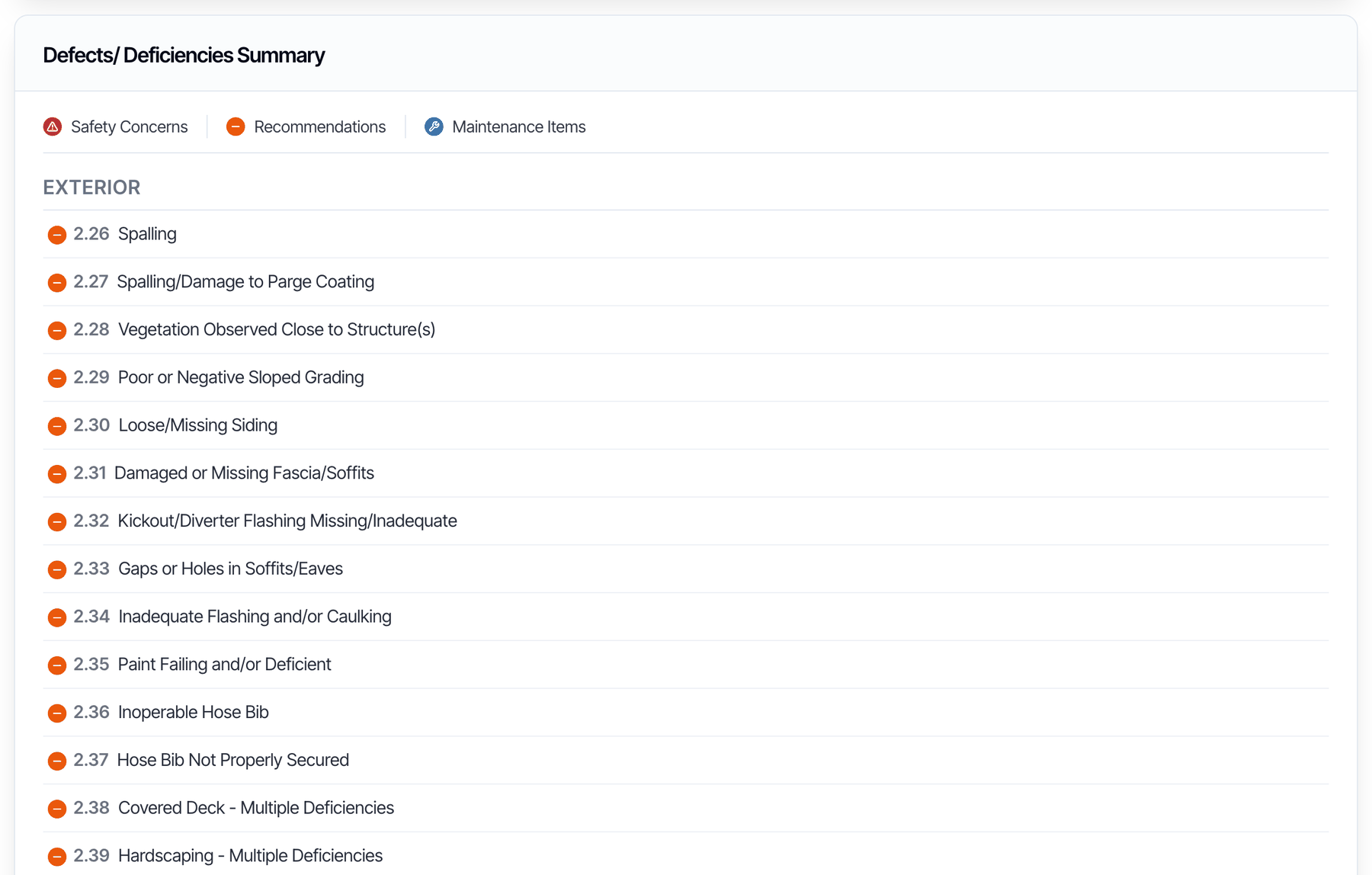
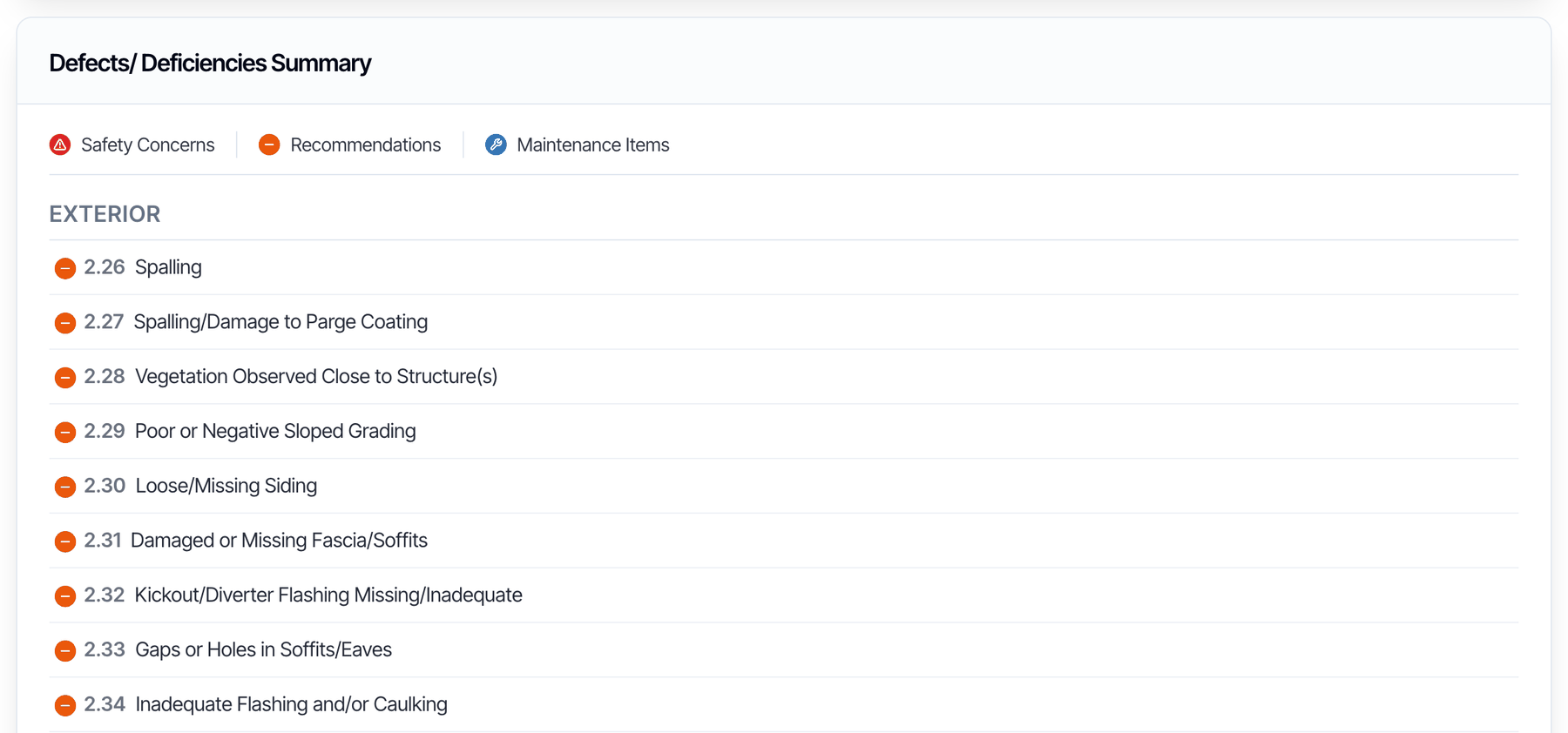
- Each line shows the defect’s number, its category icon and its name. Clicking a line jumps to that defect.
- It is in the full report and the Summary view, in the digital report and in both PDFs.
- Use Show Defect categories in the summary in Template Tools or Report Tools to leave a category out. See Template Tools and Report Tools.
- Reinspection reports don’t show it.
Detailed Summary Items
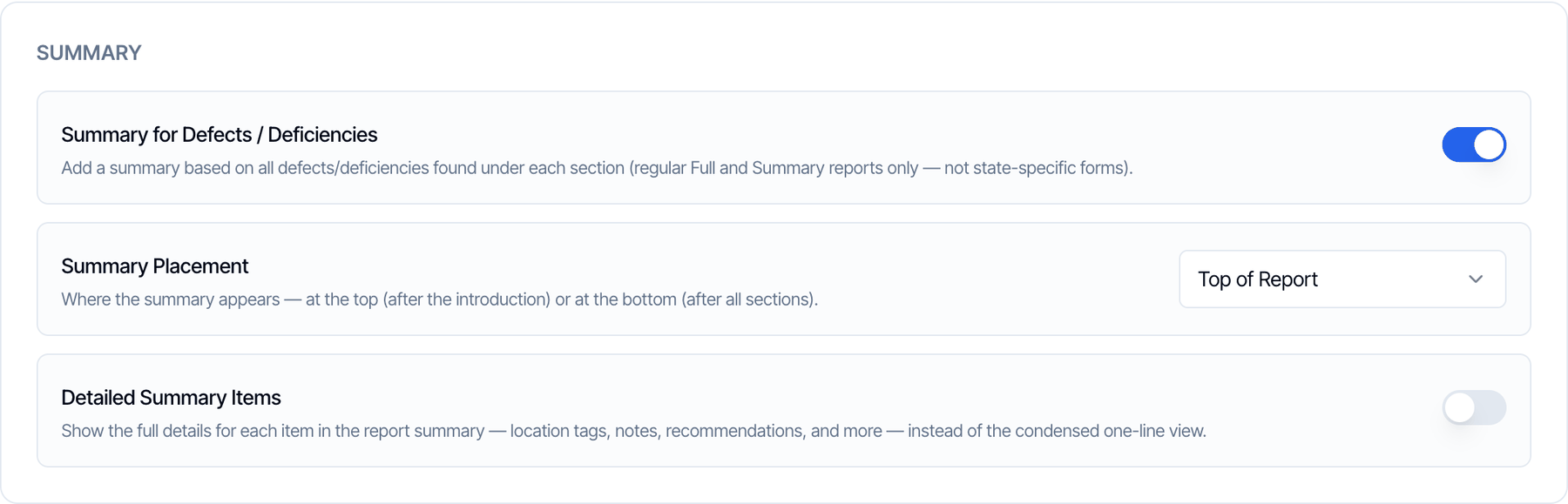
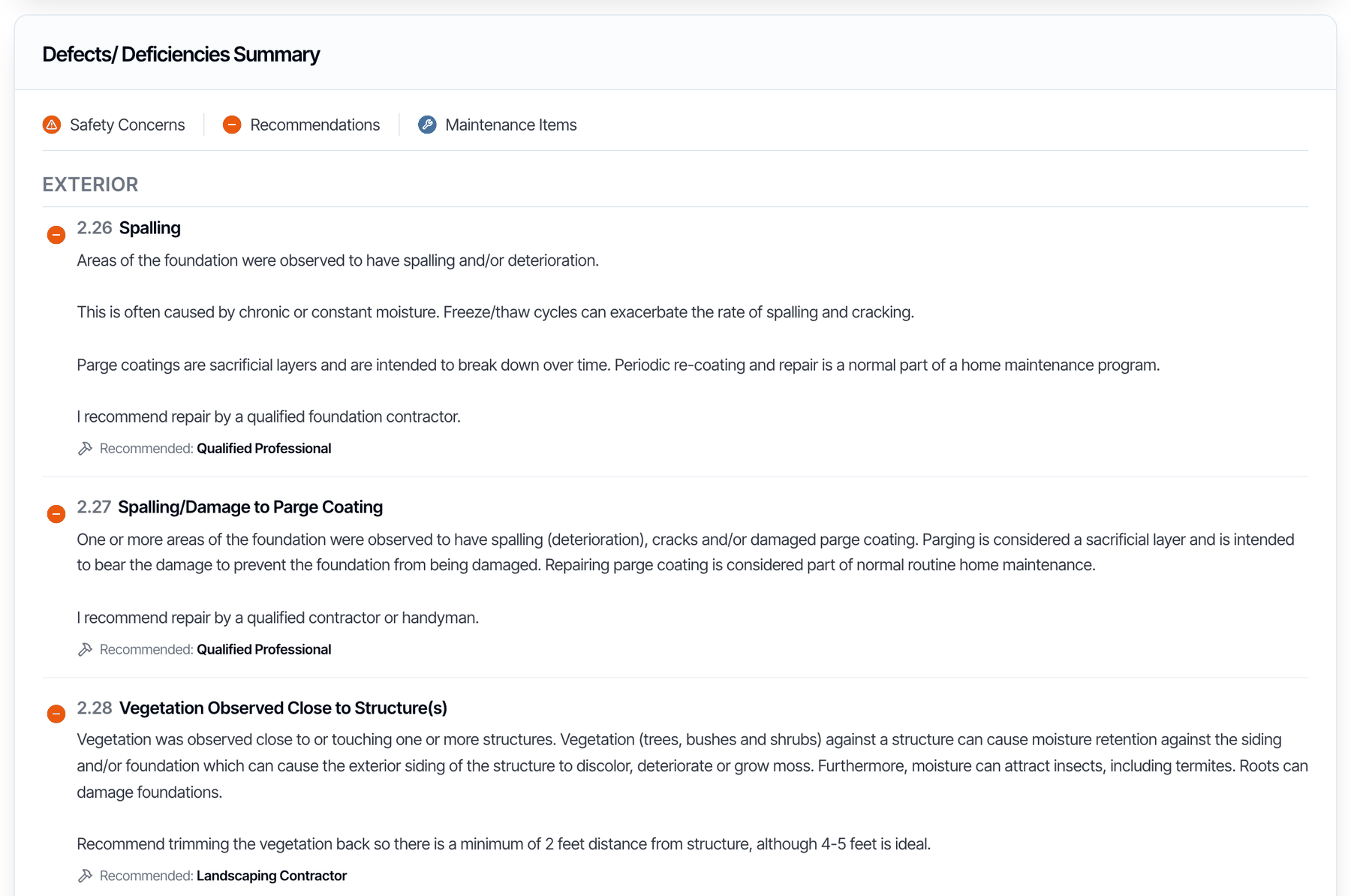
Show the full details of each defect in the summary instead of one line. Default: off.- Off: one line per defect
- On: full details
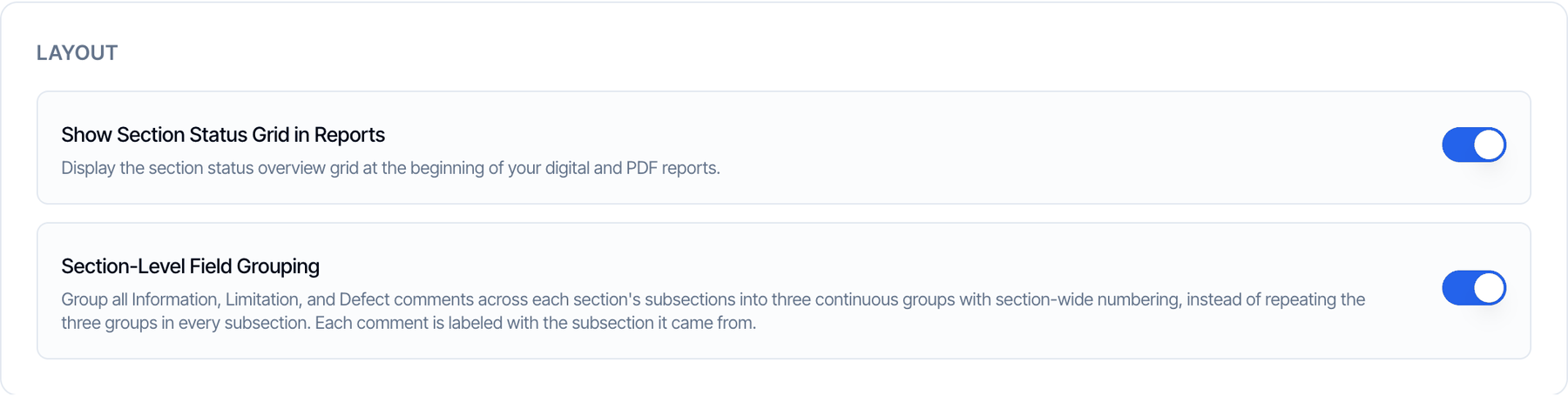
Show Section Status Grid in Reports
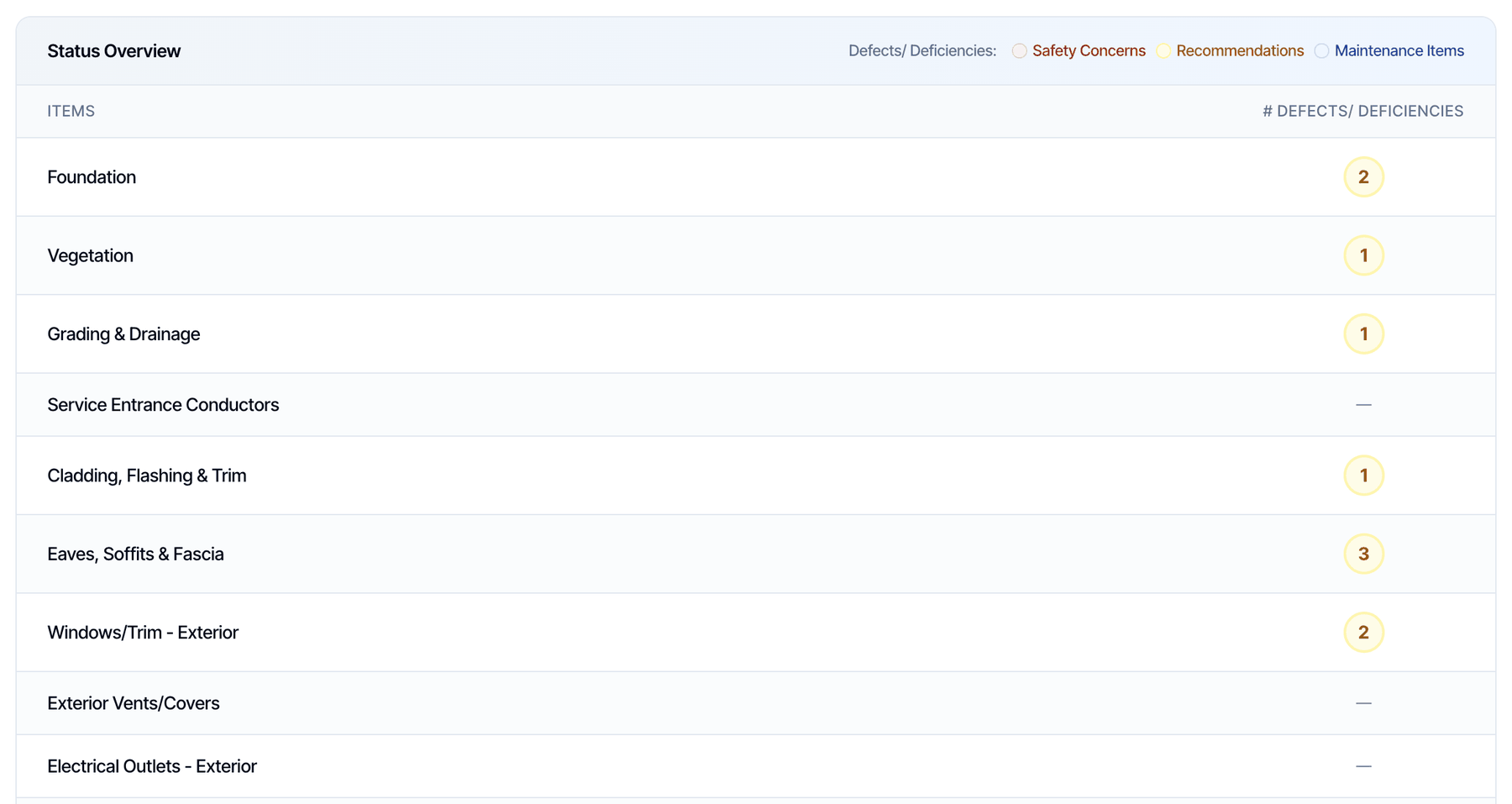
With the table off, subsections that have only a rating and no comments are left out of the report, and the subsections after them are numbered one lower.
Section-Level Field Grouping
How comments are grouped inside each section. Default: on.- On: one set of groups per section
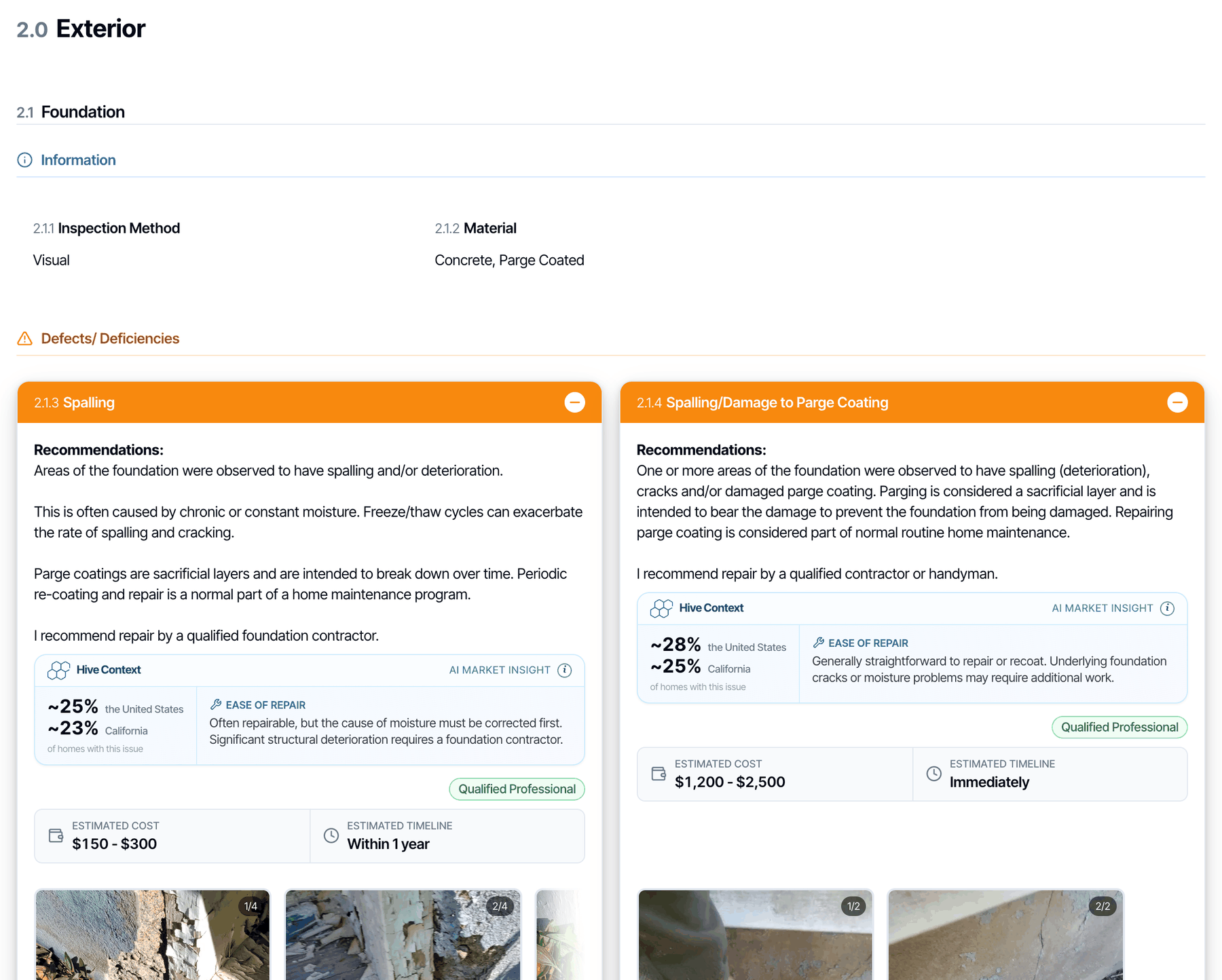
- Off: groups in every subsection
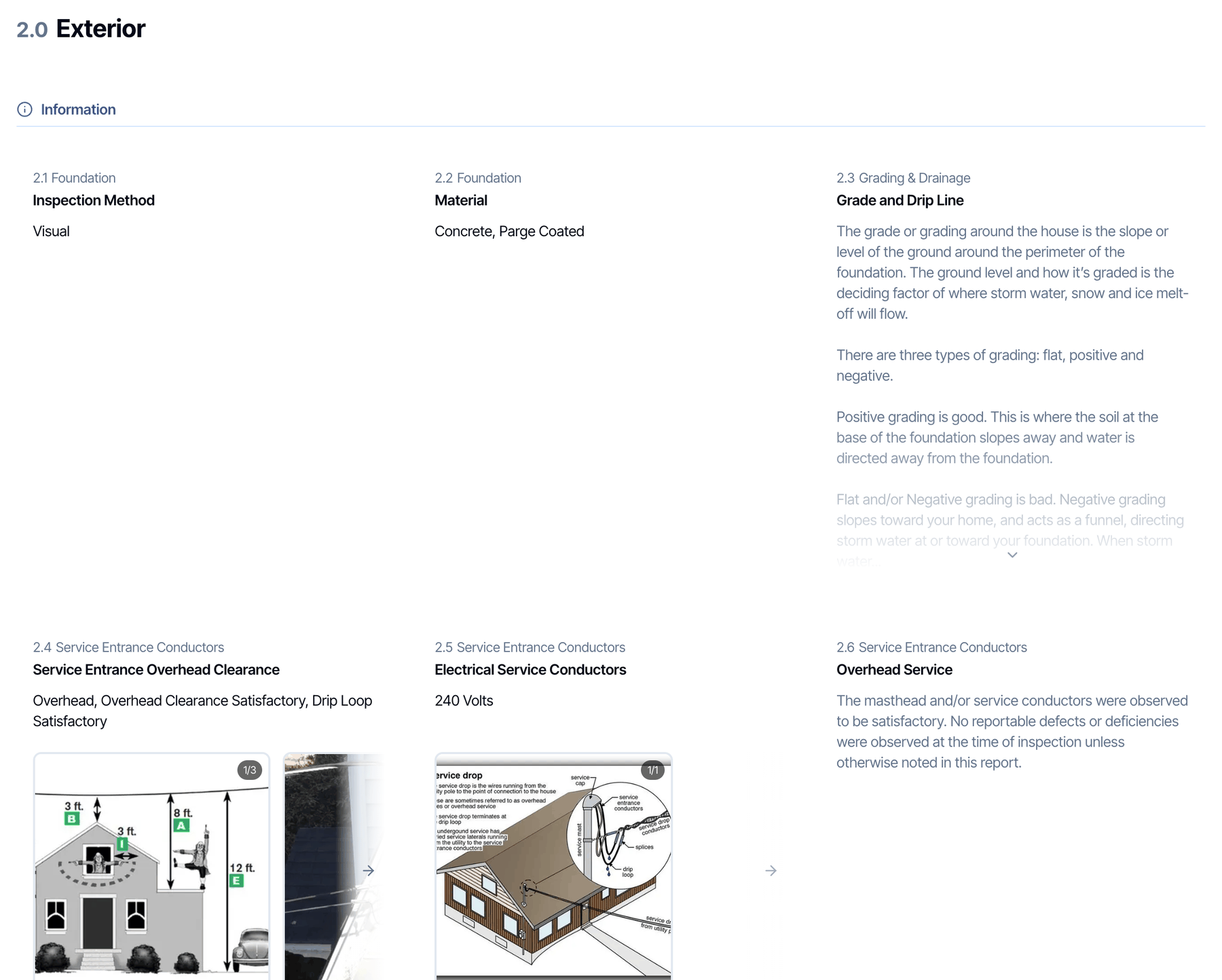
- On: each section shows its Information, Limitation and defect comments as three groups, numbered 2.1, 2.2, 2.3 and so on through the section. Each comment is labeled with the subsection it came from.
- Off: each subsection has its own three groups, numbered 2.1.1, 2.1.2 and so on.
Repair Addendum
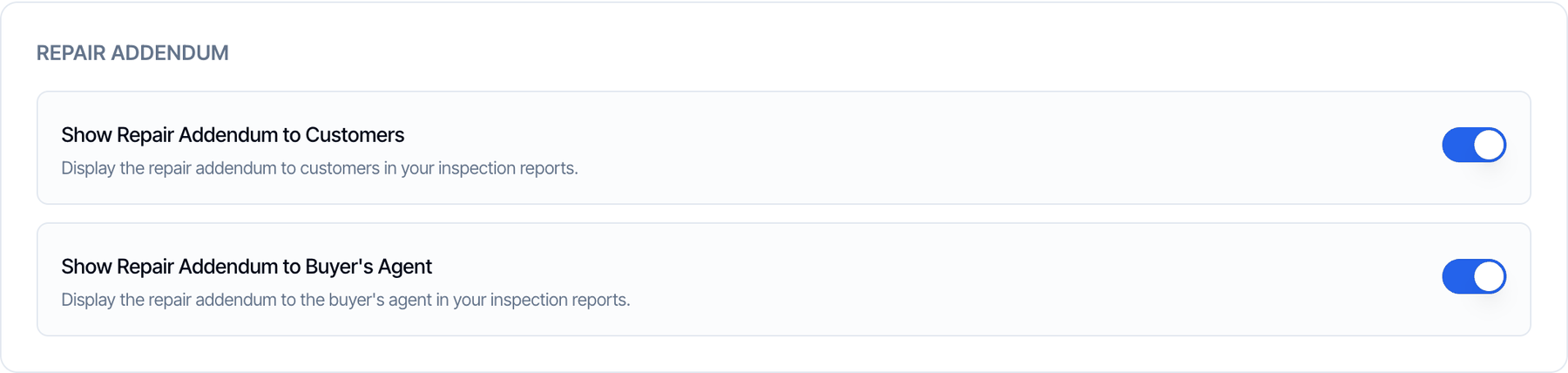
Listing agents always see the button. These settings only hide the button: they don’t change the PDF. See Repair addendum.
Use a Default Annotation Color
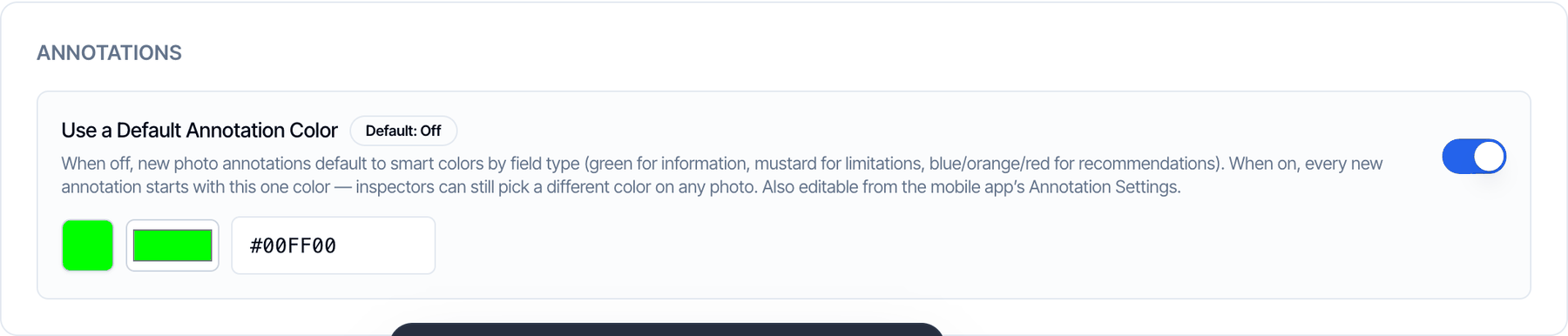
- Off: new annotations pick a color by comment type: green for Information, mustard for Limitations, and blue, orange or red for each defect category.
- On: every new annotation starts with the color you choose here.
Digital Report tab
These settings change the report clients open in a browser. The PDF ignores them.Digital Report Banner Design
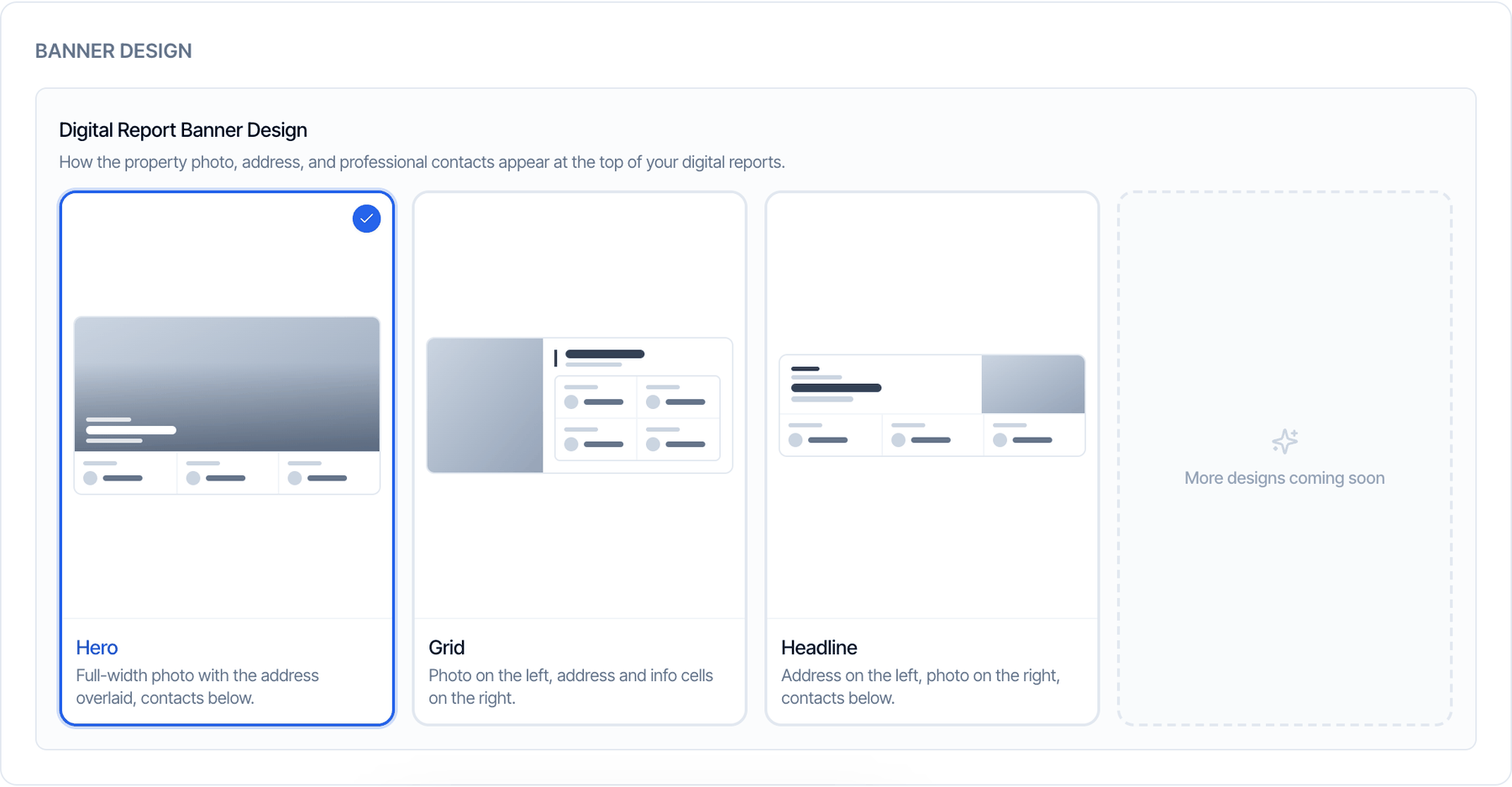
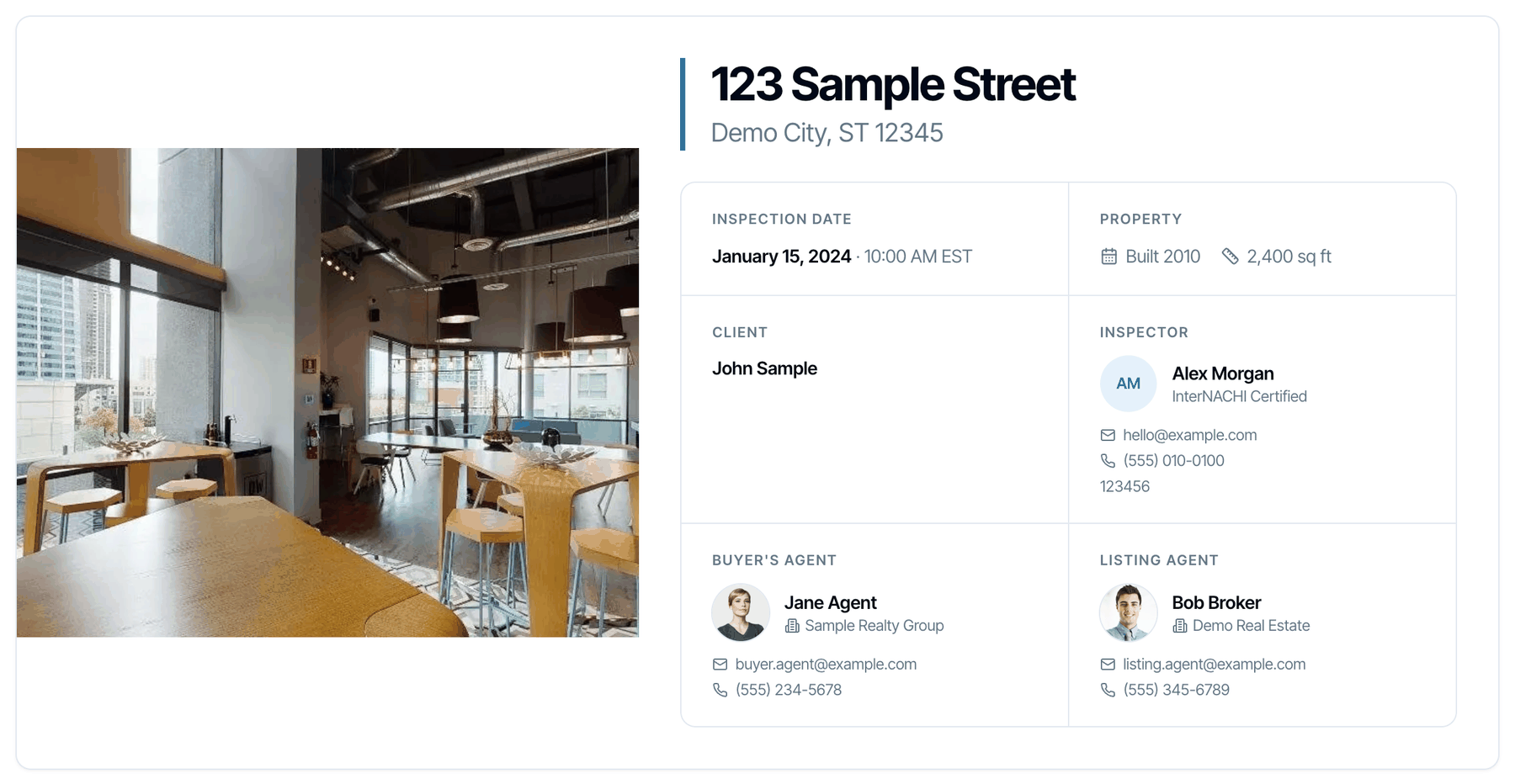
- Hero
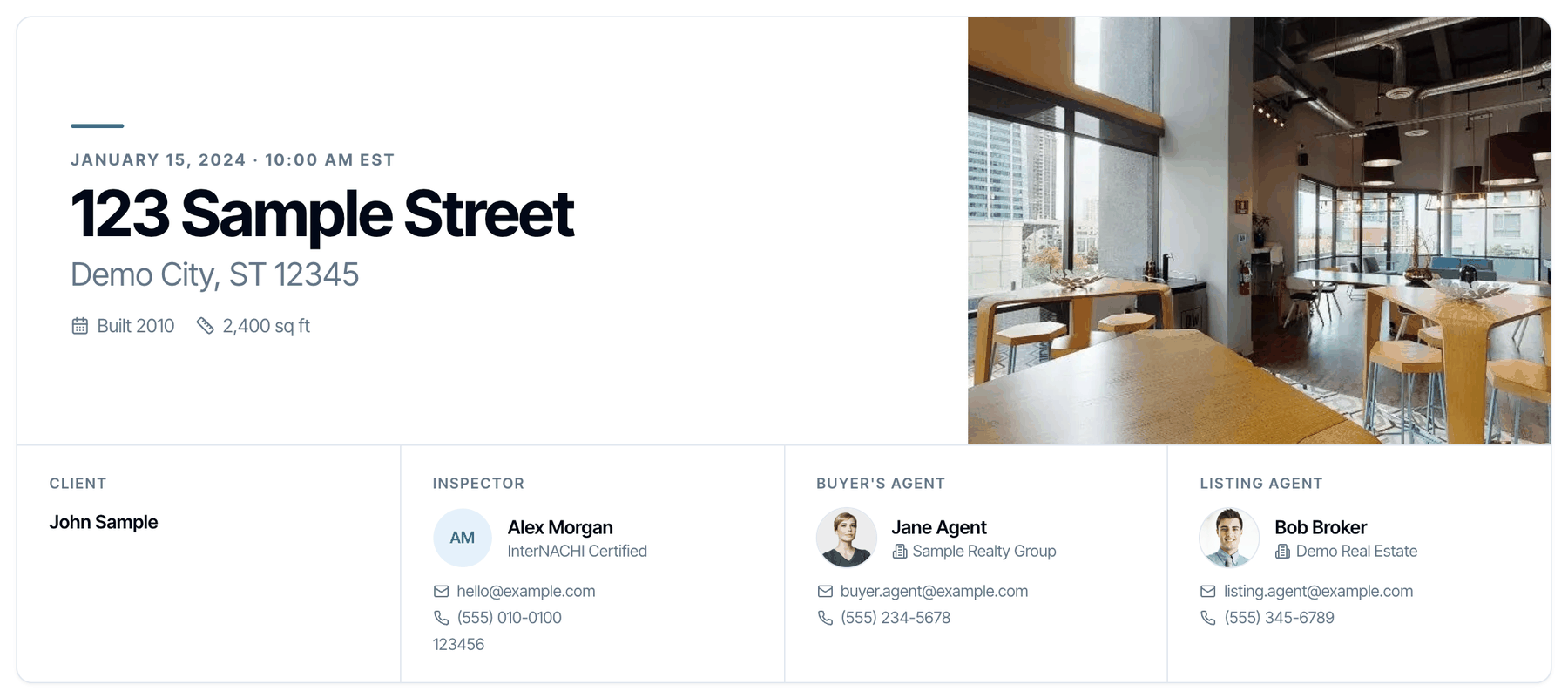
- Grid
- Headline
A full-width photo with the date and address over it, and the contacts in a row below.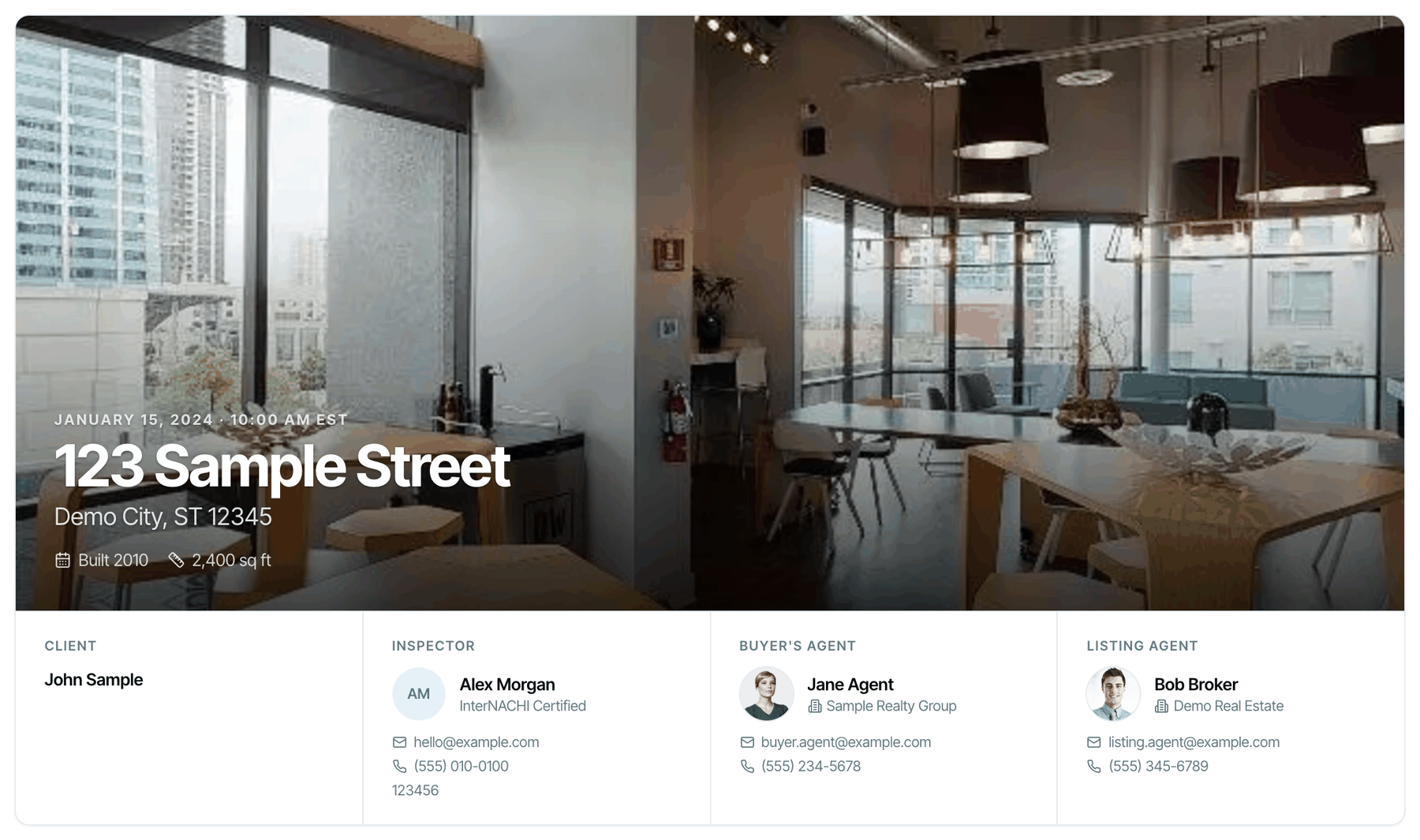
Charts
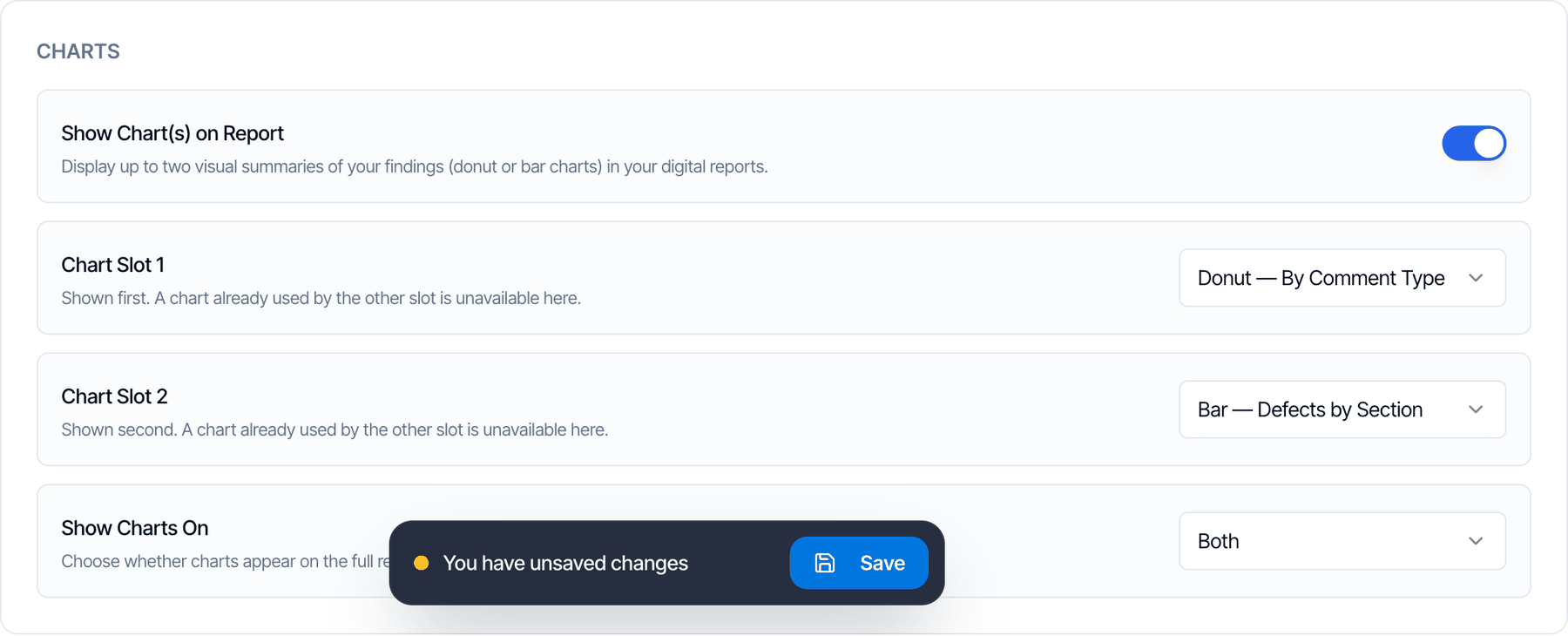
- Turn on Show Chart(s) on Report.
- Pick a chart for Chart Slot 1 and Chart Slot 2. The two slots can’t hold the same chart.
- Under Show Charts On, choose Full Report, Summary or Both.
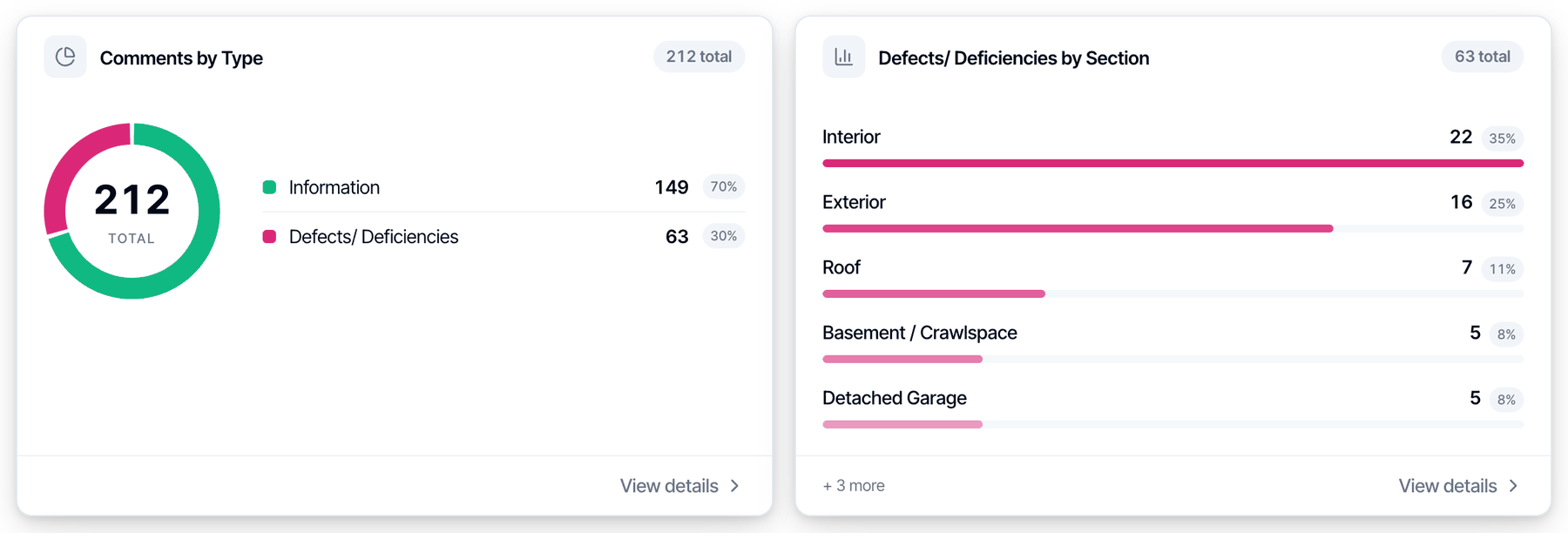
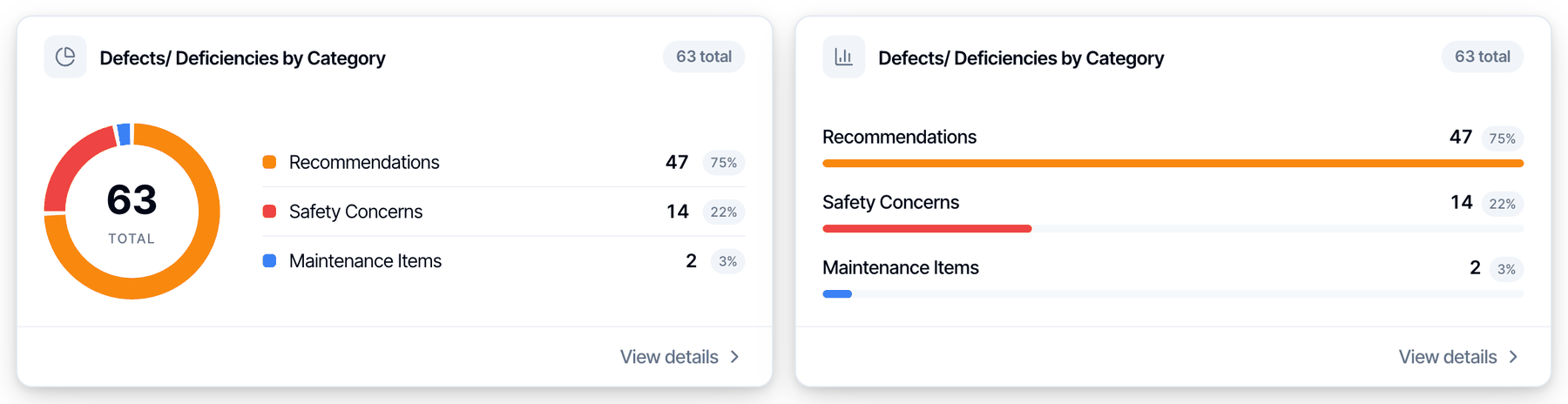
- The charts sit just below the contacts in the full report, and below the summary text in the Summary view.
- View details on a chart lists the comments behind it, with links to each one.
- If a report has no data for a chart, the chart is skipped.
- The two category charts are hidden on reports that hide category names.
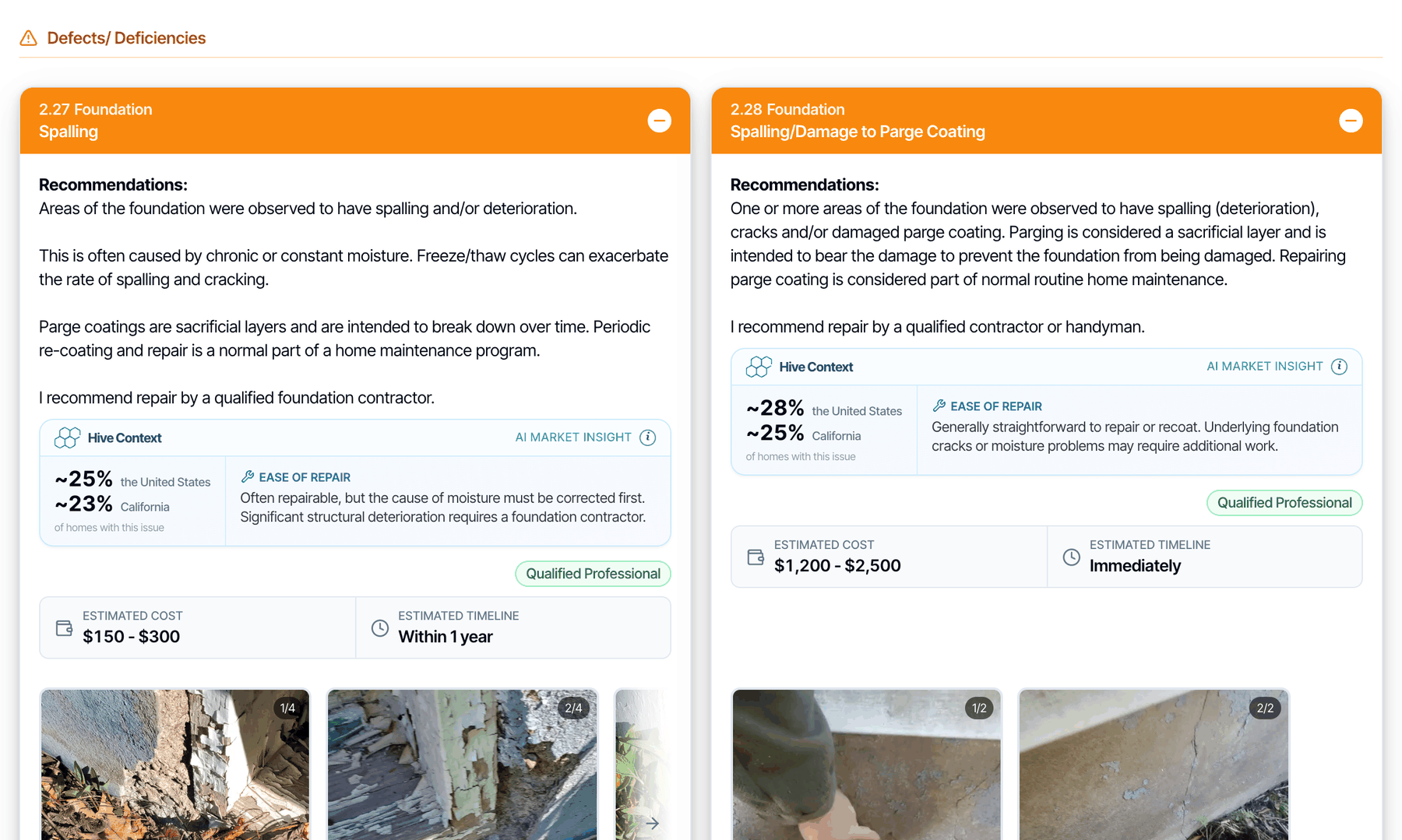
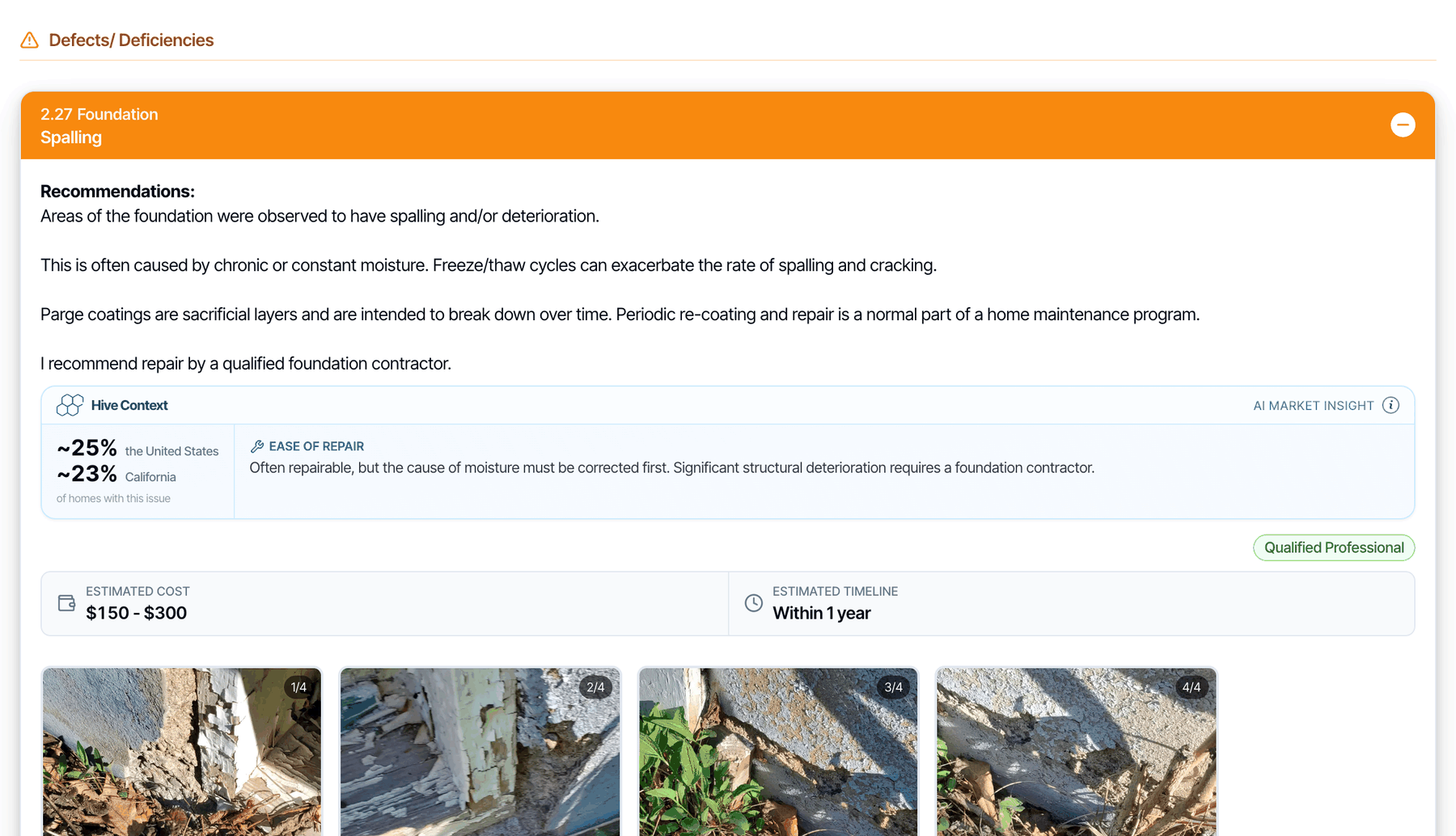
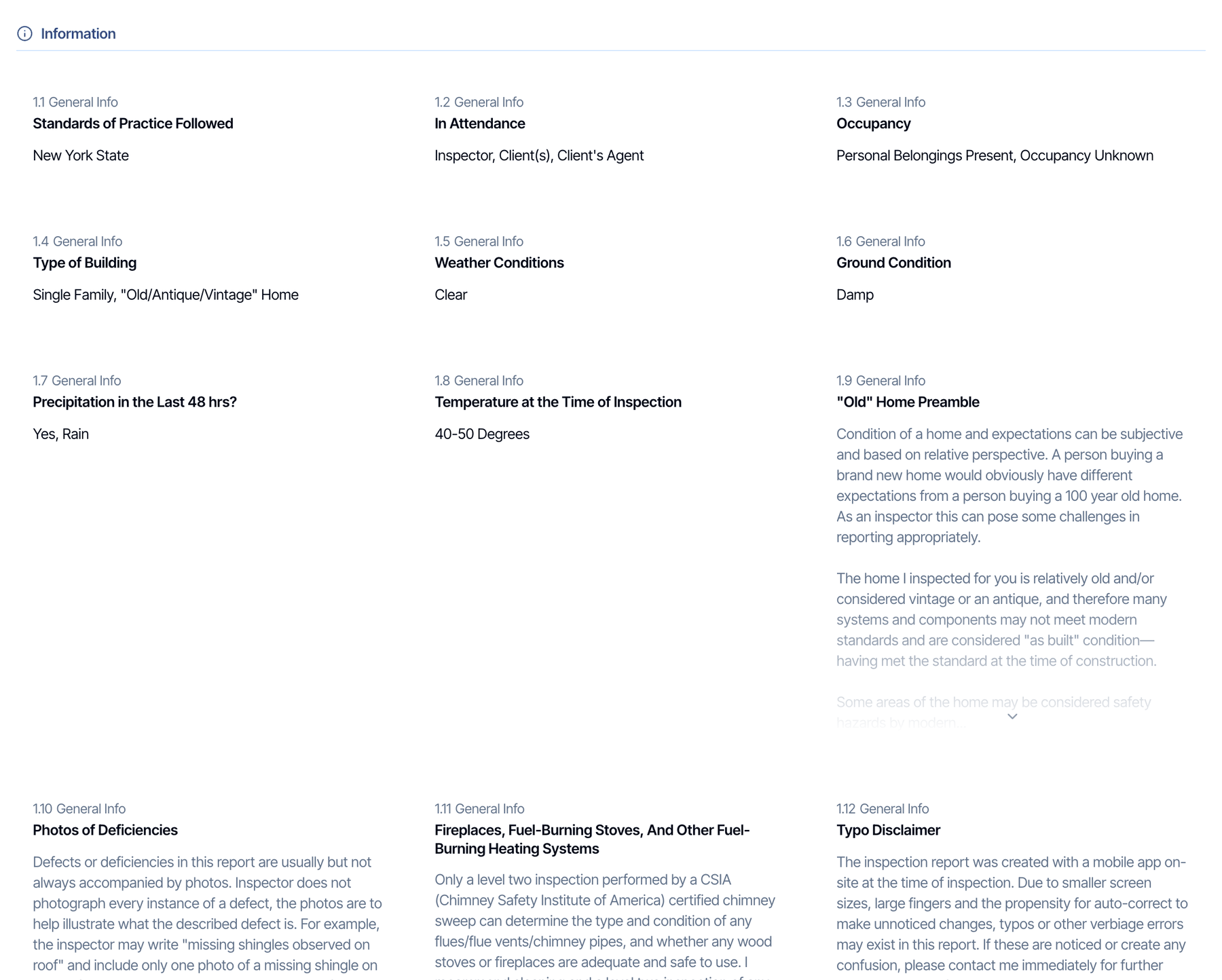
Field layout
How comment cards are arranged on a wide screen. On a phone, comments are always in one column. Single-Column Field Layout (Desktop). Default: off.- Off: defects two across
- On: one full-width column
- Off: three even columns
- On: long comments get the full row
PDF Report tab
These settings change the PDF only. They apply to the full report PDF and the summary PDF. Remember to regenerate a report’s PDF to see a change.State-specific forms, such as the TREC form itself, keep their own fixed layout. A form’s summary PDF does follow these settings, and the cover page design also applies to most form covers.
Cover Page Design
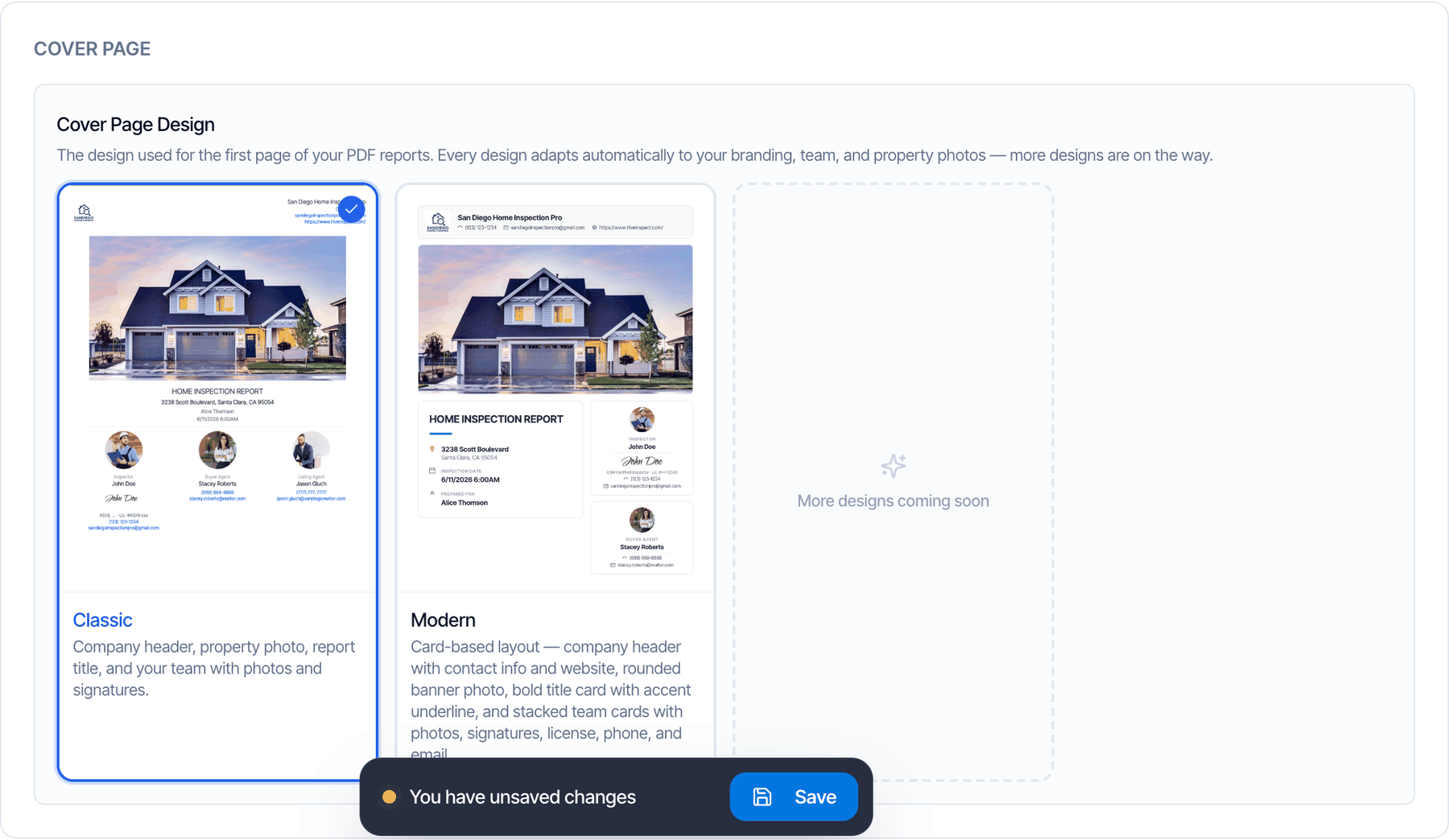
- Classic
- Modern
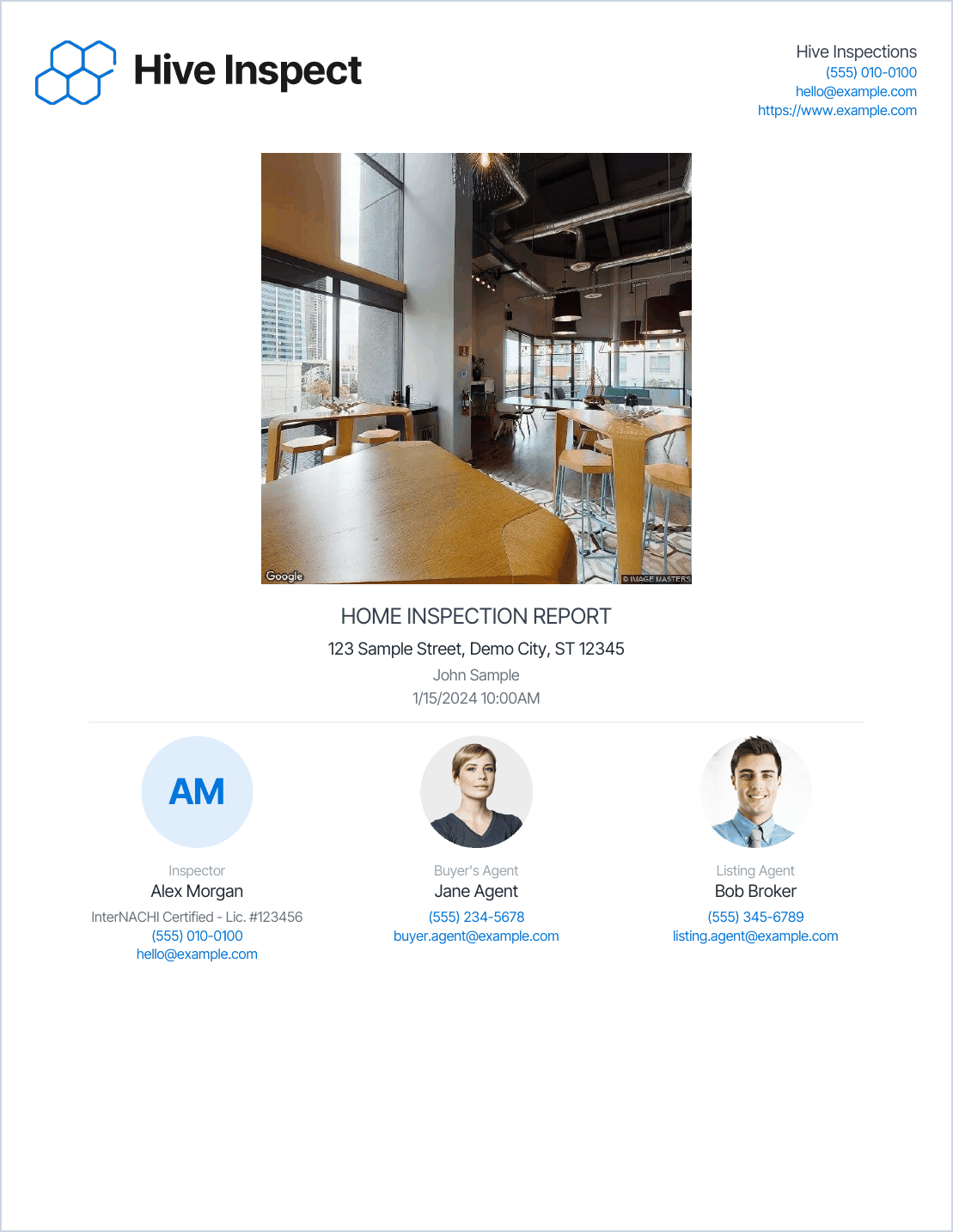
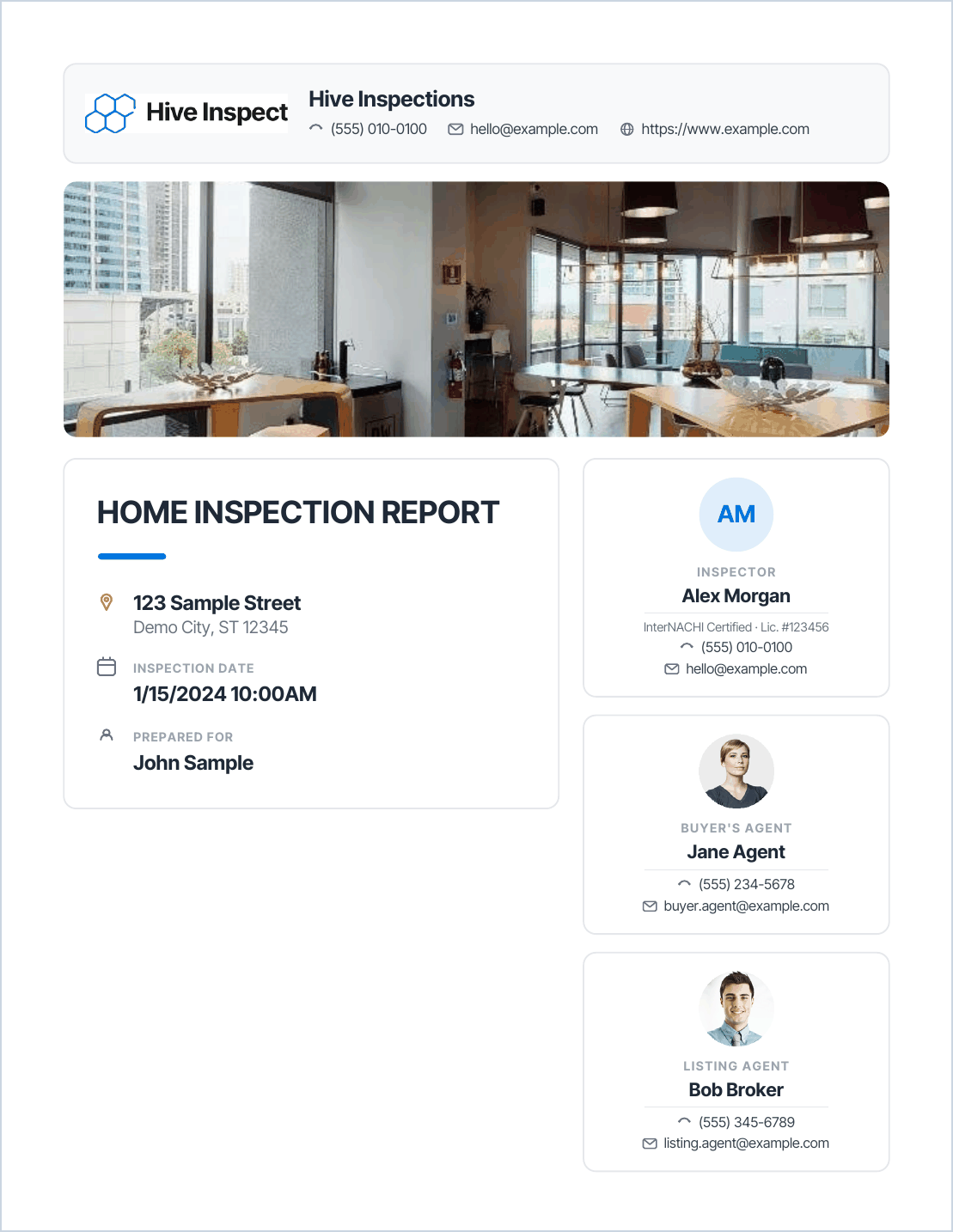
Table of Contents Page
A page after the cover that lists every section with a link to it. Default: on.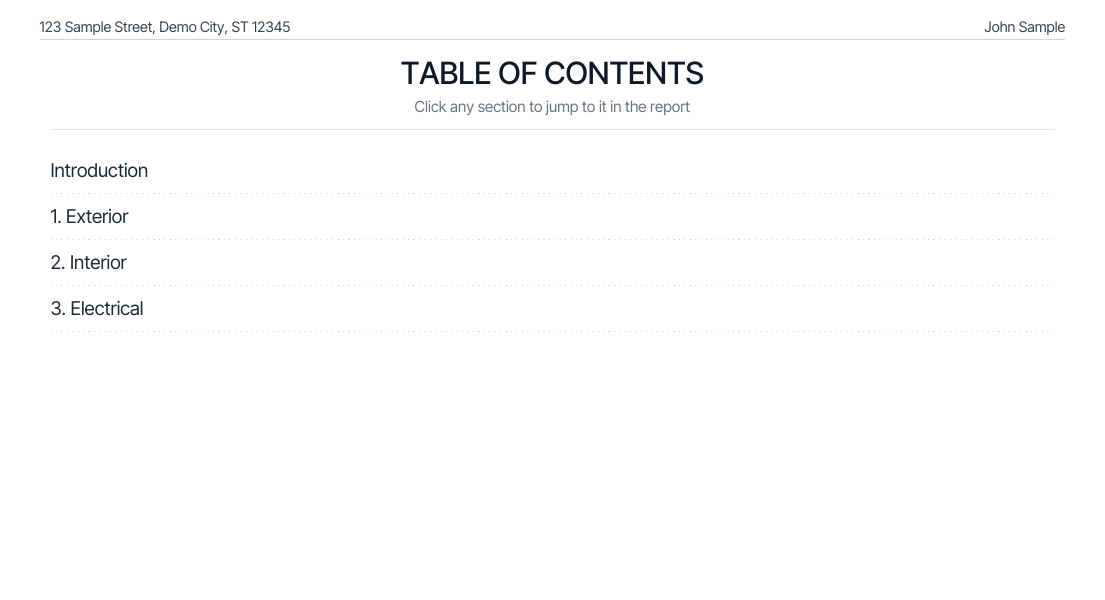
Clickable Section Tabs
A row of tabs at the top of every PDF page, one per section. Readers tap a tab to jump to that section. Default: off.
- Every page except the cover gets the tabs. A SUMMARY tab comes first when the PDF has summary text or a defects summary.
- The current section’s tab is filled with your theme color.
- Long tab rows wrap onto up to three lines.
Compact PDF
A denser PDF with about 20% fewer pages. Default: off.- Off
- On
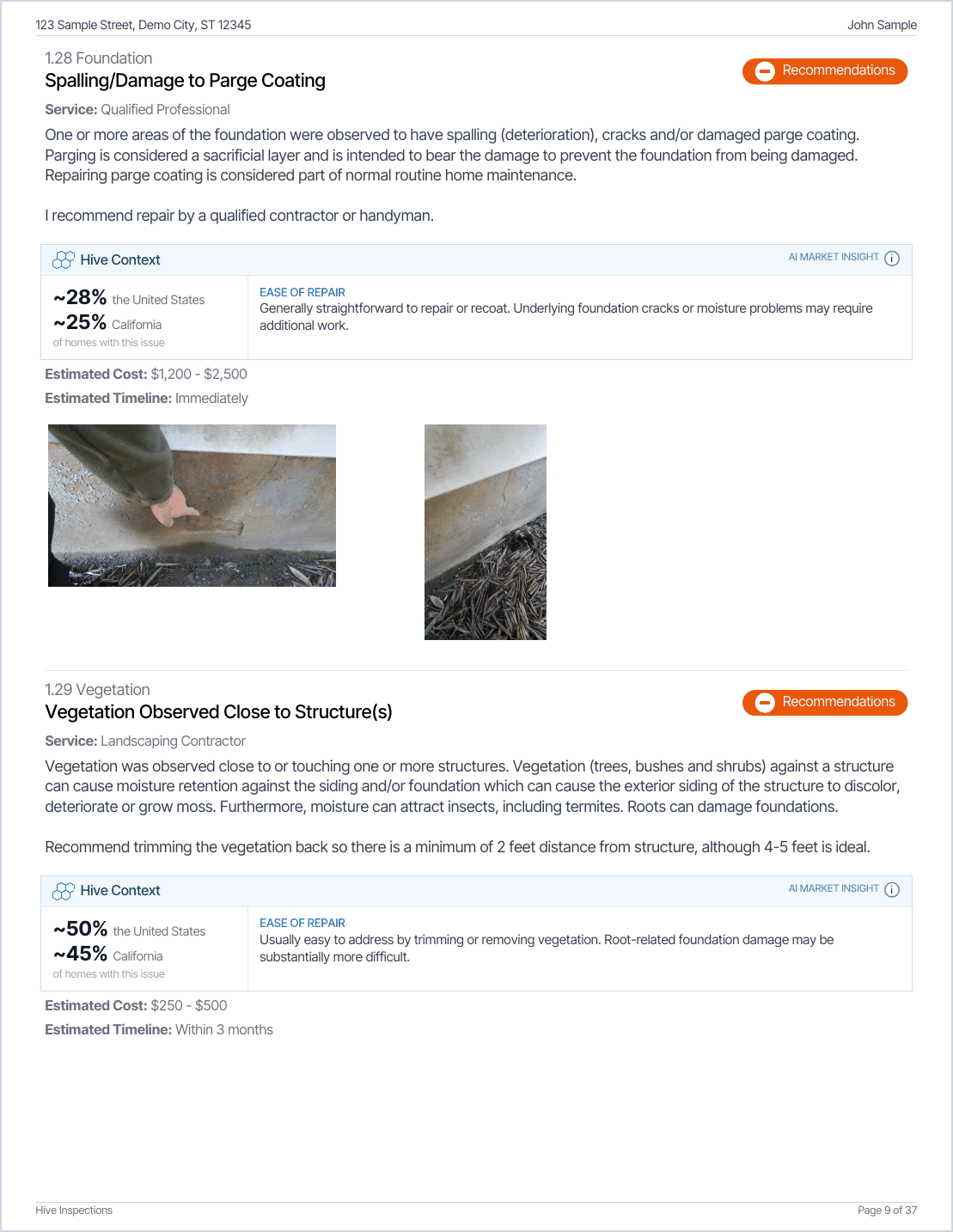
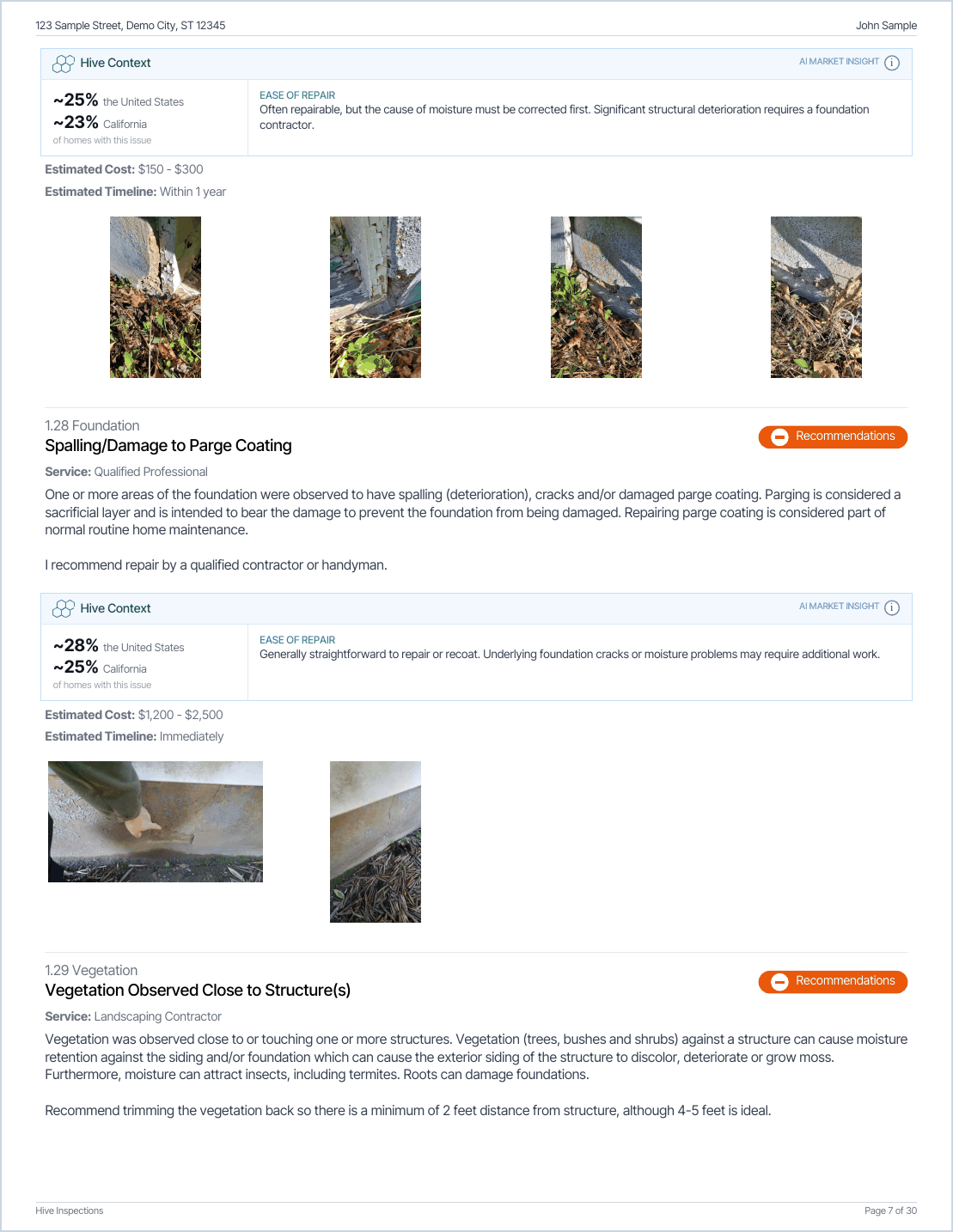
- Sections follow each other without starting a new page.
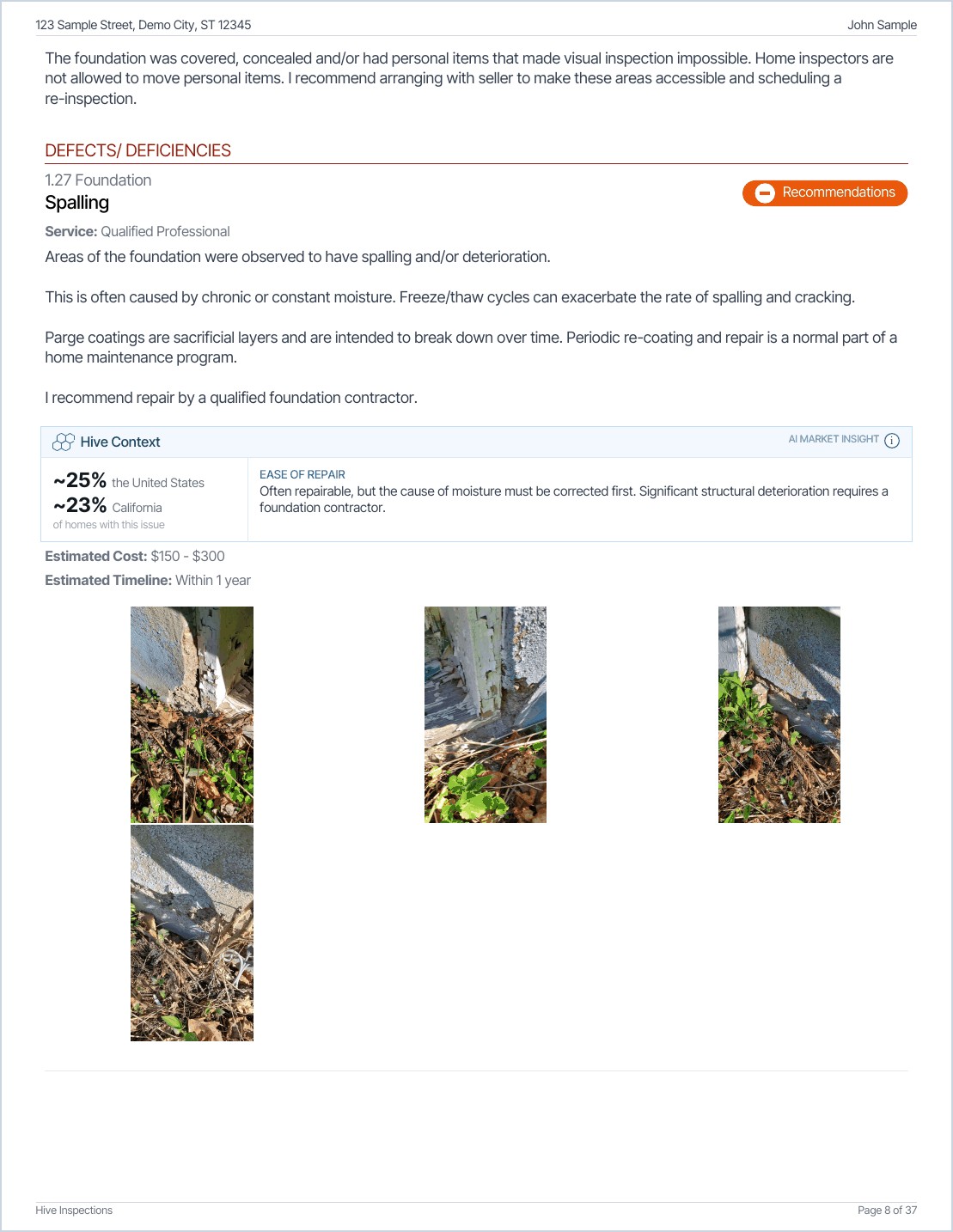
- Photos sit four across instead of three, unless you choose 2 or 1 per row below.
- Text is about one to two points smaller.
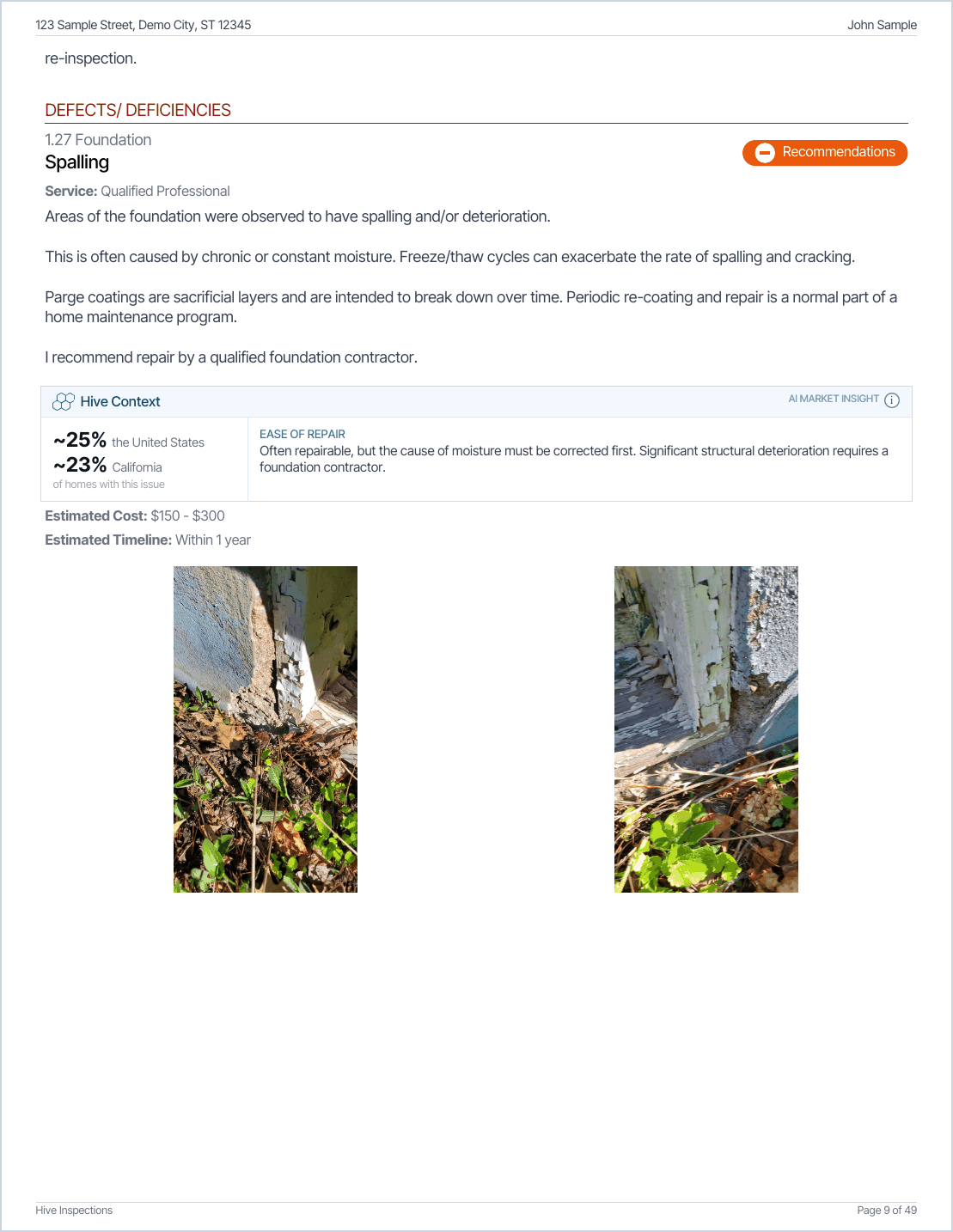
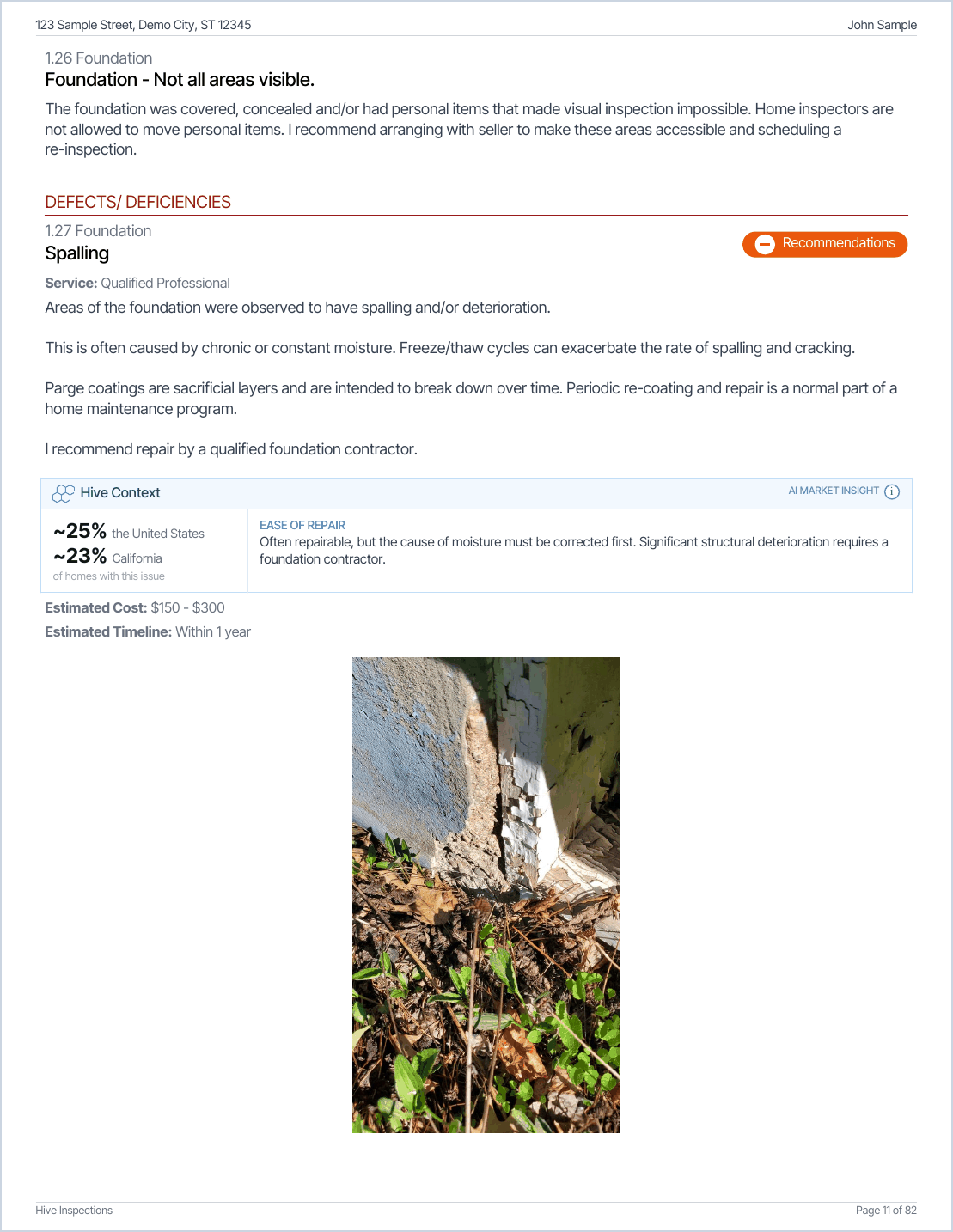
Photos per row in the PDF
How many photos sit side by side in the PDF.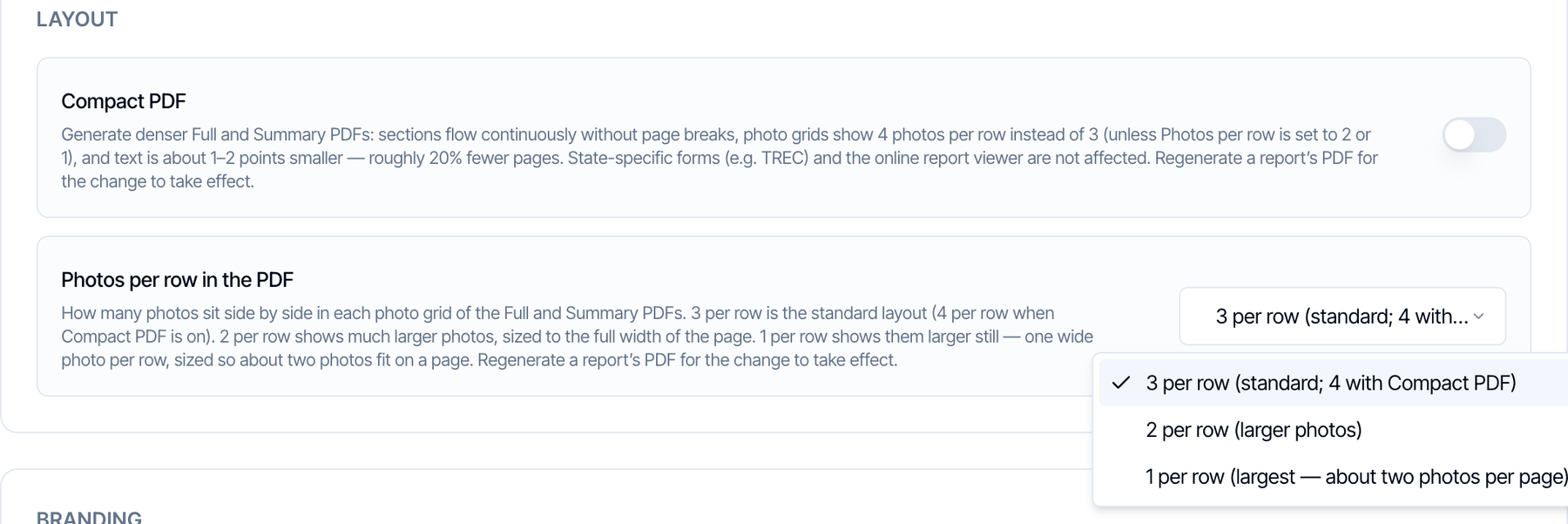
- 3 per row (default)
- 2 per row
- 1 per row
Logo watermark
Draw your company logo, faded, behind every page of the PDF except the cover. Default: off.- Logo Watermark on Main Report adds it to the full report PDF.
- Logo Watermark on Summary Report adds it to the summary PDF.
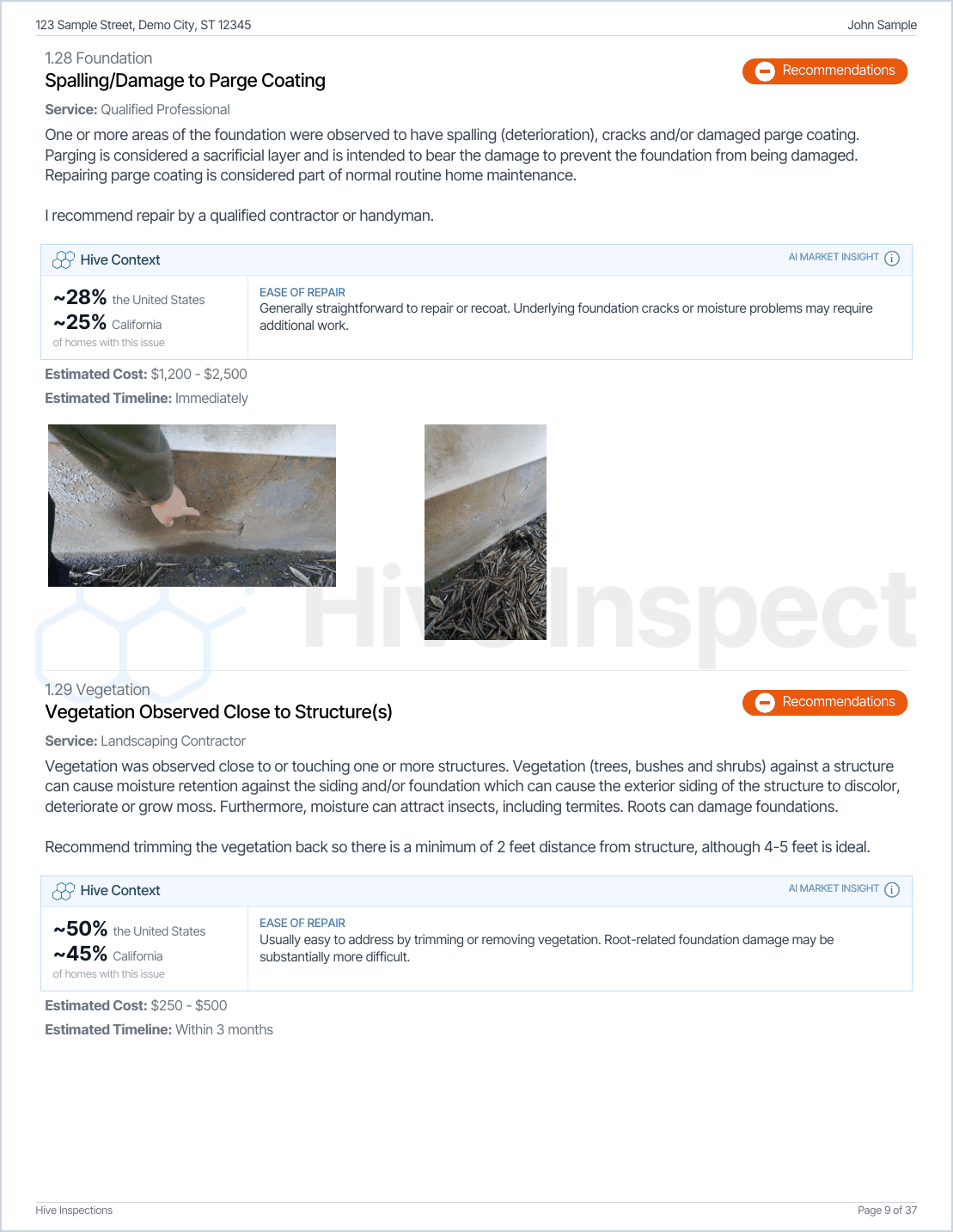
- The logo is drawn at 8% opacity, centered, and as wide as the page allows.
- It uses your Company Logo. Upload it under Profile Settings → Profile → Company Information → Company Logo. A wide logo on a transparent background works best.
- If you haven’t uploaded a logo, no watermark is drawn.
All settings at a glance
Frequently asked questions
I changed a PDF setting but my client's PDF looks the same. Why?
I changed a PDF setting but my client's PDF looks the same. Why?
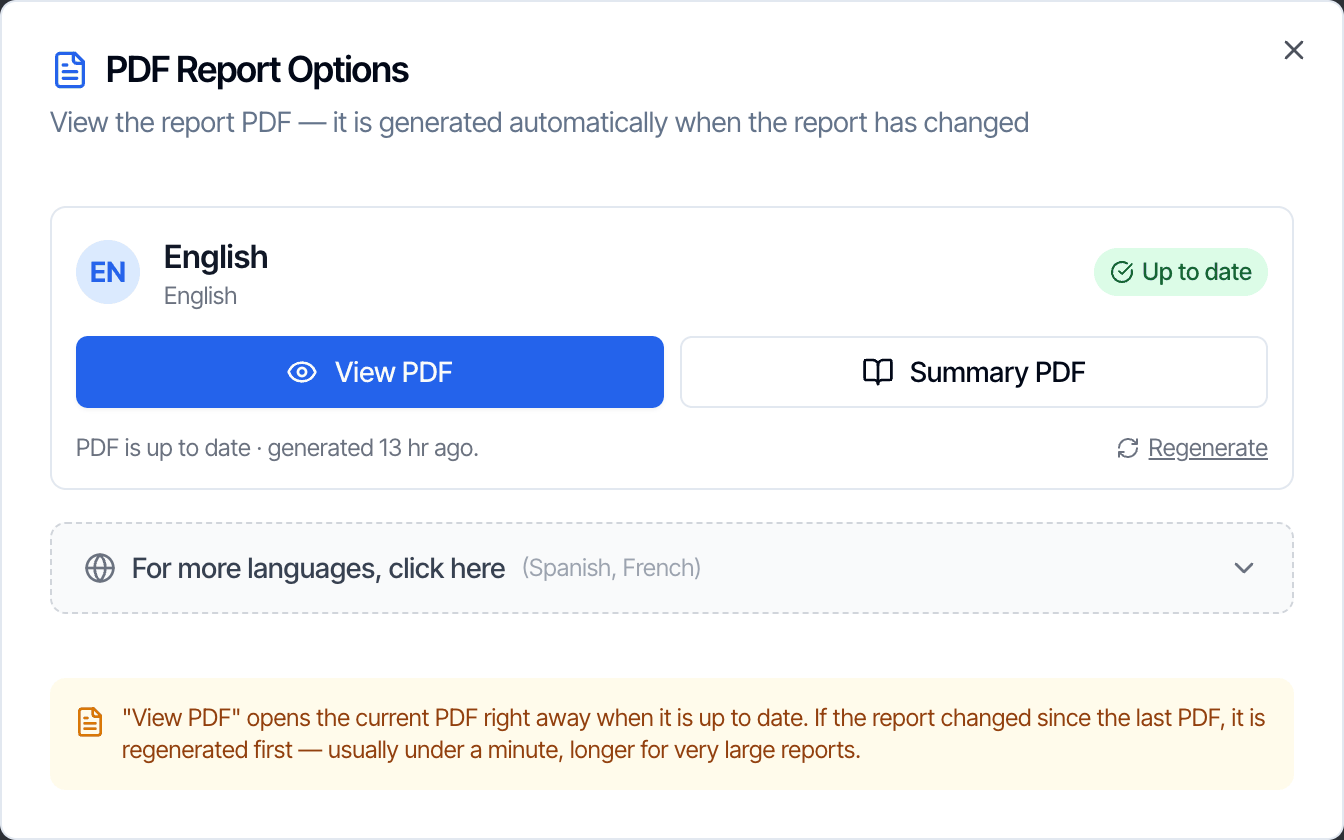
Existing PDFs aren’t rebuilt when you change a setting. Open the report in the Web Editor, click PDF, then Regenerate. In the mobile app, tap the three dots on the report and choose Regenerate PDF.
I renamed my categories but the reports still show the old names. Why?
I renamed my categories but the reports still show the old names. Why?
Each template keeps its own category names, and each report keeps the names it was created with. Rename them in Template Tools → Category Names for new reports, or in Report Tools → Category Names for one report.
Can I use different settings for different templates?
Can I use different settings for different templates?
Some, yes. Category names, hidden category names, hidden services, the categories in the summary, the defects count card, Information and Limitation tabs and the Cost to Cure table can be set per template or per report. Everything else on this page applies to your whole company. See Template Tools and Report Tools.
Do these settings change state-specific forms like TREC?
Do these settings change state-specific forms like TREC?
The form pages keep their fixed layout. A form’s summary PDF follows the PDF settings, and the cover page design applies to the covers of most forms. The online report follows the Both Formats and Digital Report settings.
Where do I change my logo?
Where do I change my logo?
Your logo is your Company Logo under Profile Settings → Profile → Company Information. It’s used on the cover page and for the logo watermark.
Related