In the dashboard: Templates → open a template

This page shows how to change a template step by step. If you’re new to templates, read Template structure first: it explains sections, subsections, the three comment groups and the comment types.

Before you start: how saving works

Most changes in the template editor are not saved until you click Save Changes. As soon as you change something, a bar appears at the bottom of the screen: The floating bar at the bottom of the template editor: You have unsaved changes, with a Save Changes button

  • Click Save Changes to keep your changes.
  • If you leave the template or open another one with unsaved changes, Hive asks you to Save Changes, Discard Changes or Cancel.
  • Made a mistake? Leave the template and choose Discard Changes to go back to the last saved version.
There are two exceptions, both of which write to another template straight away:
  • Duplicating a section, subsection or comment into another template saves it in that template at once.
  • Moving an item into another template copies it there at once. It’s removed from the template you’re in when you click Save Changes.
Changes apply to reports created after you save. Reports that already exist keep the version they were built from. See Why template changes don’t show in a report I already started.
Don’t add, remove, duplicate or move sections, subsections or comments in a special PDF template, such as TREC, NPMA-33 or a Florida form. Each item maps to a spot on the official form. Changing the wording of a comment is fine. See Special PDF templates.
To try big changes safely, duplicate the template first from its ⋮ menu in the template list, and edit the copy. See The template menu.

Find anything in a template

With a template open, the Search entire template… box at the top searches every comment’s name, description, options, category and service, and every section and subsection name. Click a result to jump straight to the comment. It’s highlighted for a moment so you can spot it.

Create an empty template

Most inspectors start from an imported template, which is much faster. To start from nothing:
1

Click Create

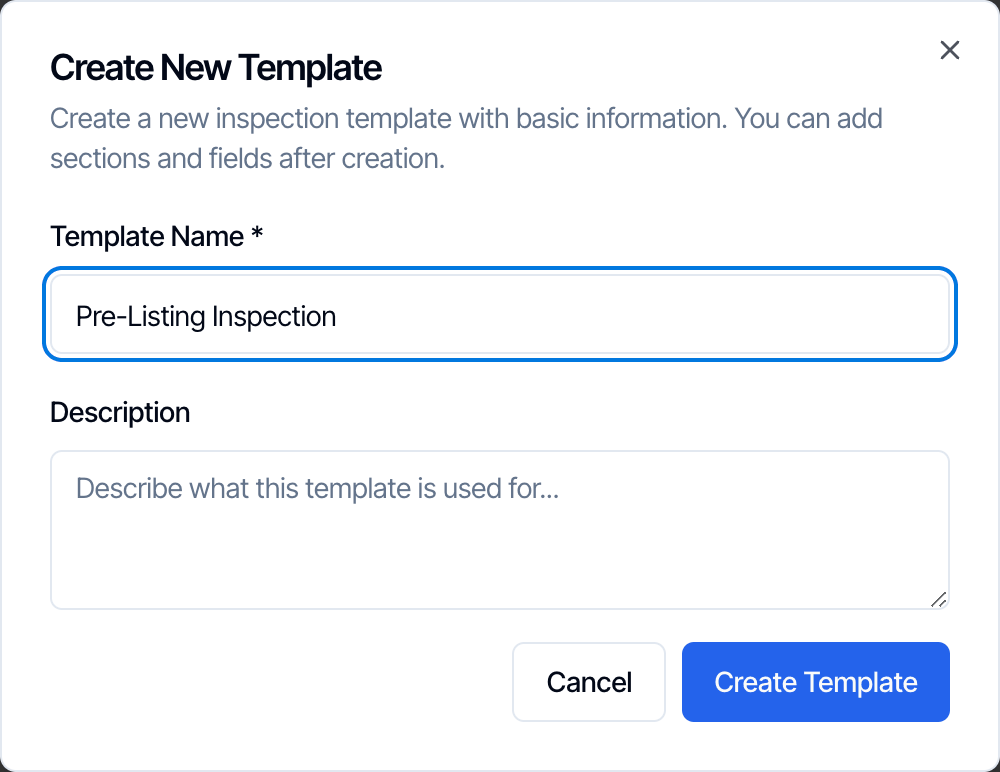
On the Templates page, click Create.The Create New Template dialog: Create a new inspection template with basic information, you can add sections and fields after creation. Template Name is Pre-Listing Inspection, the Description box is empty, and the buttons are Cancel and Create Template
2

Name it

Type a Template Name, and a Description if you like. Both are only for you and your team.
3

Click Create Template

The new, empty template opens. Add sections as described below.

Add a section

1

Click Add Section

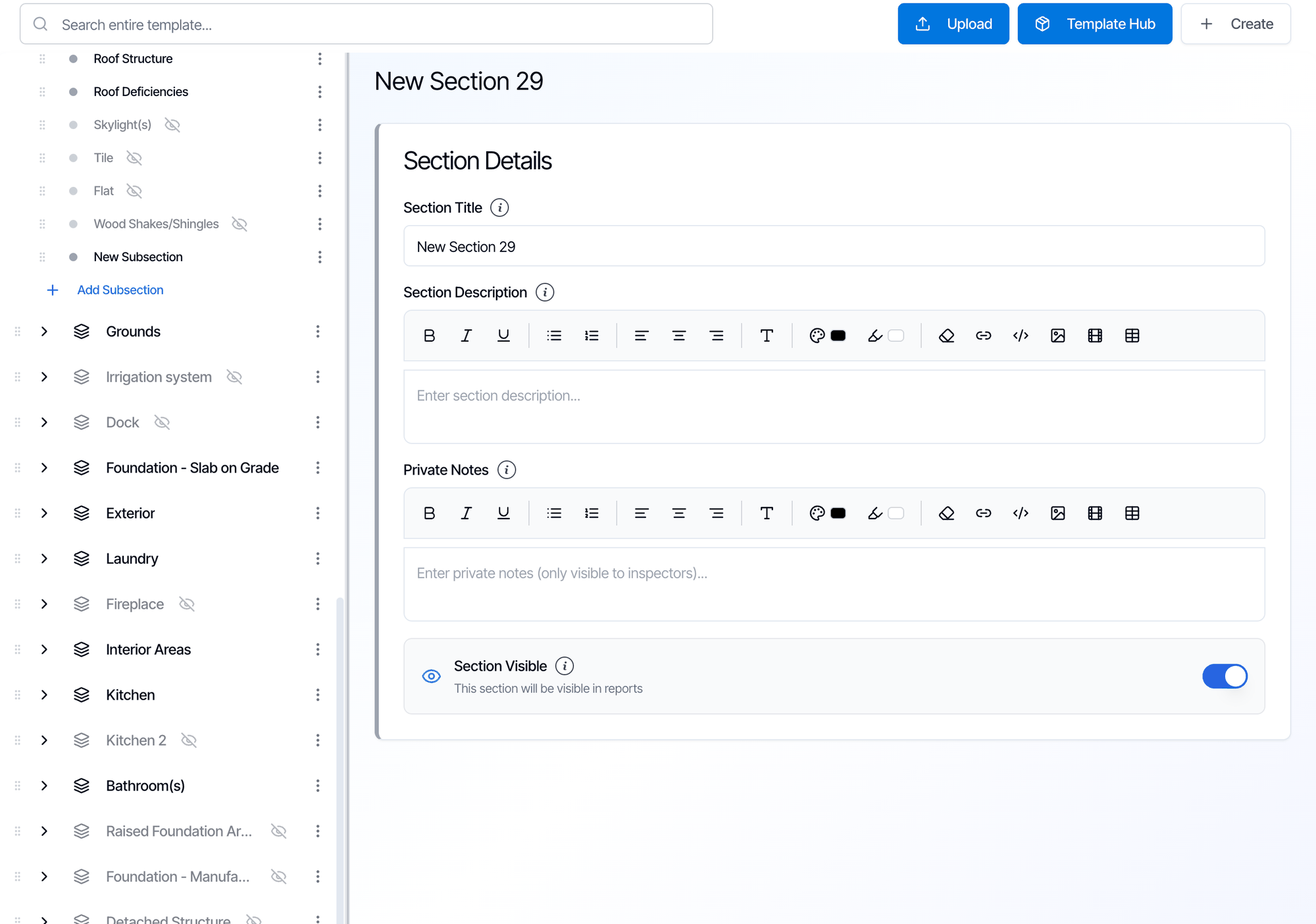
Scroll to the bottom of the list of sections on the left and click Add Section. A section called New Section with a number, such as New Section 29, is added at the end of the list.
2

Open it and name it

Click the new section. In Section Details, replace the Section Title with its real name, such as Pool. Add a Section Description and Private Notes if you need them. See Sections.The template editor after Add Section: New Section 29 is selected at the bottom of the section list, above Add Section. On the right, its Section Details with Section Title New Section 29, empty Section Description and Private Notes, and Section Visible switched on. The bar at the bottom says You have unsaved changes, with Save Changes
3

Move it into place

Drag the section by the handle on its left to where it belongs, or use Move Up and Move Down in its ⋮ menu.
4

Add subsections

A new section is empty. Add its subsections as described next, then click Save Changes.

Add a subsection

1

Click Add Subsection

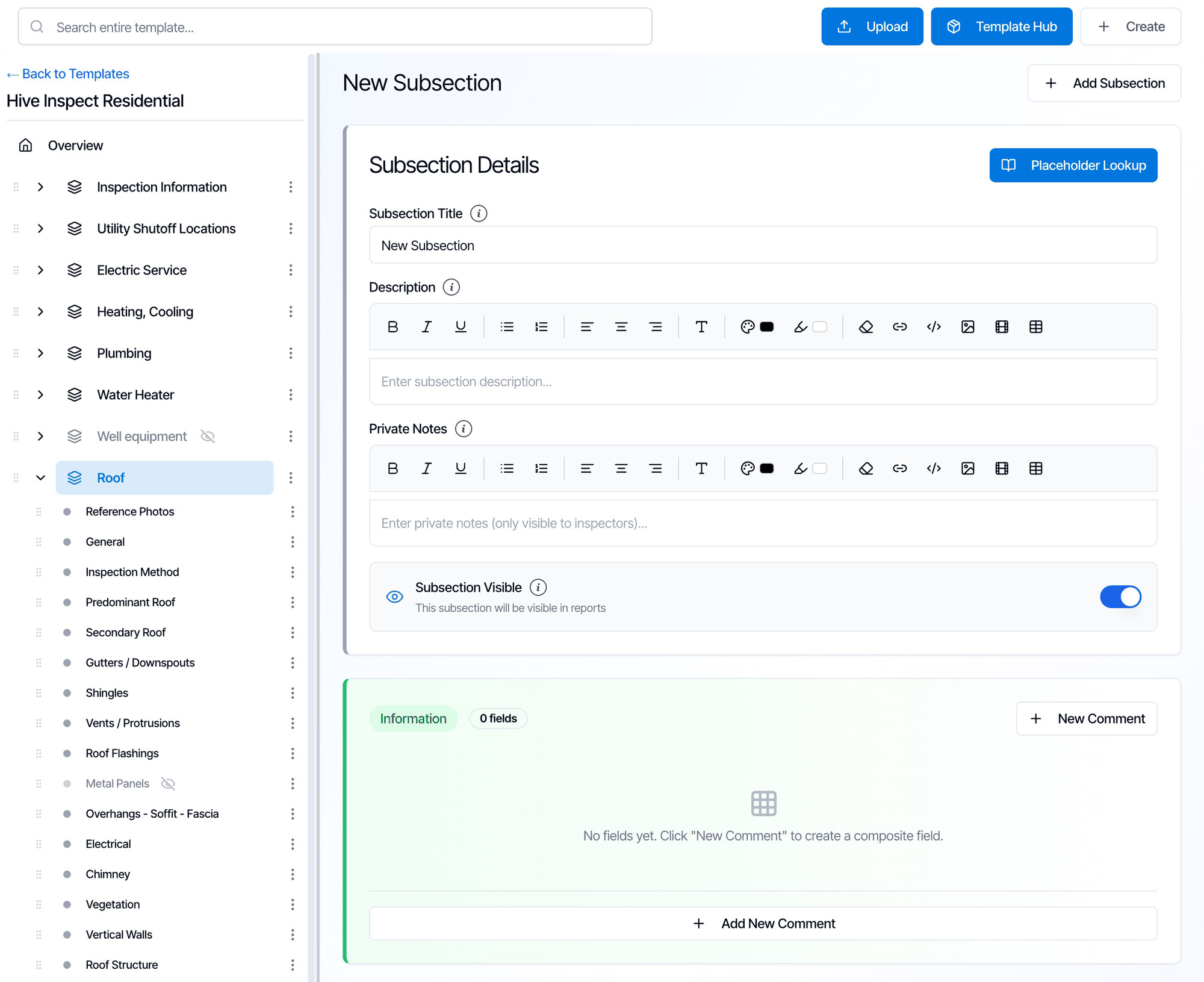
On the left, click the arrow next to the section to open it, then click Add Subsection under its last subsection.While a subsection is open on the right, you can also click Add Subsection at its top right. It adds the new subsection to the same section.
2

Open it and name it

A subsection called New Subsection is added at the end of the section. Click it, then type its real name in Subsection Title.A New Subsection added at the end of the Roof section. Its Subsection Details have the title New Subsection, empty Description and Private Notes, and Subsection Visible on. Below are the three empty groups, Information, Limitations and Defects/ Deficiencies, each with 0 fields, the note No fields yet, and New Comment and Add New Comment buttons. The bar at the bottom says You have unsaved changes
3

Add comments

The new subsection already has the three empty groups: Information, Limitations and Defects/ Deficiencies. Add comments to them as described next, then click Save Changes.

Add a comment

1

Open the subsection and pick the group

Open the subsection and find the group the comment belongs in: Information, Limitations or Defects/ Deficiencies. Click New Comment at the top of that group, or Add New Comment at its bottom. The Configure Comment Details dialog opens.
2

Choose the Comment Type

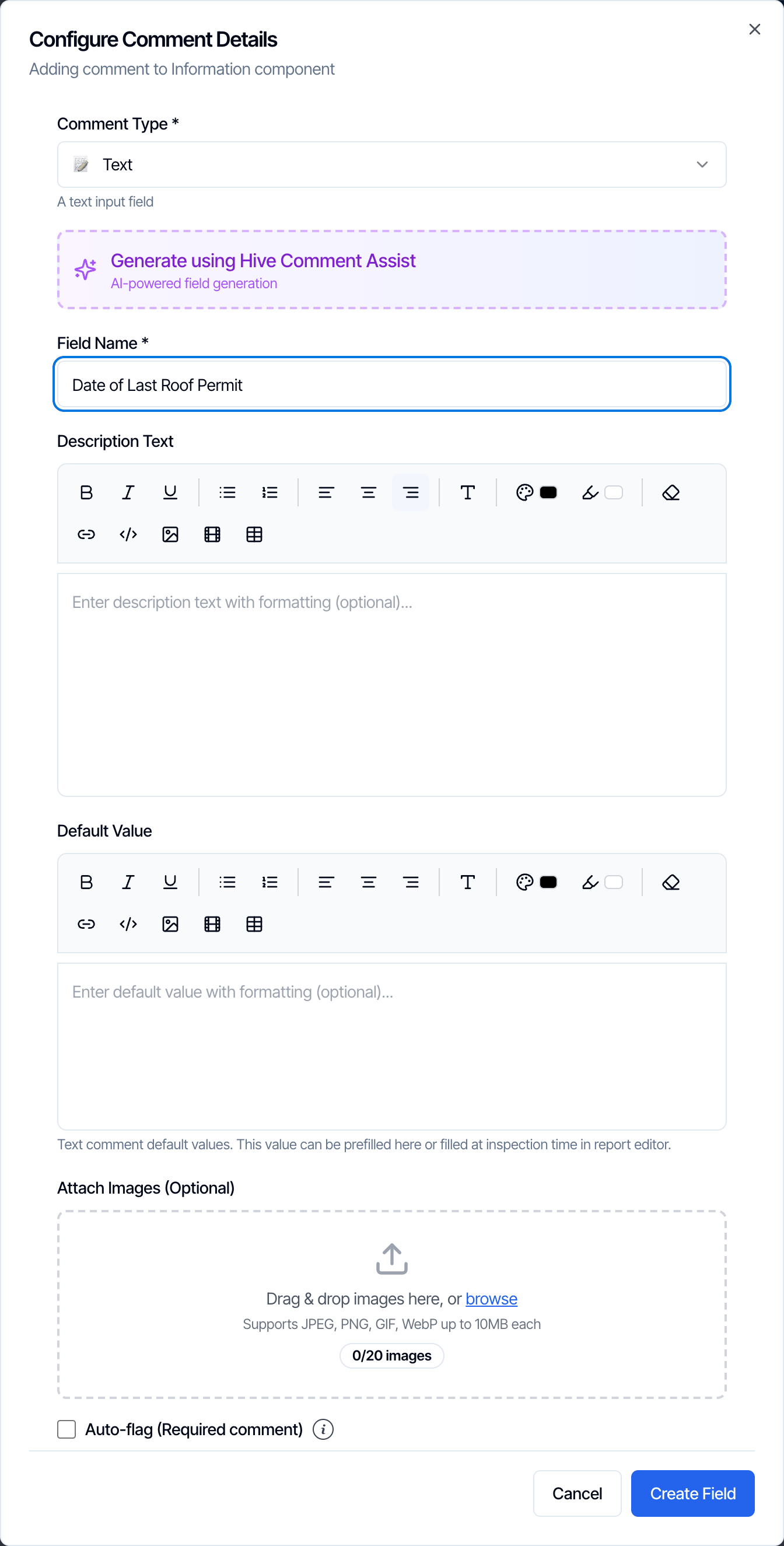
In Information and Limitations, pick Checkbox Item, Multiple Choice or Text. Checkbox Item is picked for you. In Defects/ Deficiencies, the type is always Defect/ Deficiency. See Comment types.To have Hive write the comment for you, click Generate using Hive Comment Assist now. See Hive Comment Assist.
3

Fill in the comment

Type the Field Name, the short name the inspector sees in the list, and fill in the rest for the type you picked:
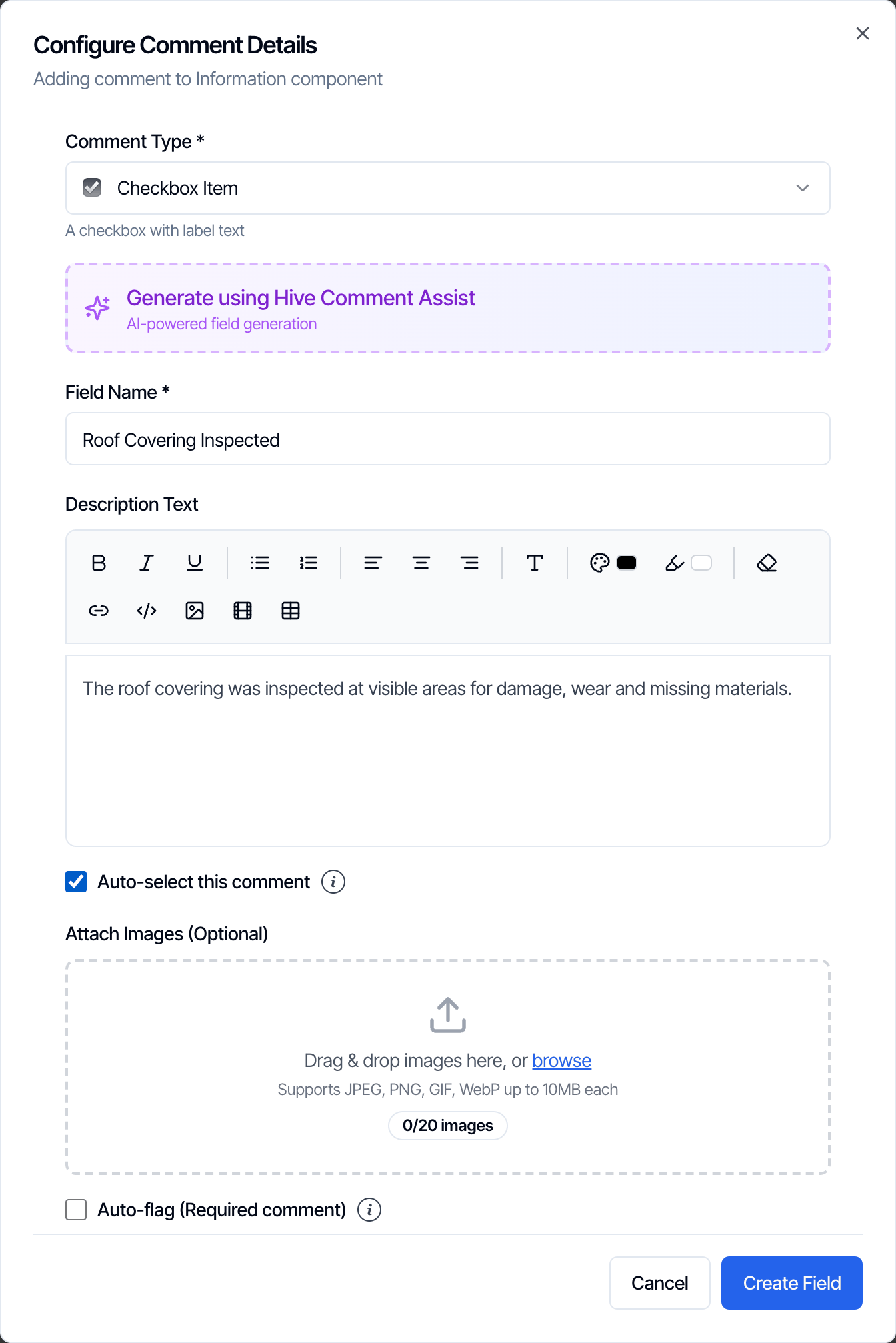
Configure Comment Details for an Information comment: Comment Type Checkbox Item, the Generate using Hive Comment Assist button, Field Name Roof Covering Inspected, Description Text The roof covering was inspected at visible areas for damage, wear and missing materials, Auto-select this comment ticked, an Attach Images (Optional) drop area for up to 20 images, an unticked Auto-flag (Required comment) and the Create Field button
  • Description Text: the text that goes into the report when the inspector ticks the comment.
  • Auto-select this comment: tick it to have the comment already ticked in every new report.
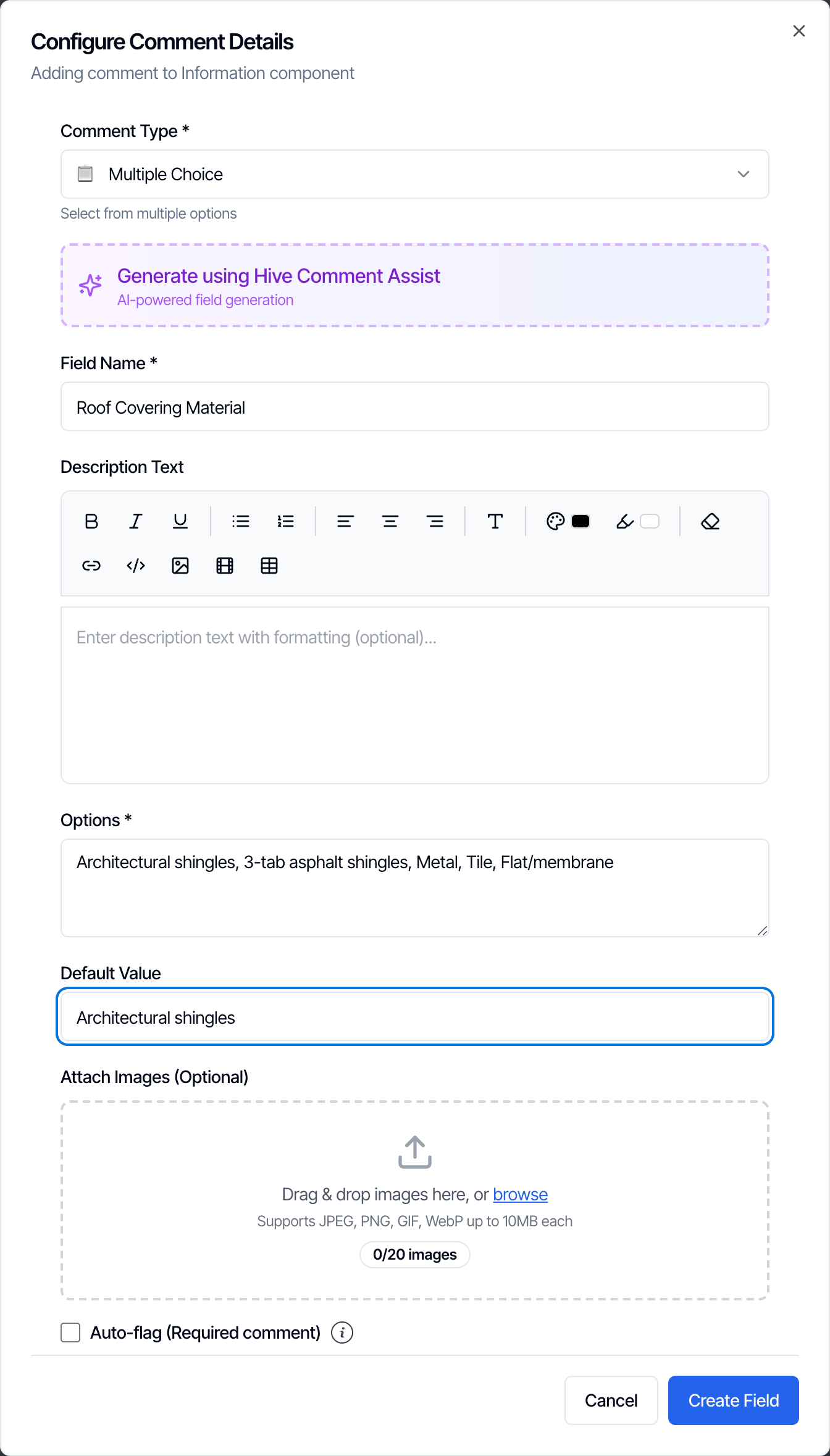
For every type you can also add reference images under Attach Images (Optional) and tick Auto-flag (Required comment). See Options on every comment.
4

Click Create Field

Create Field turns blue once the required fields are filled in. The comment is added at the end of the group. Drag it into place if needed, then click Save Changes.
You can also add comments to a template while writing a report. See Save a comment to a template.

Edit or delete a comment

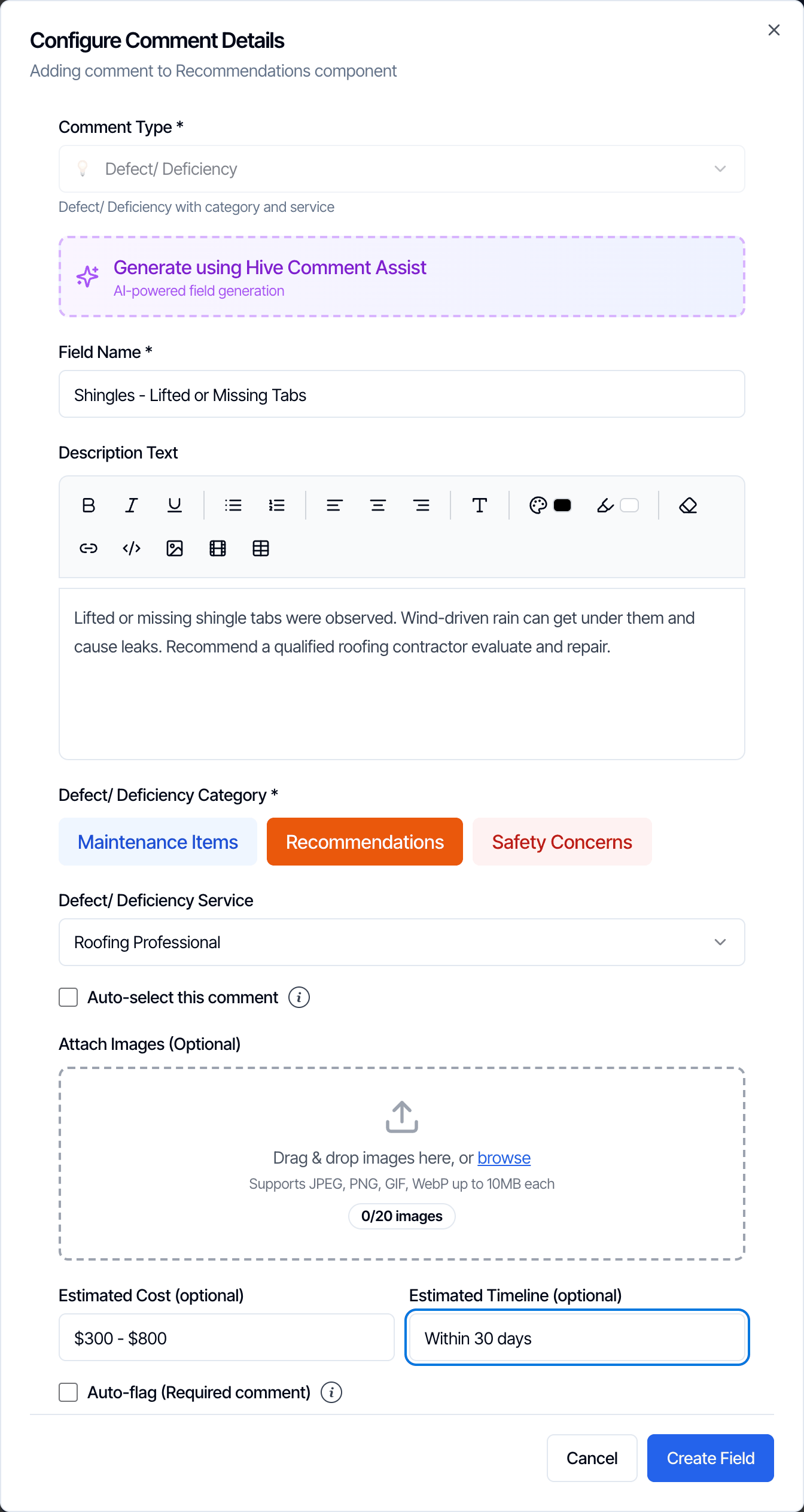
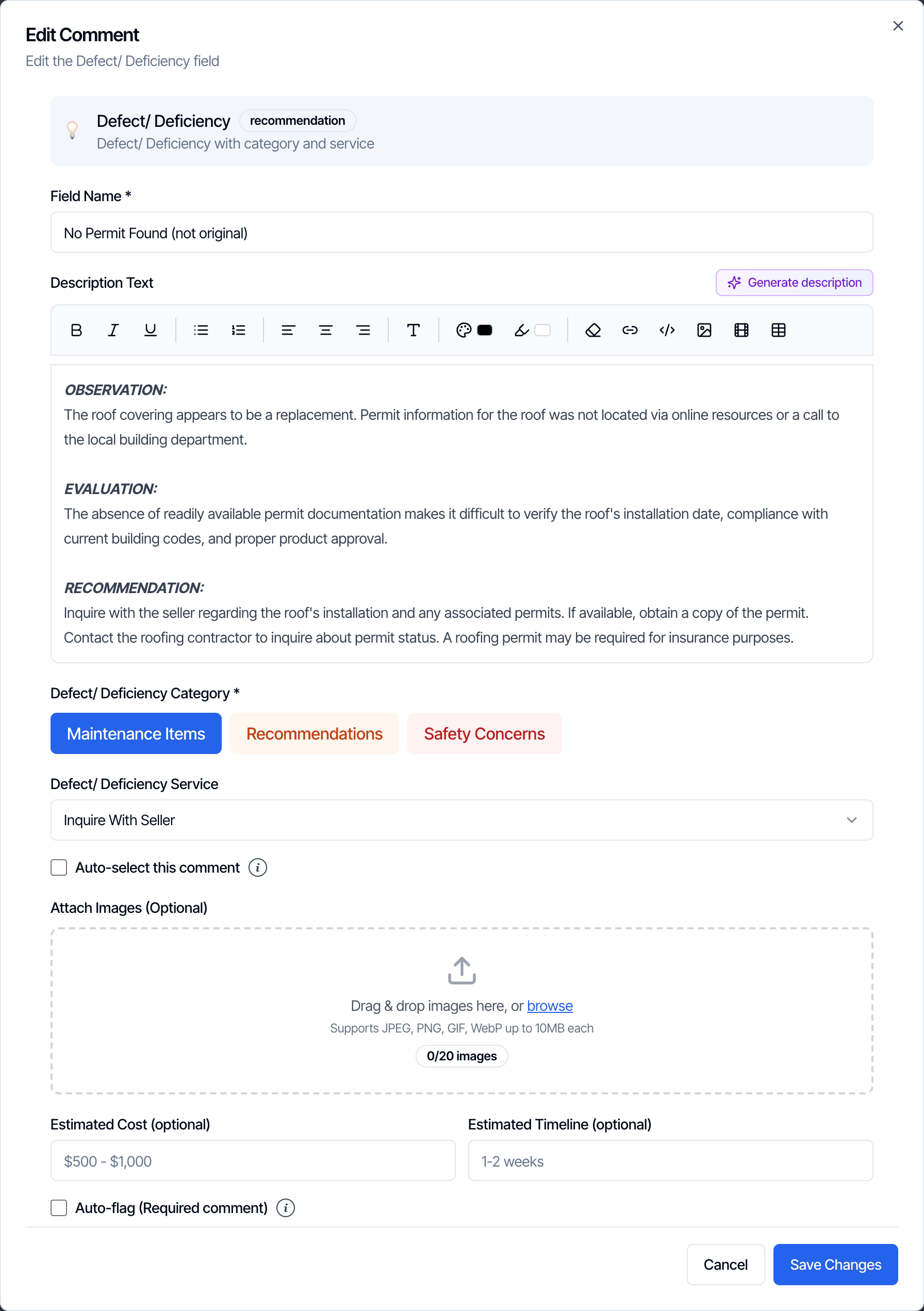
Each comment has a row of icons on its right: A comment row, Roof Covering Inspected, with a drag handle on the left and, on the right, the icons for auto-flag, move up, move down, edit, duplicate, move and delete, then a selection box Edit a comment: click the pencil, change what you need, and click Save Changes in the dialog. Then click Save Changes at the bottom of the screen to save the template. Generate description next to Description Text has Hive Comment Assist write a new description from the comment’s name. The Edit Comment dialog for the Defect/ Deficiency comment No Permit Found (not original): Field Name, a Generate description button above the Description Text with Observation, Evaluation and Recommendation paragraphs, Defect/ Deficiency Category with Maintenance Items selected, Defect/ Deficiency Service Inquire With Seller, Auto-select this comment, Attach Images, Estimated Cost and Estimated Timeline, Auto-flag (Required comment), and Cancel and Save Changes buttons A comment’s type can’t be changed. To change it, for example from Text to Multiple Choice, create a new comment of the right type and delete the old one. Delete a comment: click the trash icon. The comment disappears right away, without a confirmation. If you deleted the wrong one, leave the template and choose Discard Changes before you save.

Reorder

The order in the template is the order inspectors work through on site and the order clients read in the report. Dragging only works inside the same section or group. To put a subsection in another section, or a comment in another group or subsection, use Move.

The section and subsection menus

Each section and subsection in the left list has a ⋮ menu:
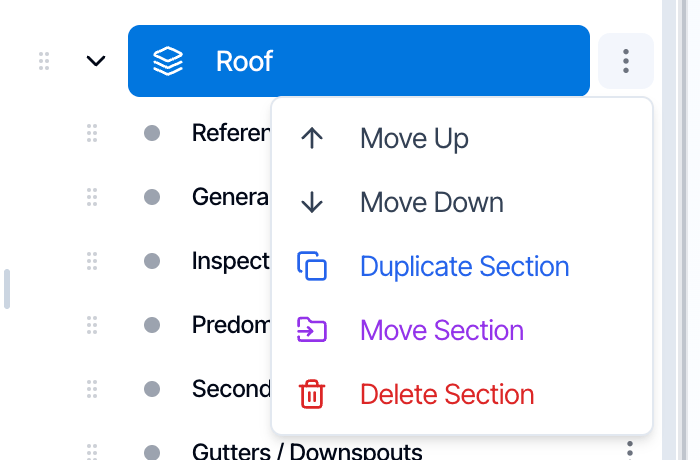
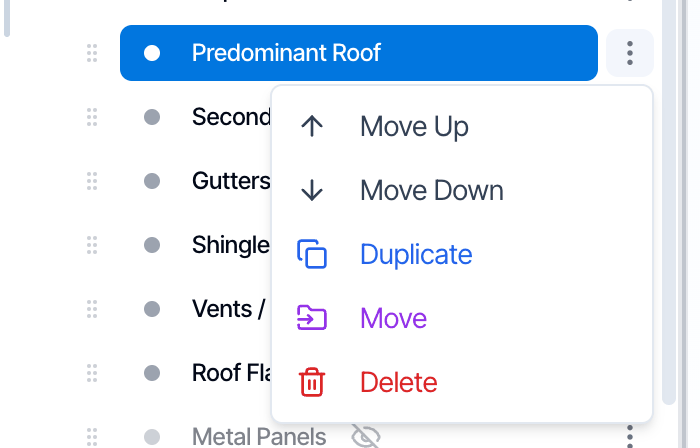
The menu of the Roof section: Move Up, Move Down, Duplicate Section, Move Section and Delete SectionMove Up, Move Down, Duplicate Section, Move Section and Delete Section.

Duplicate

Duplicating makes a copy of an item with everything inside it: a section with all its subsections and comments, a subsection with all its comments, or a comment with its details and reference images. The original stays where it is. Where the copy goes depends on where you send it:

Duplicate a section

1

Open the section menu

Click the ⋮ next to the section and choose Duplicate Section.
2

Pick the Target Template

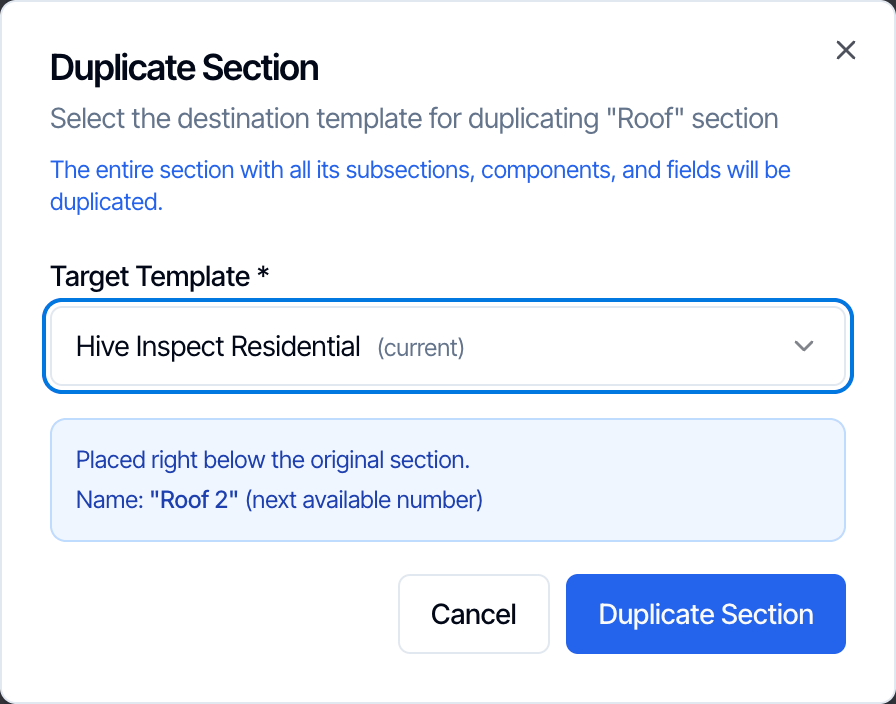
The template you’re in is picked for you and marked (current). Keep it to copy the section within this template, or pick another of your templates.The Duplicate Section dialog: Select the destination template for duplicating the Roof section; the entire section with all its subsections, components, and fields will be duplicated. Target Template Hive Inspect Residential (current), and a blue note: Placed right below the original section, Name Roof 2 (next available number). Cancel and Duplicate Section buttons
3

Click Duplicate Section

The blue box tells you where the copy goes and what it will be called before you confirm.

Duplicate a subsection

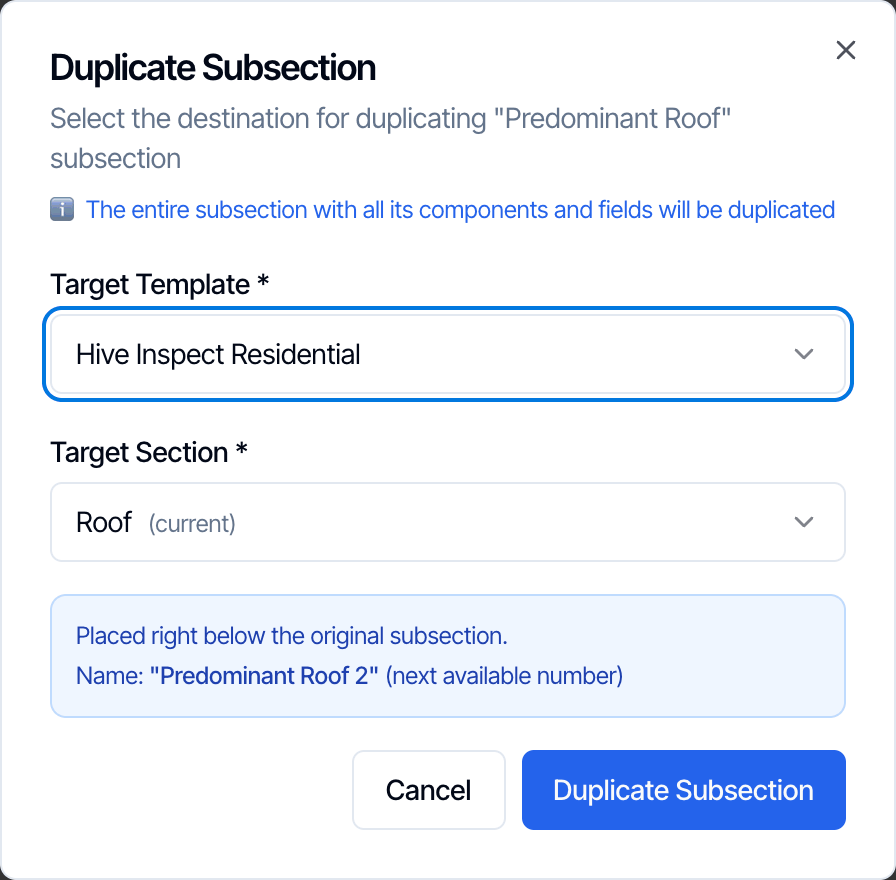
Click the ⋮ next to the subsection and choose Duplicate. Pick the Target Template and the Target Section, then click Duplicate Subsection. The Duplicate Subsection dialog for Predominant Roof: Target Template Hive Inspect Residential, Target Section Roof (current), and the note Placed right below the original subsection, Name Predominant Roof 2 (next available number). Cancel and Duplicate Subsection buttons A common use: copy a subsection such as Kitchen into a new section for a second kitchen, or copy a subsection you like from one template into another.
Duplicate a comment

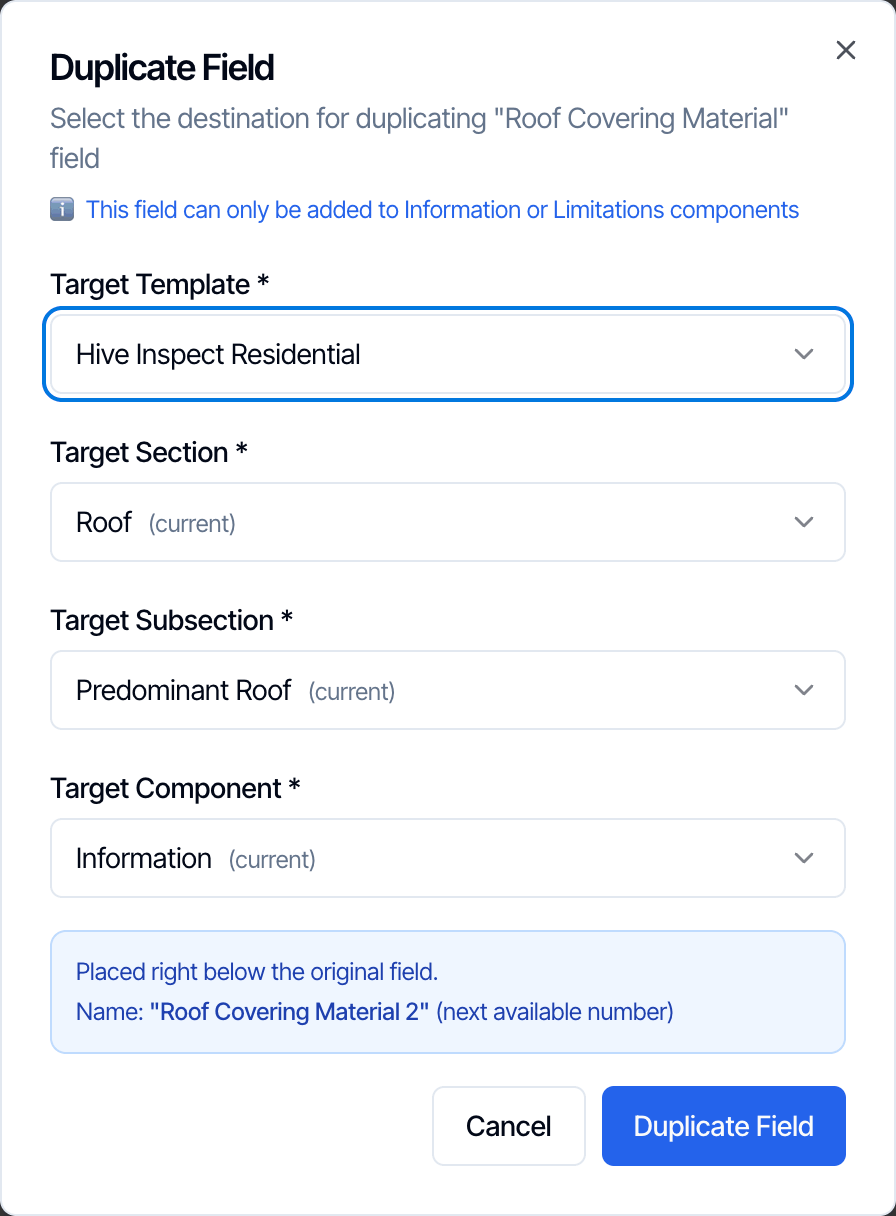
Click the duplicate icon on the comment. Pick the Target Template, Target Section, Target Subsection and Target Component (the group), then click Duplicate Field. All four start on the comment’s current place. The Duplicate Field dialog for Roof Covering Material: this field can only be added to Information or Limitations components. Target Template Hive Inspect Residential, Target Section Roof (current), Target Subsection Predominant Roof (current), Target Component Information (current), and the note Placed right below the original field, Name Roof Covering Material 2 (next available number). Cancel and Duplicate Field buttons Duplicating a comment into the same group is a quick way to write a similar comment: duplicate it, then edit the copy.
Move

Moving takes an item out of one place and puts it in another, with everything inside it. It’s added at the end of the place you pick and keeps its name. When you move into another template, the item is copied there right away and taken out of this template when you click Save Changes. If the copy fails, nothing is moved.

Move a section

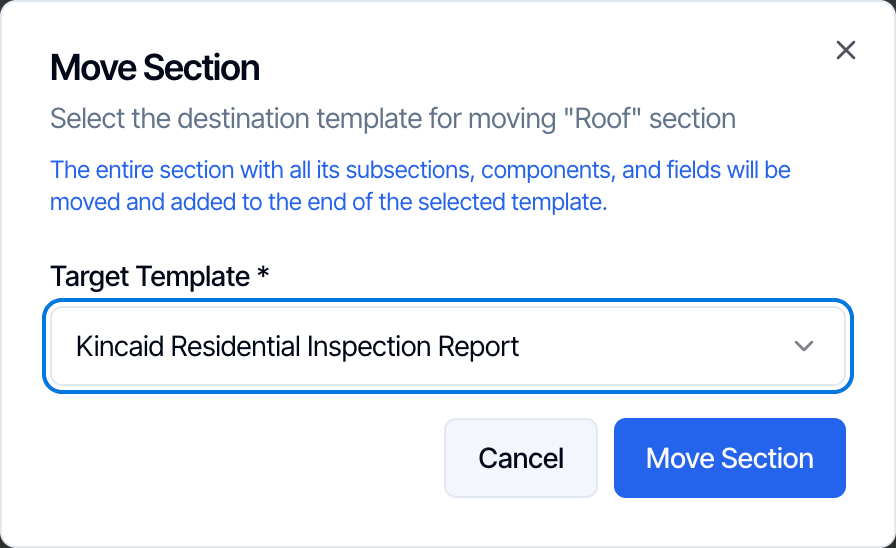
Click the ⋮ next to the section, choose Move Section, pick the Target Template and click Move Section. The template you’re in isn’t in the list. The Move Section dialog: Select the destination template for moving the Roof section; the entire section with all its subsections, components, and fields will be moved and added to the end of the selected template. Target Template Kincaid Residential Inspection Report. Cancel and Move Section buttons
Move a subsection

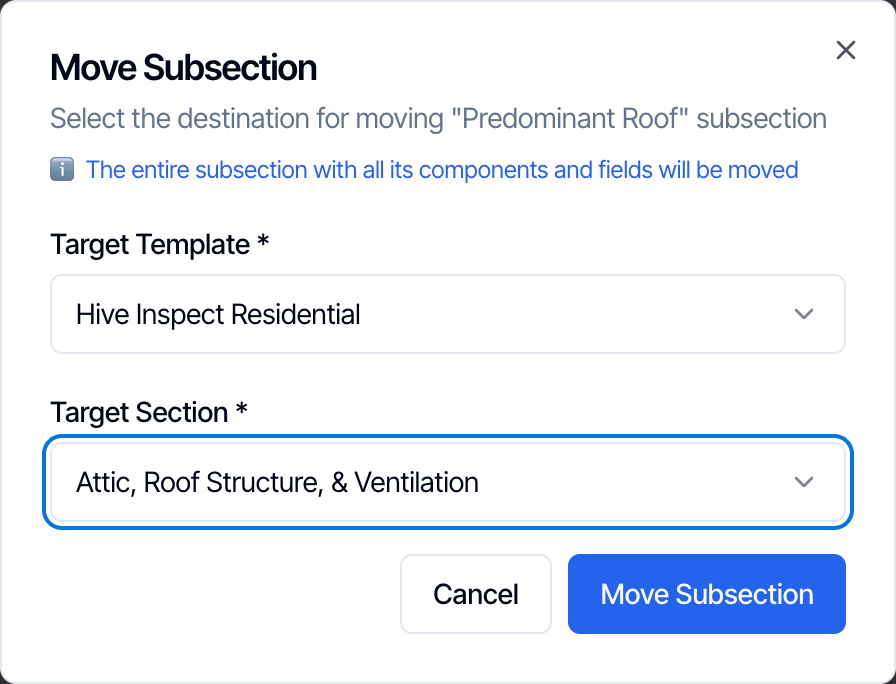
Click the ⋮ next to the subsection, choose Move, pick the Target Template and Target Section, and click Move Subsection. The section it’s already in can’t be picked. The Move Subsection dialog for Predominant Roof: the entire subsection with all its components and fields will be moved. Target Template Hive Inspect Residential and Target Section Attic, Roof Structure, & Ventilation. Cancel and Move Subsection buttons
Move comments

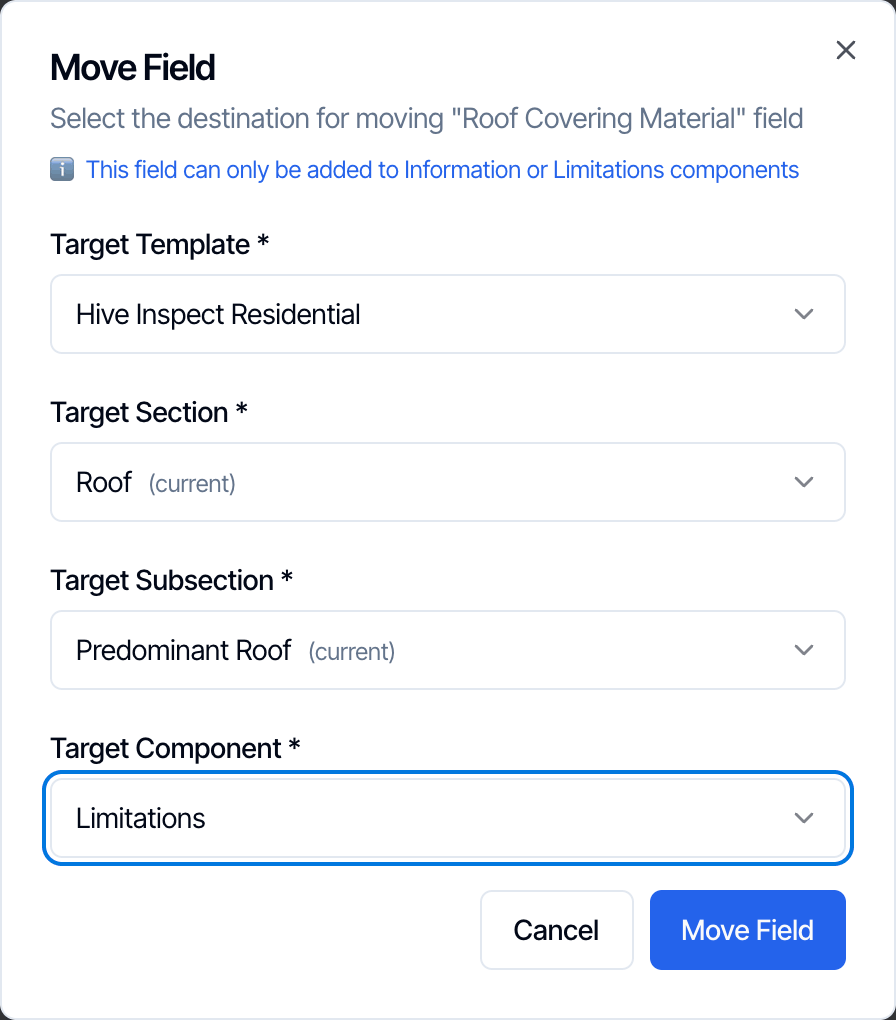
Click the move icon on the comment. Pick the Target Template, Target Section, Target Subsection and Target Component, and click Move Field. The Move Field dialog for Roof Covering Material: this field can only be added to Information or Limitations components. Target Template Hive Inspect Residential, Target Section Roof (current), Target Subsection Predominant Roof (current), Target Component Limitations. Cancel and Move Field buttons A common use is fixing an imported template, where a limitation landed in Information: move it to Limitations in the same subsection.
Work with several comments at once

To duplicate, move or delete several comments in one go:
1

Tick the comments

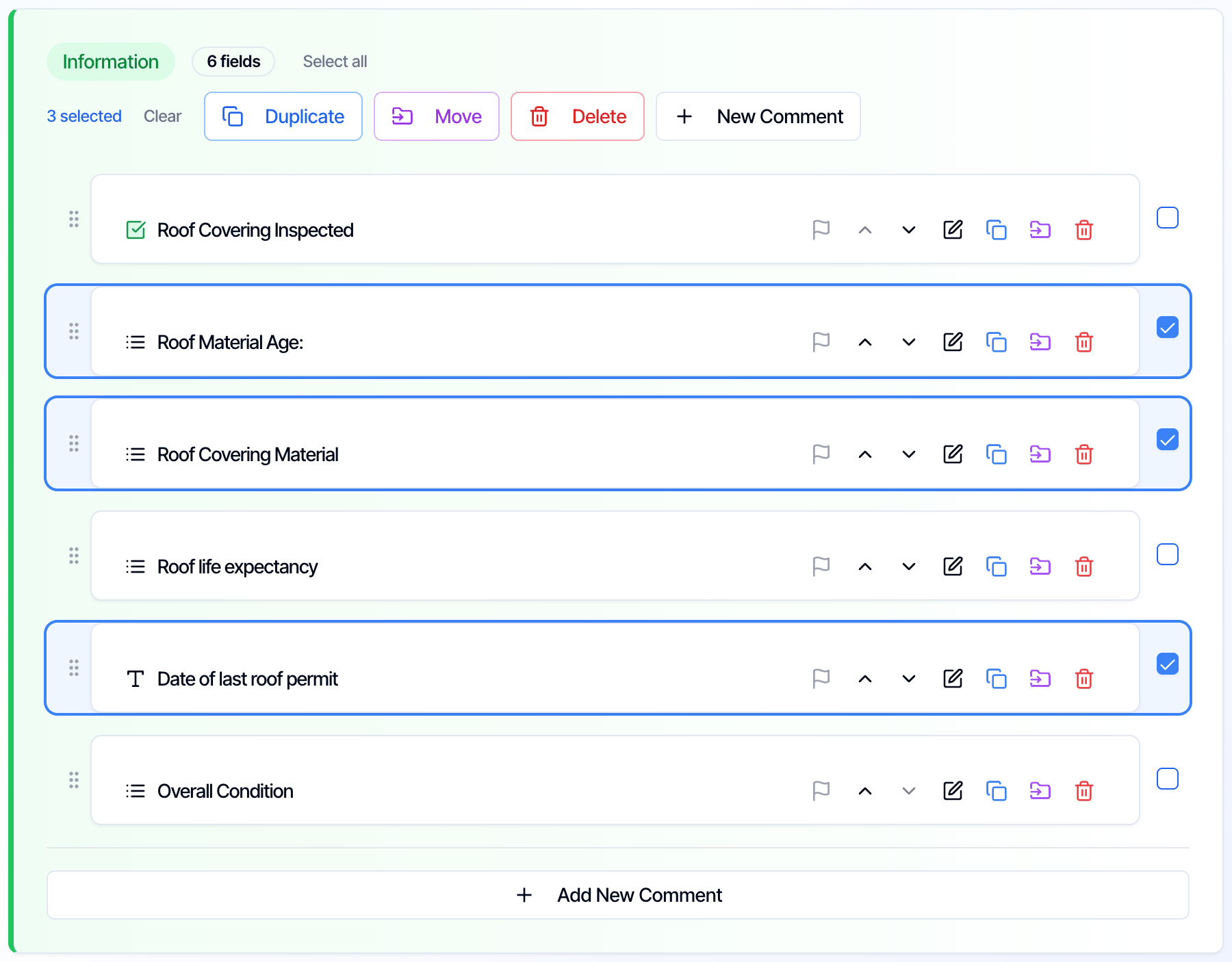
Tick the box on the right of each comment, or click Select all next to the group’s name. You can select in one group at a time. The boxes in the other groups are locked until you clear the selection.
2

Pick an action

The group’s header shows how many are selected, with Clear, Duplicate, Move and Delete.The Information group with three comments ticked and highlighted: Roof Material Age, Roof Covering Material and Date of last roof permit. The header reads 3 selected, with Clear, Duplicate, Move, Delete and New Comment buttons
3

Pick the destination

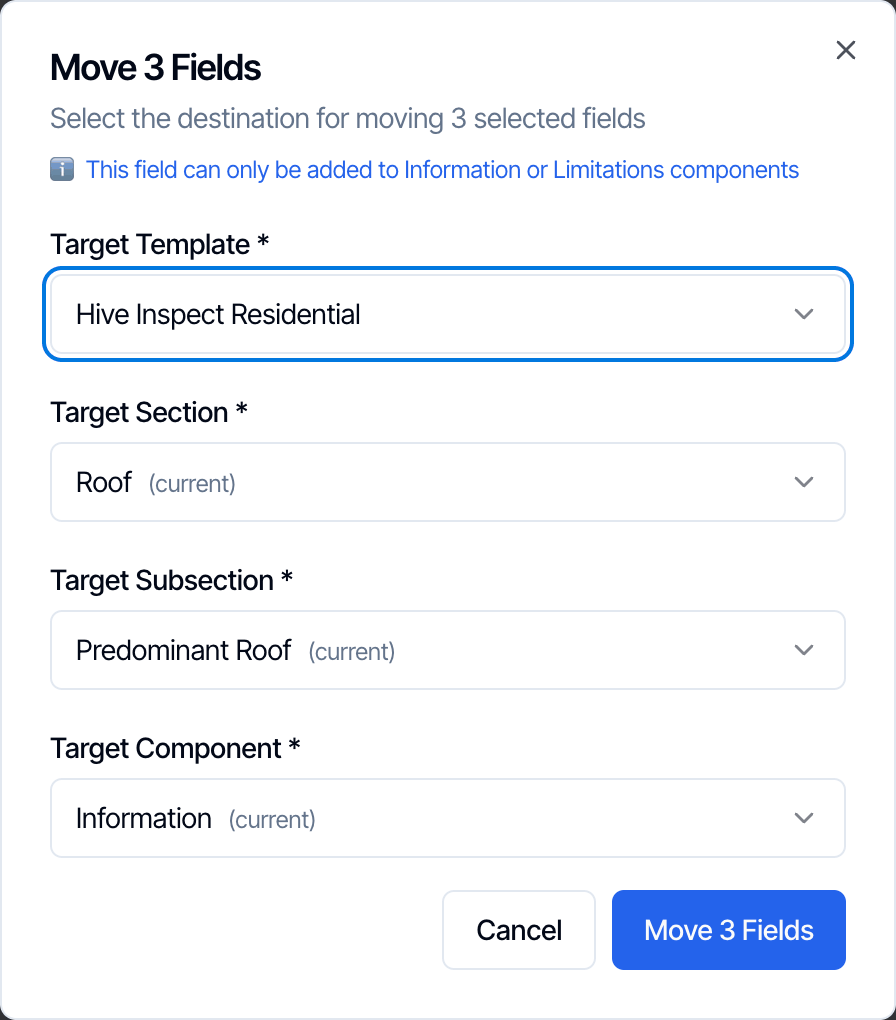
Duplicate and Move open the same destination dialog as for one comment, titled for the number of comments, such as Move 3 Fields.The Move 3 Fields dialog: select the destination for moving 3 selected fields; this field can only be added to Information or Limitations components. Target Template, Target Section, Target Subsection and Target Component pickers, set to Hive Inspect Residential, Roof (current), Predominant Roof (current) and Information (current). Cancel and Move 3 Fields buttons
  • When duplicated in the same group, each copy goes right below its original with the next free number.
  • Anywhere else, the comments are added at the end of the group you pick and keep their names.
Delete asks you to confirm first.
4

Save

Click Save Changes.

Delete a section or subsection

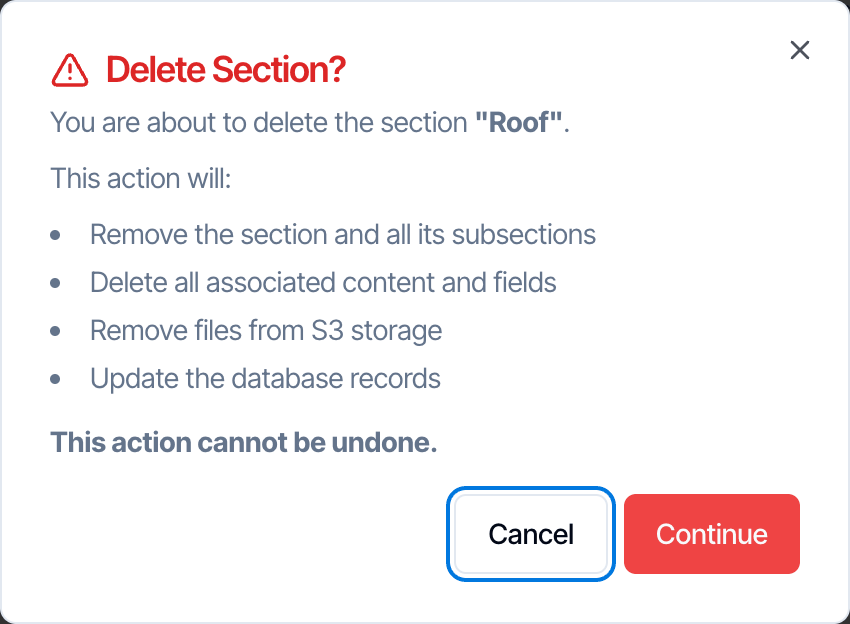
Click the ⋮ next to the section and choose Delete Section. Click Continue, type DELETE and confirm. The section and everything in it is removed.The Delete Section? dialog: You are about to delete the section Roof. This action will remove the section and all its subsections, delete all associated content and fields, remove files from S3 storage and update the database records. This action cannot be undone. Cancel and Continue buttons
The deletion becomes permanent when you click Save Changes. Until then, you can get the item back by leaving the template and choosing Discard Changes. Instead of deleting a section or subsection you rarely use, you can hide it. It stays in your template and the inspector can show it on site when it’s needed. See Hidden sections and subsections.

Checklist after editing

  • Click Save Changes and wait for the bar to disappear.
  • Open a test inspection and add the template as a new report to see your changes the way an inspector will.
  • If you changed a special PDF template, generate the PDF to check the form still prints correctly.
Last modified on October 18, 2026