

In the dashboard: Templates → open a template
How a template is organized
A template has four levels. Each level sits inside the one above it:- Template, for example Hive Inspect Residential
- Sections: the main parts of the report, for example Roof
- Subsections: the parts of each section, for example Predominant Roof
- Comments, sorted into three groups in every subsection:
- Information: what is there, for example Roof Covering Material: Architectural shingles
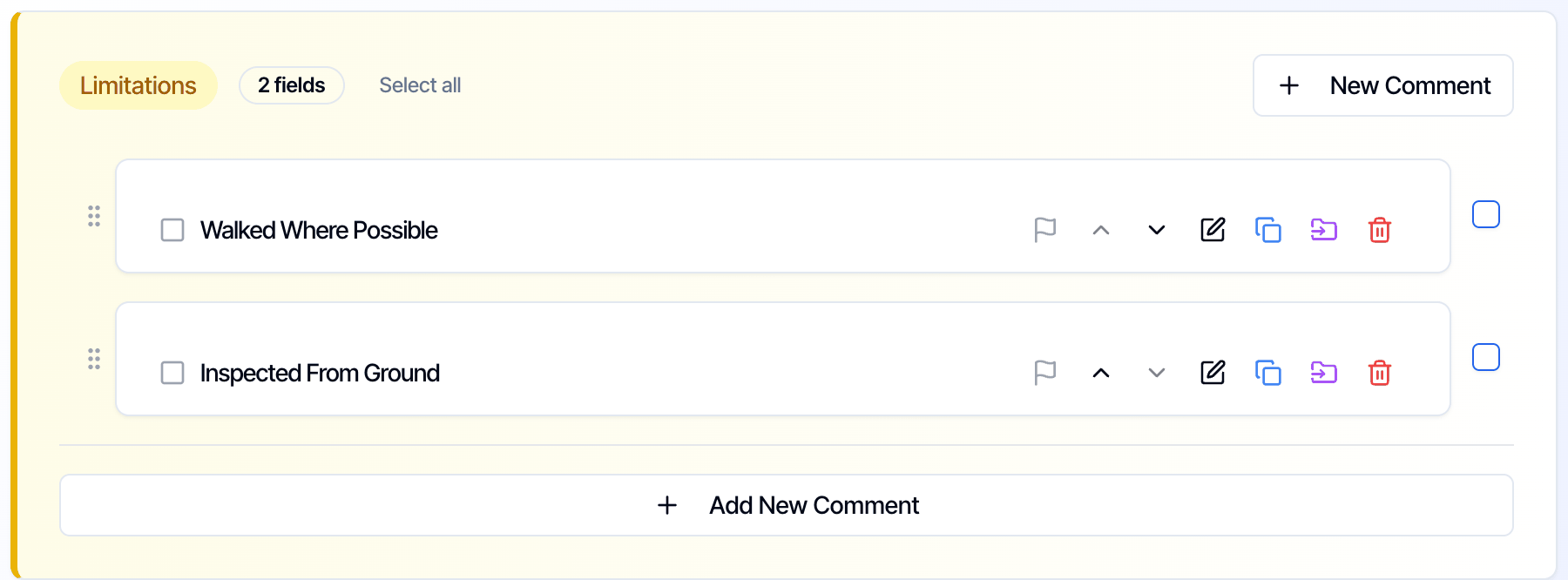
- Limitations: what couldn’t be inspected, and why, for example Inspected From Ground
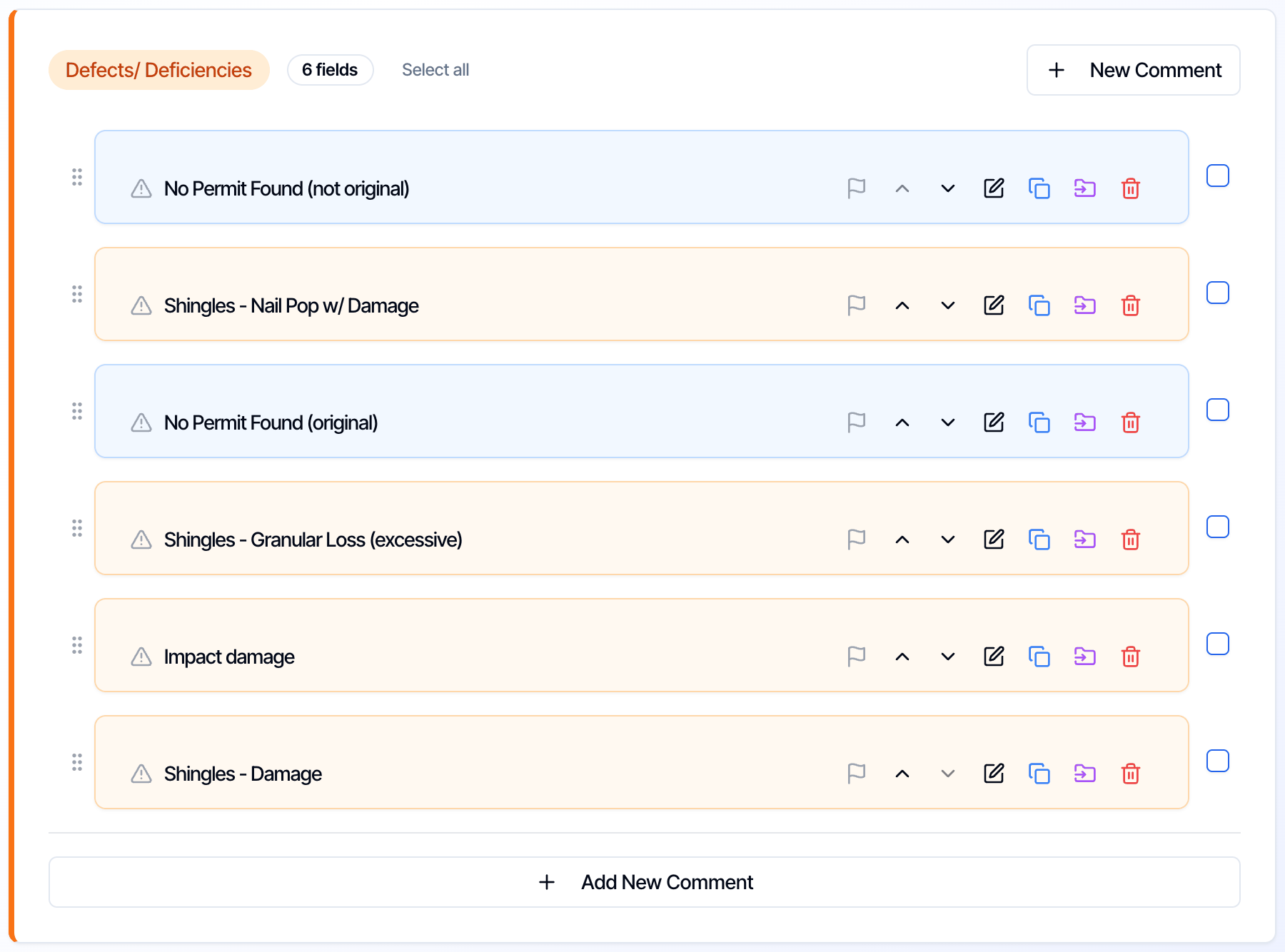
- Defects/ Deficiencies: problems found, for example Shingles - Damage
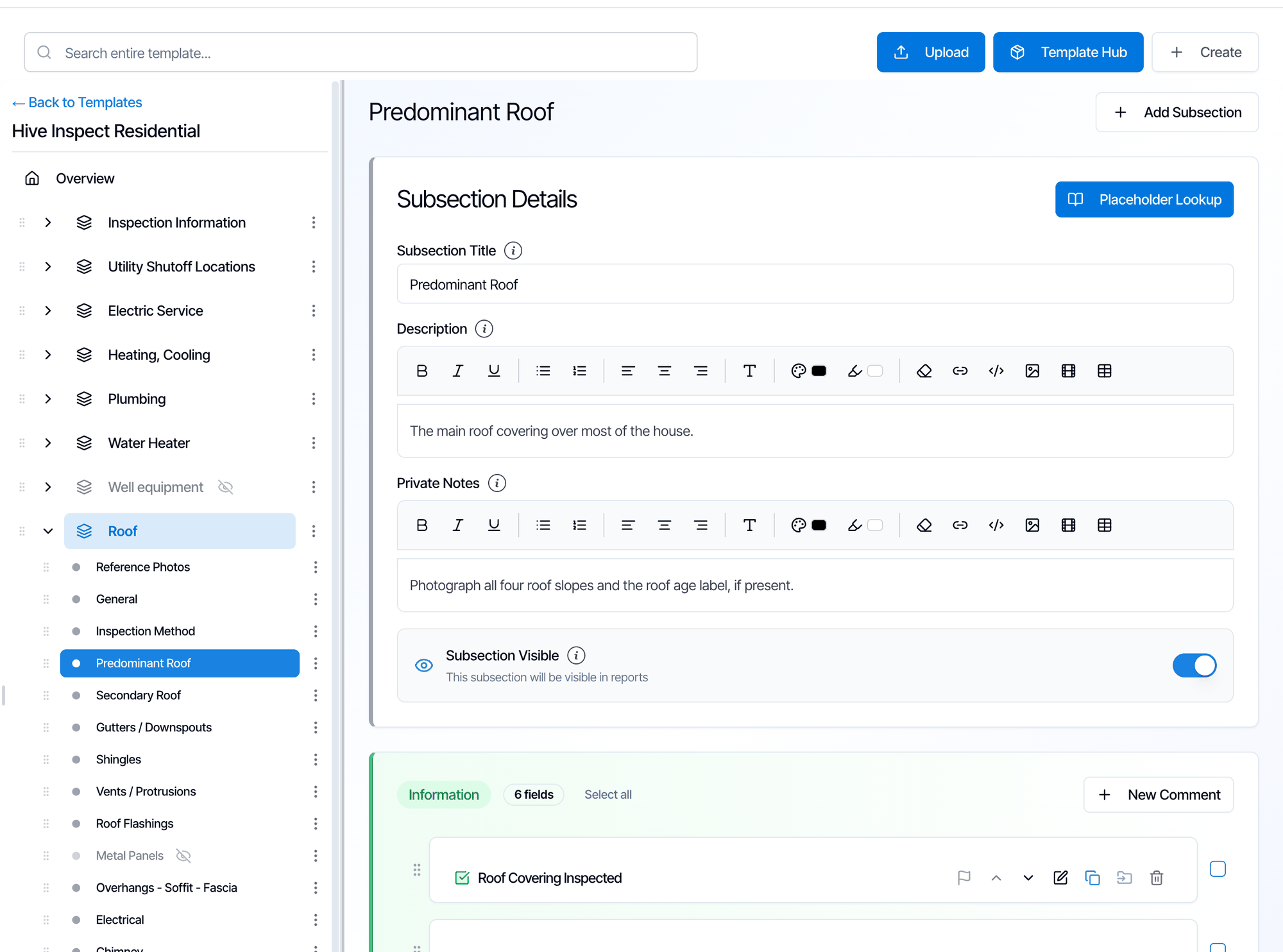
Sections
A section is a main part of the report, such as Roof, Exterior, Plumbing or Electrical. Click a section’s name on the left to see its Section Details.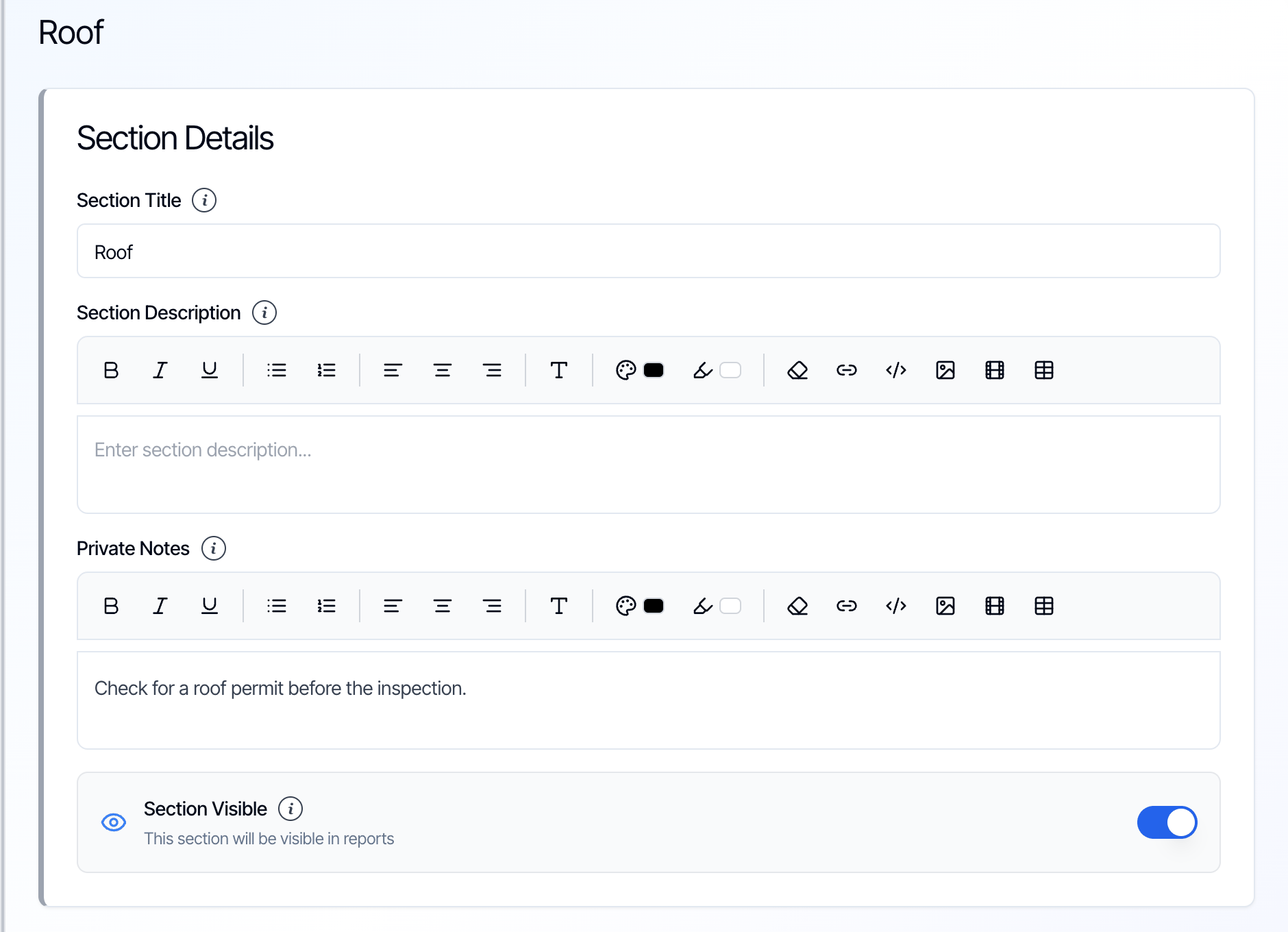
A section has no comments of its own. Its comments are in its subsections.
Subsections
A subsection is one item or area inside a section, such as Gutters / Downspouts inside Roof. Click a subsection’s name on the left to open it.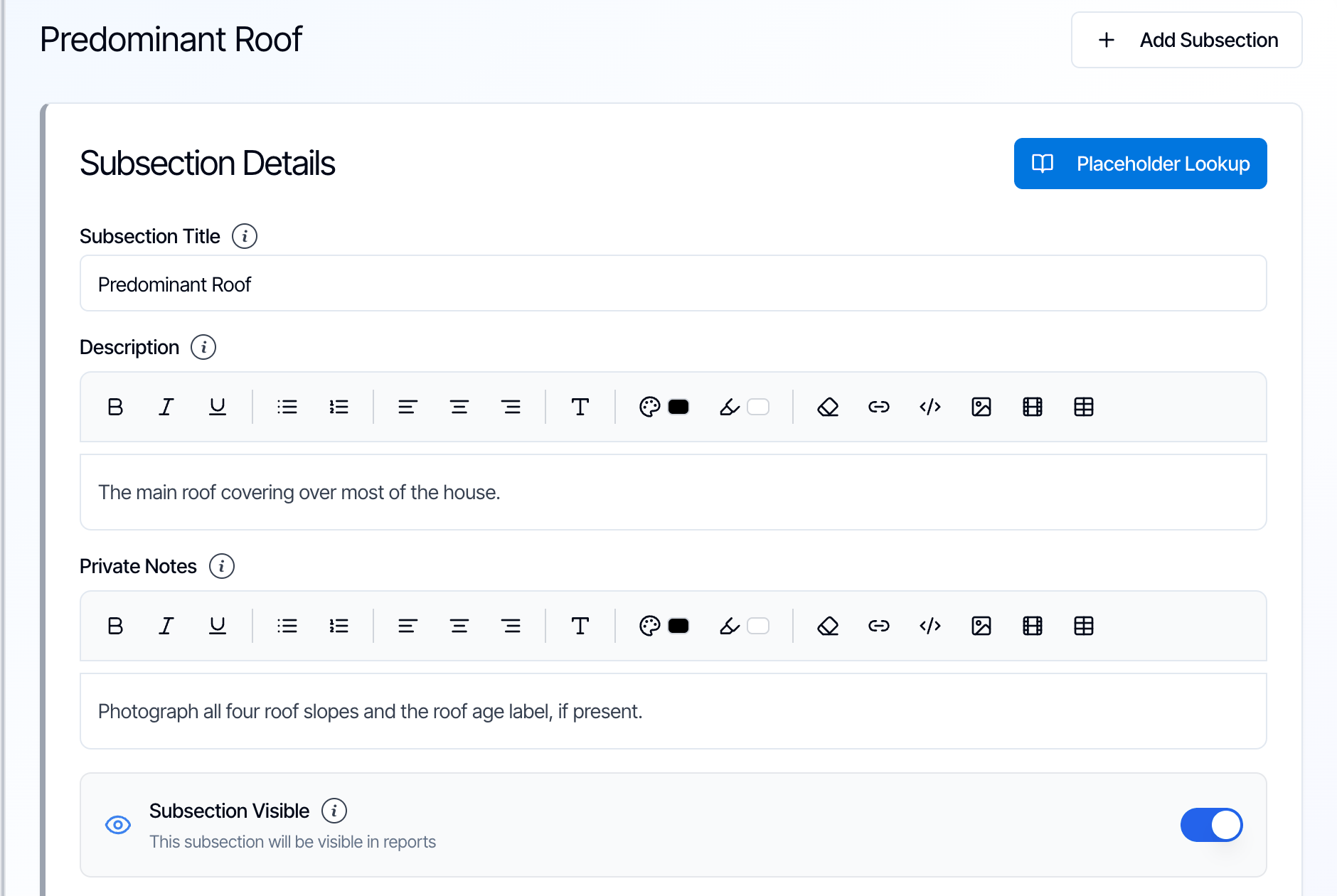
Placeholder Lookup
Placeholder Lookup lists placeholders you can type into a description or comment, such as{{{property_address}}}, {{{inspection_date}}}, {{{inspector_name}}}, {{{company_name}}} or {{{client_full_name}}}. In the report, each one is replaced with the inspection’s details. Click Copy next to one and paste it where you need it.
The three comment groups
Every subsection sorts its comments into three groups, each with its own color.- Information
- Limitations
- Defects/ Deficiencies
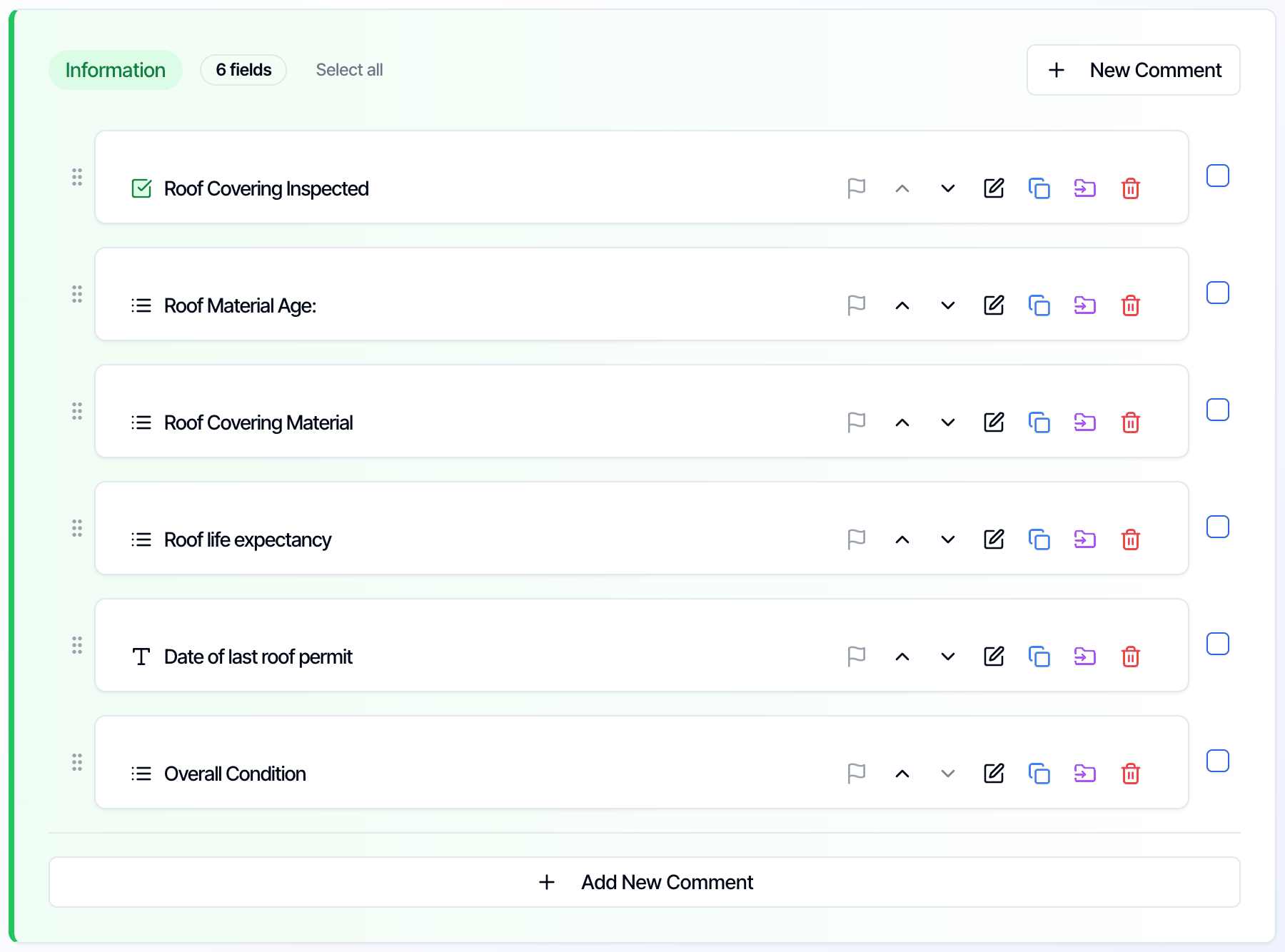
Comment types in Information and Limitations
An Information or Limitations comment can be one of three types. You choose the type when you create the comment, under Comment Type.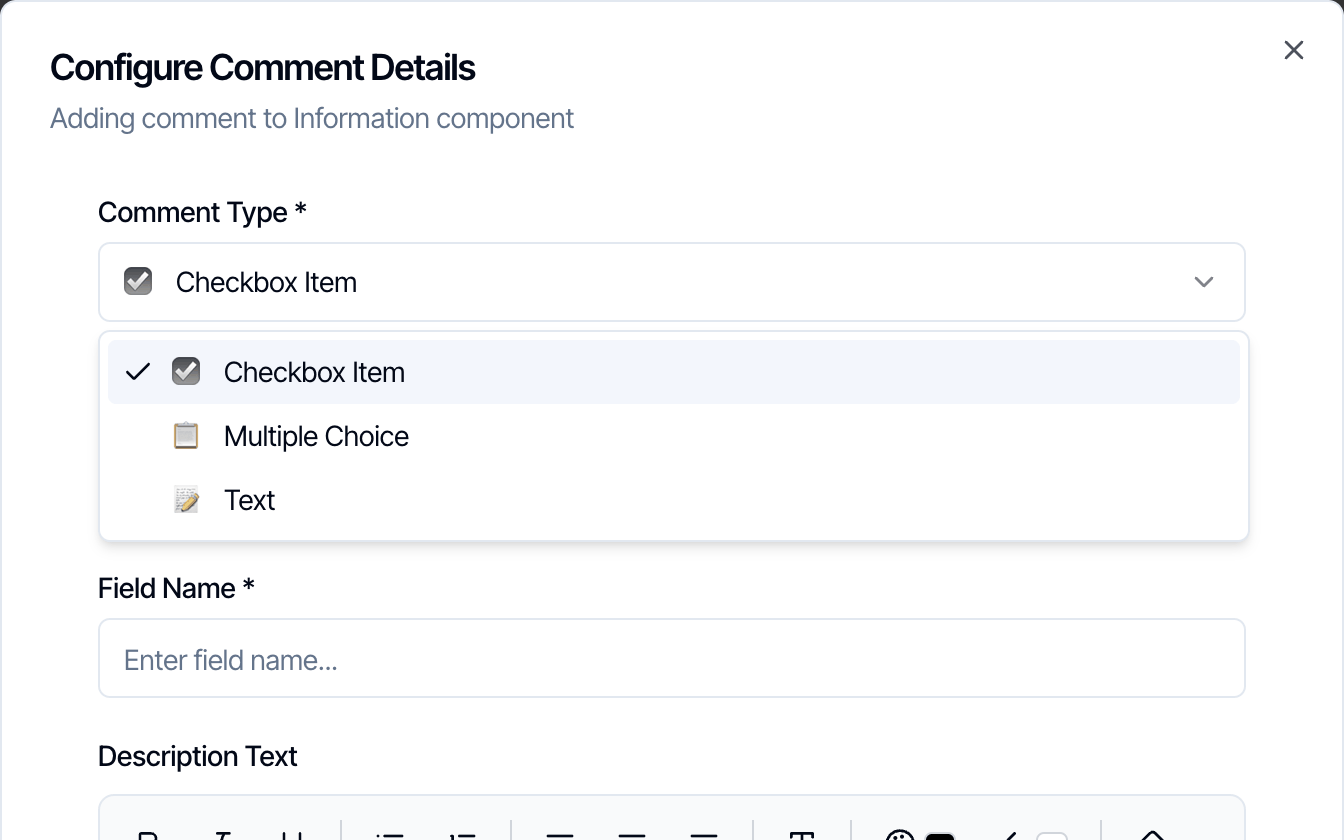
Checkboxes and multiple choice are by far the most common. For example, the Hive Inspect Residential template in the Template Hub has about 1,300 checkbox comments and 280 multiple choice comments, but only 16 text comments. Use text only when the answer can’t be a list, such as a date, a serial number or a measurement.
Checkbox Item
A comment with a name and a Description Text. On site, the inspector ticks it to add it to the report. Tick Auto-select this comment for comments you include on almost every inspection, such as a standard limitation. Auto-selected comments are already ticked in every new report from this template. The inspector can still untick them. In the template, an auto-selected checkbox shows a green ticked box icon.Multiple Choice
A comment with a list of Options. On site, the inspector picks one or more of them, for example both Metal and Tile on a house with two roof types. In the mobile app and the Web Editor, the inspector can also add an option that isn’t in your list.- Type the options separated by commas, for example
Architectural shingles, Metal, Tile. - Default Value (optional): the option already picked in every new report, for example the material you see most often.
- Description Text (optional): extra text that goes with the comment, for example how life expectancy is estimated.
Text
A comment the inspector answers by typing. Default Value (optional) is text that’s already filled in, which the inspector can change at the inspection.Defect comments
A defect comment has more details than the other types:
In the template, each defect comment is tinted in the color of its category.
Options on every comment
Every comment, of any type, also has:- Attach Images (Optional): up to 20 reference photos or diagrams, for example a photo showing what the defect looks like. Click an image after uploading it to draw on it or add a caption.
- Auto-flag (Required comment): the comment starts flagged in every new report. The report can’t be published until the inspector reviews each flagged comment and unflags it. Use it for comments that must never be skipped. You can also switch it with the flag icon on the comment.
Hive Comment Assist
Hive Comment Assist writes a new comment for you from a few words. In the New Comment dialog, click Generate using Hive Comment Assist, pick a Text Length, describe the issue, for example “roof viewed from the ground because the pitch was too steep to walk”, and click Generate.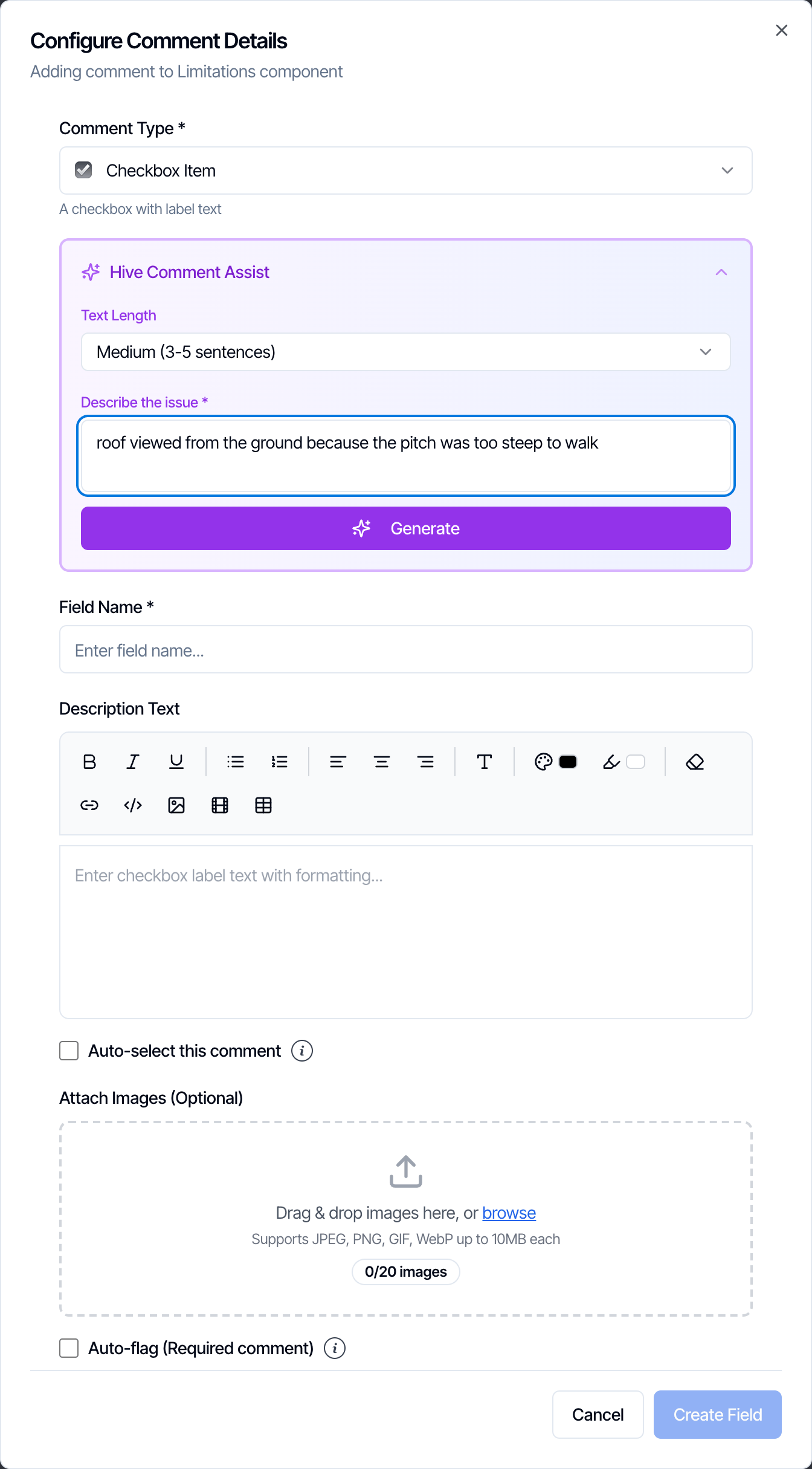
Hidden sections and subsections
Switch off Section Visible or Subsection Visible for items that don’t apply to most of your inspections, such as a dock, a well or a second kitchen.-
A hidden section or subsection is greyed out with a crossed-out eye icon in the template.
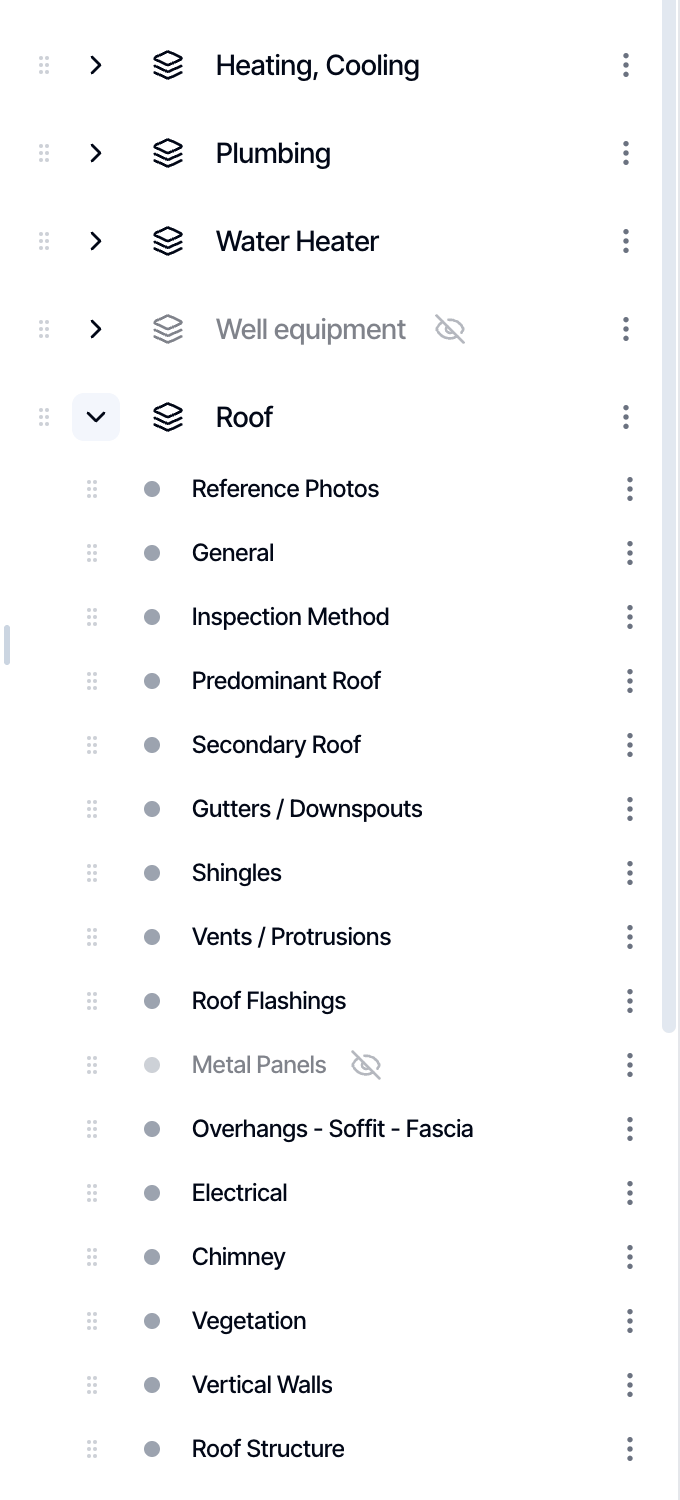
- In every new report, it starts hidden.
- When it’s needed on site, the inspector unhides it from the end of the list in the mobile app or the Web Editor.
Where to go next
- Editing templates: add, move and duplicate sections, subsections and comments.
- Template Overview settings: name, ratings, report text and documents.
- Save a comment to a template: add a comment you wrote in a report to your template.